Document metadata
Information describing the document itself is called metadata. Each document is described by a set of this metadata, which is part of the document along with the actual contents. The metadata may specify the contract or client to whom the document is intended, various categories, processing dates, etc. The metadata can be used to look up the document.
All documents stored in FormFlow are placed in one of set-up folders. The folder placement determines which metadata will be kept for the document.
You will be prompted to enter the document metadata when placing the document in FormFlow, but it is also possible to add or edit it later. Some metadata items may be mandatory: such metadata must be entered when inserting the document.
Editing metadata
You can edit document metadata – for example when you click the  button placed in the Actions column in the document list. The screen Edit document displays the same set of metadata as was displayed when placing the document in FormFlow. Edit the metadata as needed.
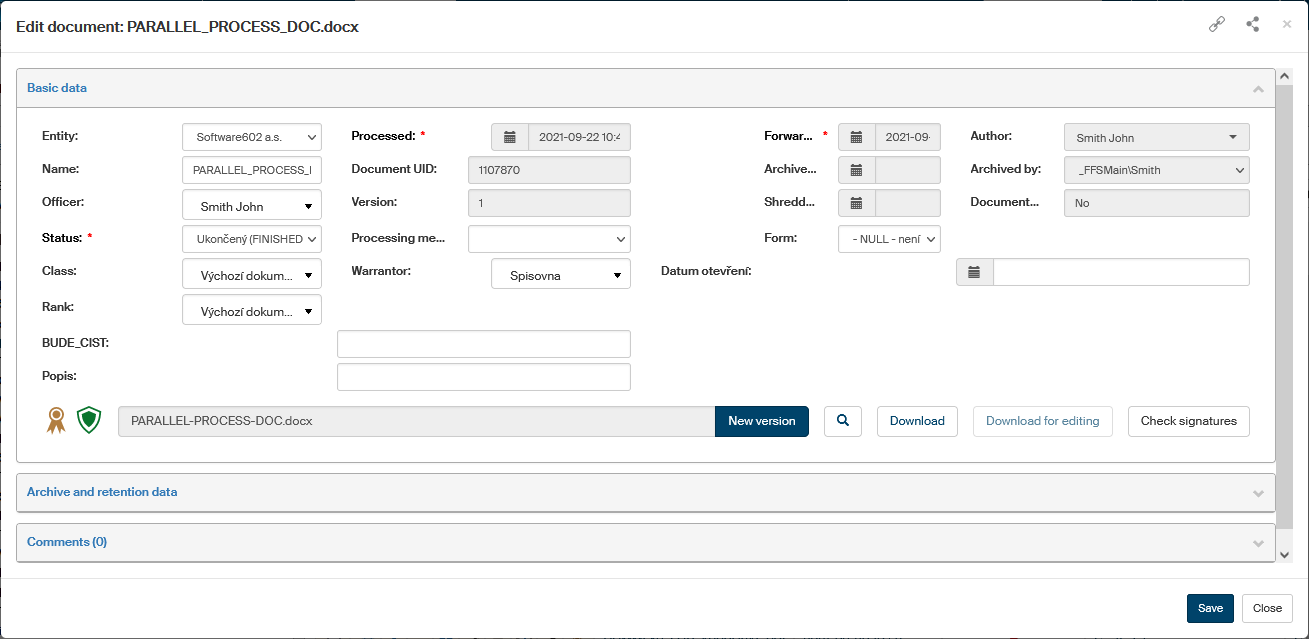
Note the two icons on the left of the field and button New version.

The first one shows the electronic signature status. Click the seal symbol to open the Signature validation result screen with information whether the document has been electronically signed and whether the signature, if any, is valid.
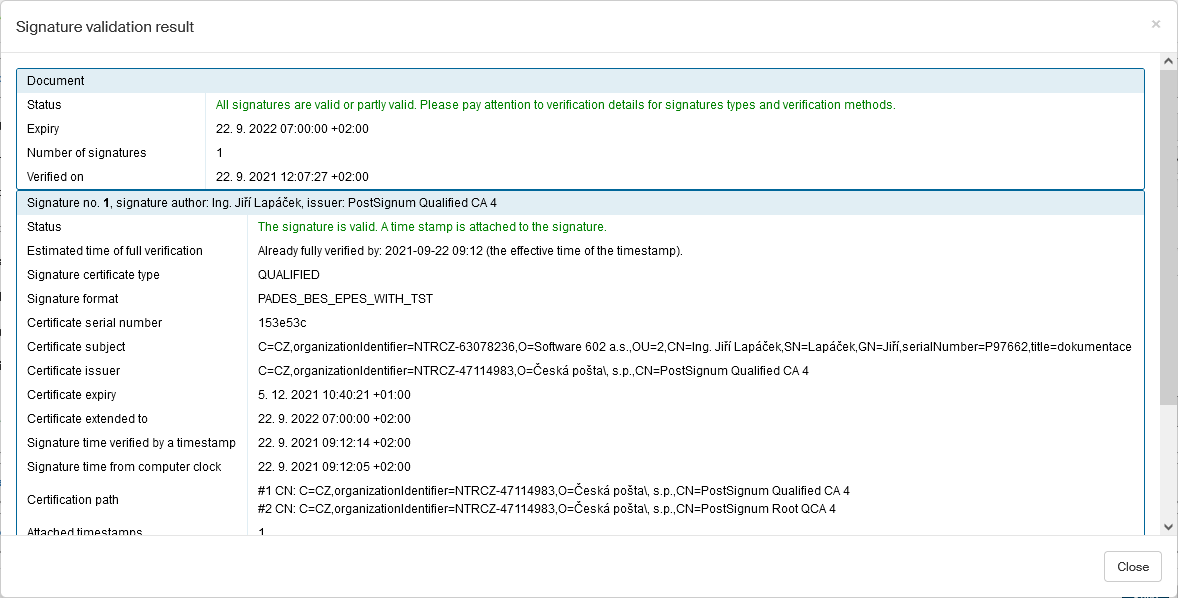
The other icon shows whether the document has been checked by the antivirus and what was the result. The meaning of both symbols is described in the tooltip.
If no antivirus check has been run yet, you can request it by clicking Run antivirus check.

Creating a new document version
The lower part of the Edit document screen contains the controls for creating a new version of the document from the current version. Use the field with the current file name and the New version button to select a new file. Clicking the button will allow you to upload and save an updated file with a new version of the document. The rest of the buttons, placed on the right, are used to handle the current document version (the magnifying glass button to display the document for viewing, the Download and Download for editing buttons allow downloading the buttons on the local computer).
More details on creating a new document version are available in chapter Simple insertion of a new version.
Comments
The Edit document screen allows, apart from editing metadata, also attaching comments to the document. Display the Comments section using the  button placed on the right in the section frame.

Write the comment in the field New comment. You can also attach a file to the comment; click Select and look the file up on your computer drive. Click the Save button to attach the comment and the file (if you have selected one) to the document.
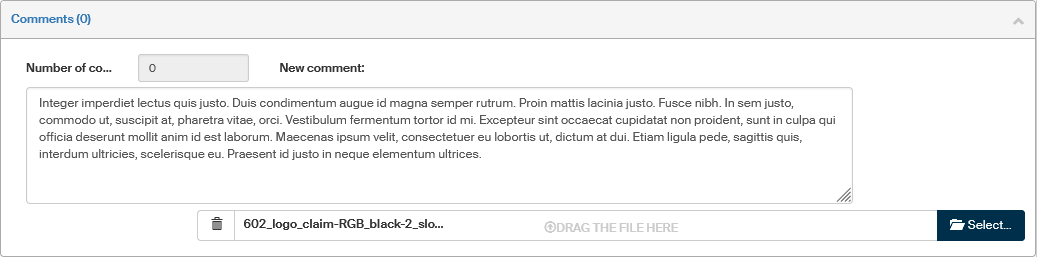
A comment attached to the document will display, apart from the text itself, also the author’s name and the date of insertion and the date of last change, if there was any. If some older comments are no longer needed, you can delete them using the Delete button.
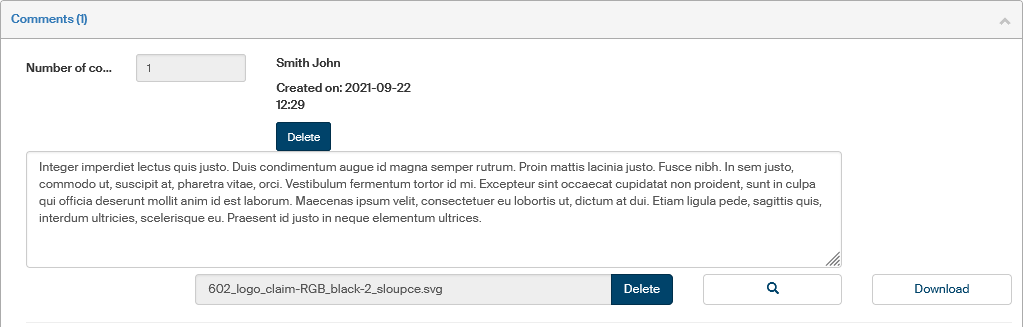
If there is a file attached to the comment, an additional Download button is displayed. Click it to open a dialog to display the file directly or download it on your computer’s drive.