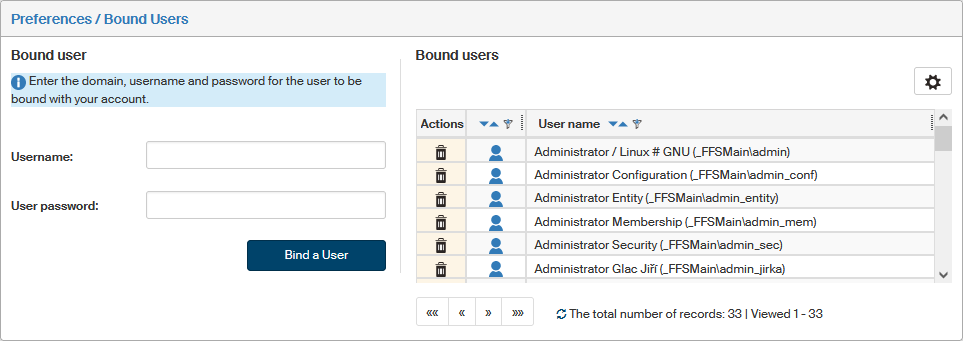
Bound users
Some users may access FormFlow in several distinct roles, which means they have more than one user account to log in. To save them from having to keep logging out and back in using another account, the accounts can be bound together. The user can then switch between the accounts more easily. If user accounts are bound, the user can log in to any of them and then switch to any other as needed.
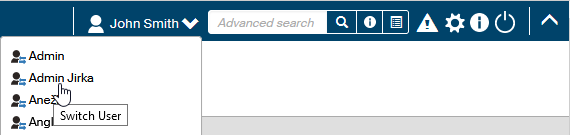
Use the Switch User button, placed on the left from the search field in the upper right part of the FormFlow header, to switch to other users already bound to your account. Click the name item and you will be transferred to the selected user account without any additional confirmation dialogs.
You can manage the list of bound users in the screen My settings/Bound users. To visit it, click My settings and then the button My Bound Users on the toolbar.

To bind a user account to yours, you need to know its password. You also need the permission to bind users.
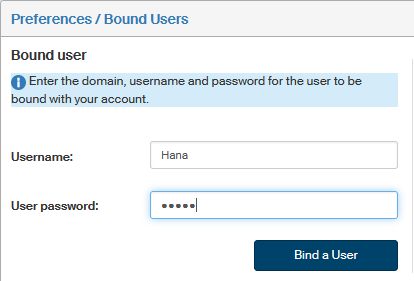
To bind another user with your user account, go to section Bound user and enter the user’s username (including the domain) in the Username field. Then enter their password in the Password field and click Bind a user to confirm. FormFlow will check the credentials and if they are correct, the two accounts will be bound.
You can repeat the action to bind additional accounts.
You can adjust the way your account is displayed in the list of bound users by going to the User Details screen, section Name, and changing the name in the field Alias for bound users. If not set, the user’s role is displayed (if set), or the surname, or, if none of these details is set, the username.
The complete list of users bound to your account is available in the screen Bound user on the right, in section Bound users.
You can cancel the binding any time by clicking the button  Unbind user in the Actions column.