New object permissions
Operation permissions on new objects are set up the same way as common operation permissions. Use the screen New object permissions ().
List of permissions and revoking permissions
The screen displays the following details:
-
Actions – use the
 button to revoke the permission from the subject.
 -
Graphical subject type indicator –
 (enabled internal user) or
  (role)
 -
Subject name – name of the user, group or role who is granted the permission.
-
Operation the permission applies to.
-
Object type, Object space type and Object space, if applicable for the operation.
-
Privilege, meaning whether the permission is to perform the action (EXECUTE), grant the permission (GRANT) or remove it (REVOKE).
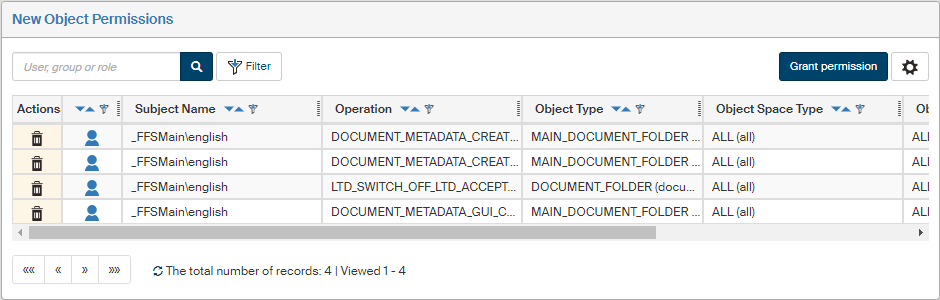
You can narrow down the list using a suitable filter. The filter is identical to the operation permission filter as described in chapter Permission filter.
Granting a permission
The button Grant permission is placed above the list of granted permissions. Click the button to display the permission granting dialog.
-
In Privilege, specify whether it is a permission to EXECUTE (perform the operation), GRANT (assign the operation permission) or REVOKE (remove the operation permission).
-
In the Subject field, select a user, group or role, who will be granted the permission.
-
In the Object type field, select the type of objects to which objects the permission will apply.
-
Then use the Operation field to select the required operation from the list (to view the whole list, see chapter List of operation permissions).
-
Now you can select the Object space type – either grant the permission to all new objects (ALL), or to objects in a specific domain (DOMAIN).
-
If you select DOMAIN, another field is displayed, Object space. Use this field to specify the domain for which the permission will be granted.
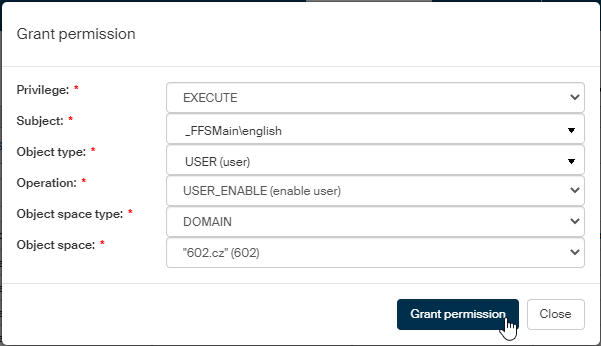
Confirm the dialog by clicking Grant permission.