Labels
Address book entries can be labeled and the labels used e.g. for filtering.
Select to open the Labels window.
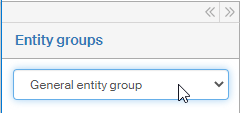
Each entity group has its own set of labels in the Address book. Select which group to edit in the left part of the window in section Entity groups.
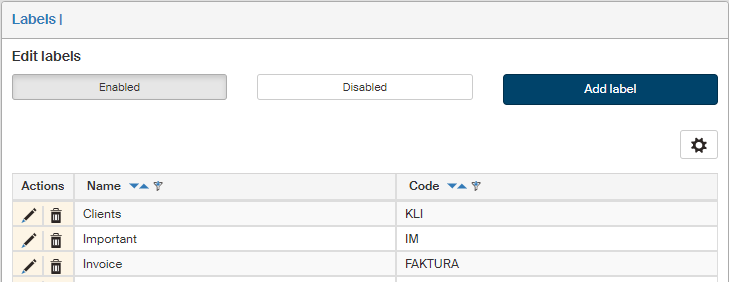
A list of existing labels is then displayed on the right. Use the buttons to switch the view between Enabled labels that are available to use in the Address book, and Disabled labels that are not in use. Click Add label to display a dialog where you can create a new label.
Use the buttons in the Actions column to change existing entries: click  to display the label edit dialog or click
  to delete the label entry completely.
Use the button  placed on the right above the table to display the filtering and sorting limits for this list. The settings are described in more detail in chapter Grid administration.
Adding and editing labels
Both the Add label button above the list of existing labels and the button next to an existing label display a dialog to create or edit label properties. Besides the title, the two dialogs are the same.
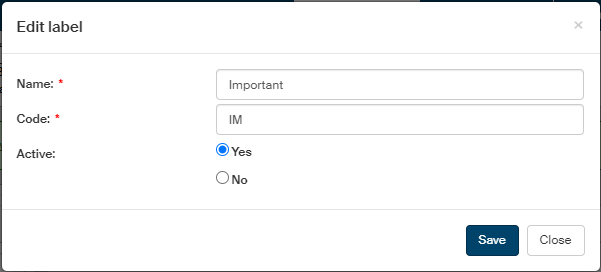
Text entered in Name will be displayed in the Labels list in the Address book. A label must also have its unique Code.
In the Active (Enabled) field, select whether to make the label available to apply in the Address book.
To confirm insertion or changes, click Save.
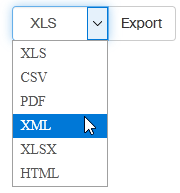
You can also click the Export button below to export the labels to a file in a selected format. Select the format from the list on the left from the Export button.