GDPR relation automation
Creating GDPR relations can be automated so that users do not need to enter details in the address book manually with each new form and then attach GDPR relations to them.
Start by creating a new dataset ().
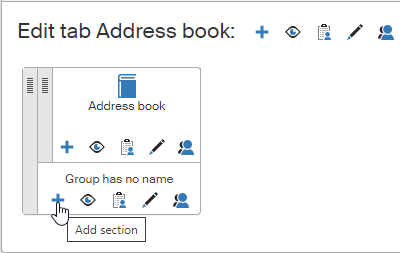
Then create a new ribbon item ( (or add a new tab if you prefer).
In window Create a section, name the section (e.g. “GDPR relation automation”) and then enter the following in the URL link field:
VIEW:ViewGdprSubjectMetadata:settings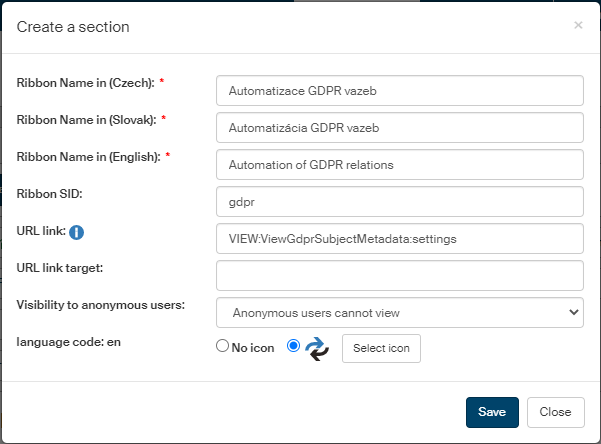
Select an icon for the section and click Create. Do not forget to click the gray eye icon to enable the section.
Click the ADDRESS BOOK tab. Next to the Address book button, a new button GDPR relation automation is now displayed.
Click the button to open the Metadata administration screen. There is a message displayed at the top:
"The form must include sending its whole data record at the right moment to the following URL: \https://example.com/index.php?action=saveContactsAndCreateGdprRelations&presenter=VIEW%3AViewGdprSubjectMetadata"

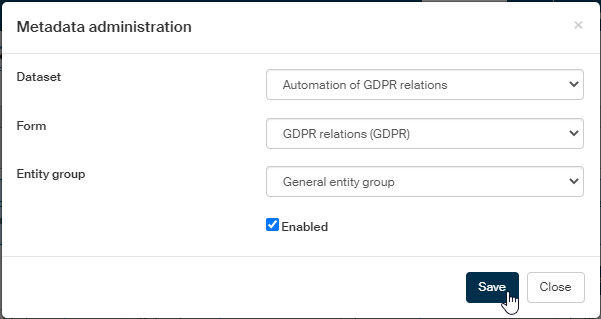
Click Create a new automation to open the Metadata administration dialog.
-
In Dataset, select the name of the required dataset.
-
In Form, select a FormFlow form with the following URL set as the location for sending the data record:
https://example.com/index.php?action=saveContactsAndCreateGdprRelations&presenter=VIEW%3AViewGdprSubjectMetadataAutomation will not work without this URL.
-
Select the entities in the Entity group field.
-
Check Enabled to apply the settings.
In the Metadata administration window, the new entry is now displayed.
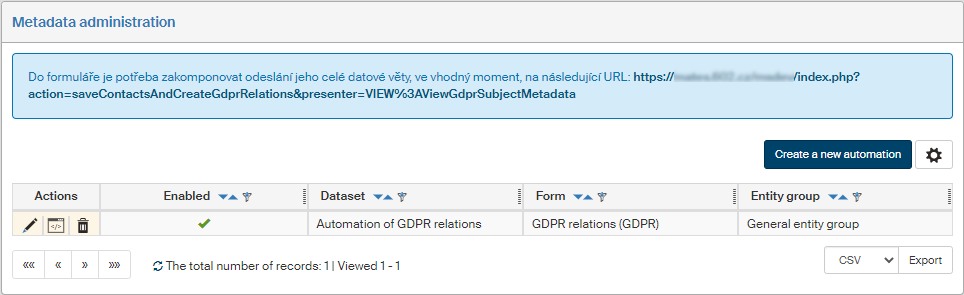
There are three buttons available in the Actions column:
-
 Edit metadata to edit the settings described above.
 -
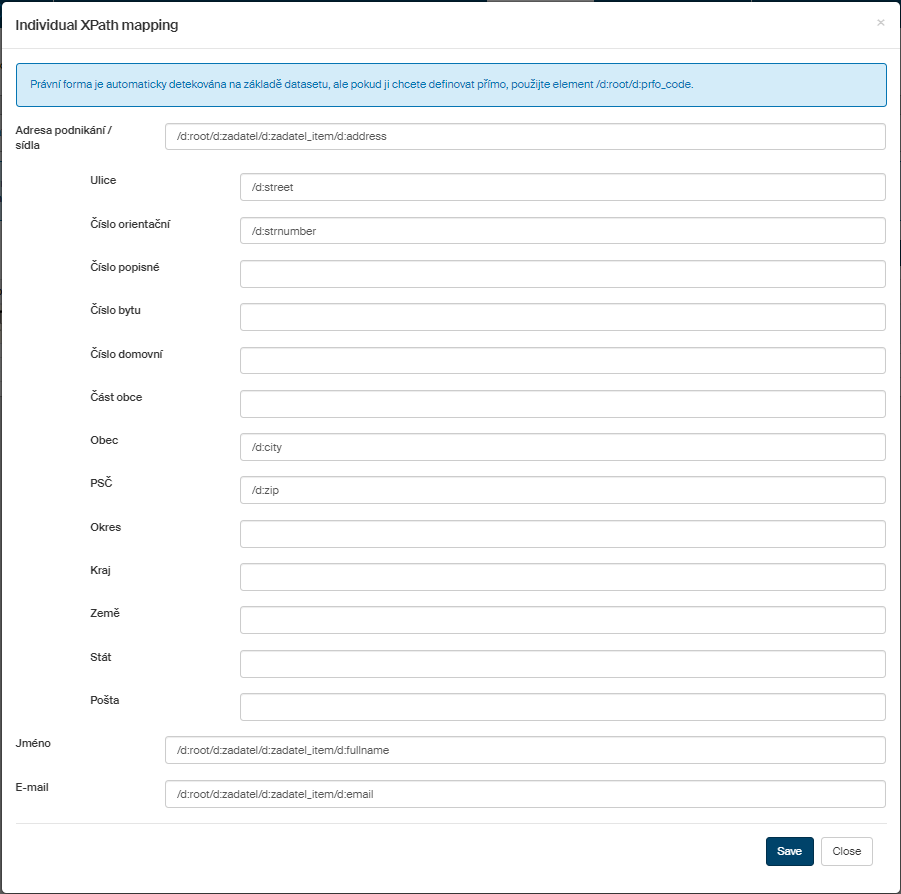
 Individual XPath mapping opens a dialog there you can map individual XPath entries, made available e.g. by the designer who implemented the above URL in the form. When you have edited this dialog, click Save and the GDPR relation automation is now ready. When a new form of the required type is filled out, the contact details will be listed in the Address book and GDPR relations attached to it.
 -
 Remove – deletes the entry.