Signing with eToken
The eToken application provides access to electronic signature certificates stored at a remote server. These certificates are then available in the certificate selection dialog, for example when signing with Signer.
Signing using eToken
If you have set the signing method to Signer – browser addon, electronic certificates imported from eToken will be displayed in the Select a certificate window during signing. Certificates from eToken are indicated by purple text.
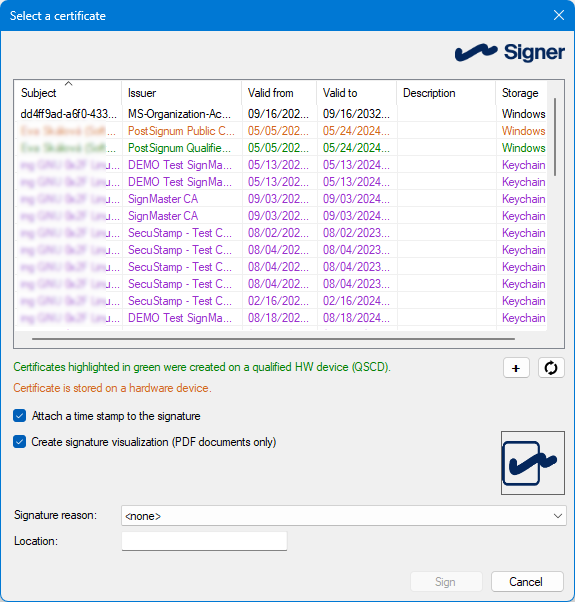
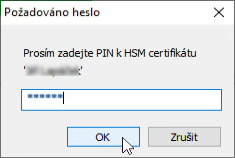
When you select a certificate, its PIN is requested – enter it in the field in dialogue Password required.
When the signing is complete and successful, a message is displayed.
eToken settings and login details
For a detailed description of eToken installation and settings, visit its separate documentation. Here is a selection of the basics.
Saving the login details
To give eToken access to your certificates, you need to log in to the server that is running the Remote signing service. This means that to use certificates stored in FormFlow, you will need your FormFlow username and password and your FormFlow server address.
You can save the login details in eTokenu settings under a name of your choice. On your next login, you will only need to select the name from the list and confirm.
If your login details are not saved in eToken yet, add it as follows:
-
Right-click the eToken icon on the taskbar.
-
From the menu, select Settings and switch to the Login tab.
-
Select Add.
-
Enter the login details.
-
In Alias, enter a name that will be used to display this account in the list of login details.
-
In User and Password, enter your username and corresponding password.
-
Check Company login.
-
The field Web Service URL field is then displayed; enter the URL address for your organization’s server running the service. For FormFlow, the address will look like the following:
formflow://[formserver address]/soap/signerInfo.phpReplace
[formserver address]with the actual address of your installation. If you are not sure what login details to use, consult your organization’s administrator.
-
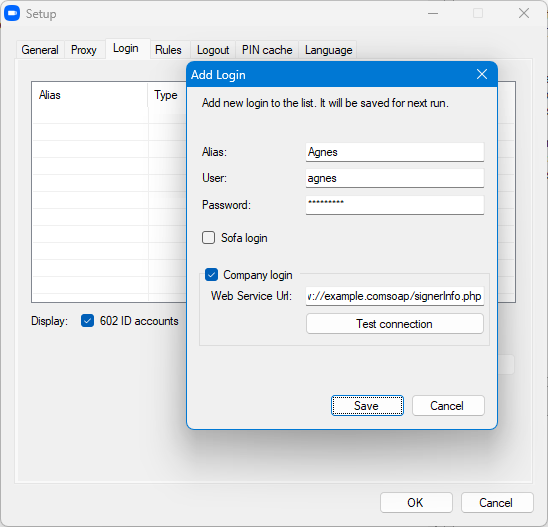
You can click Connection test to check your login details. Do not forget to select Save to confirm the details.
Login
After running eToken, double-click the app icon on the taskbar. The dialog Log in to eToken is displayed. In Choose account, select the name of your saved login detail set and select Log in.
| You can also set up eToken to run and log in automatically. |
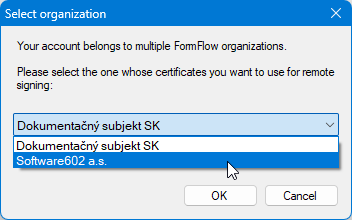
If you are attached to more than one entity, the dialog Select organization is displayed after login. Select one of the entities in the list; certificates issued for this entity will be available for signing with eToken.
Certificates from eToken then are imported in the standard certificate store in the operating system, where they will be available until you log out.