Transaction log
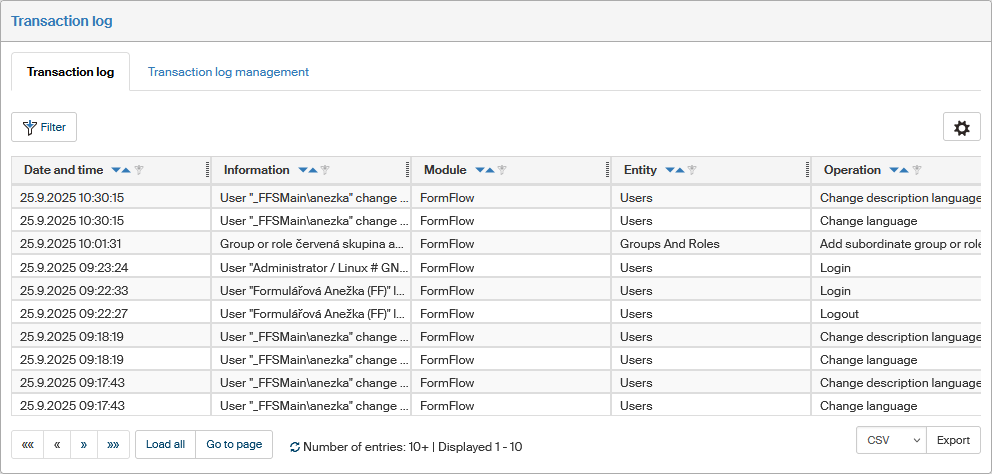
Transaction log is a record of events that have taken place in FormFlow<. Every event is recorded with its date and time, text description, the part of FormFlow where it took place, the user who ran it and additional details. The IP address from which it was requested is also included, as well as the fact whether the operation finished successfully.
Viewing the transaction log
Visit the screen Transaction log () to view the log.
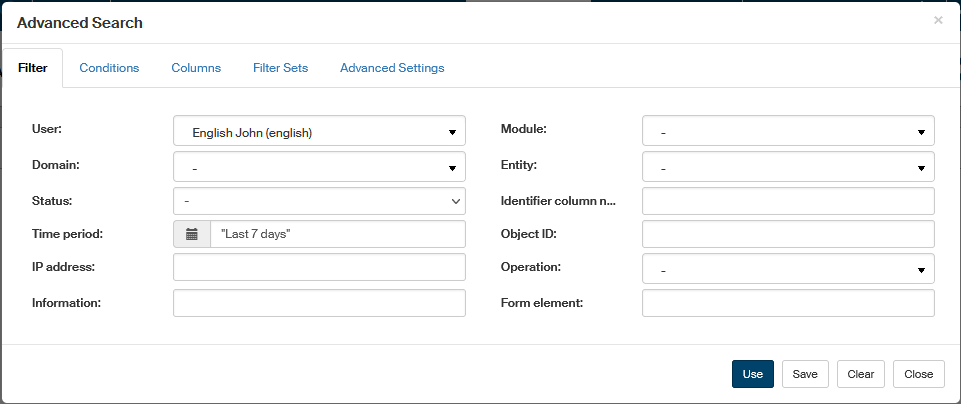
You can also search the transaction log. To start searching, click the Filter button placed above the table. Click the button and a dialog is displayed, where you can enter the searched entry properties, such as the time period, and click Use to confirm the search. The log will then display only the entries that match the filter.
Use the button  placed on the right above the table to display the filtering and sorting limits for this list. The settings are described in more detail in chapter Grid administration.
Transaction log management
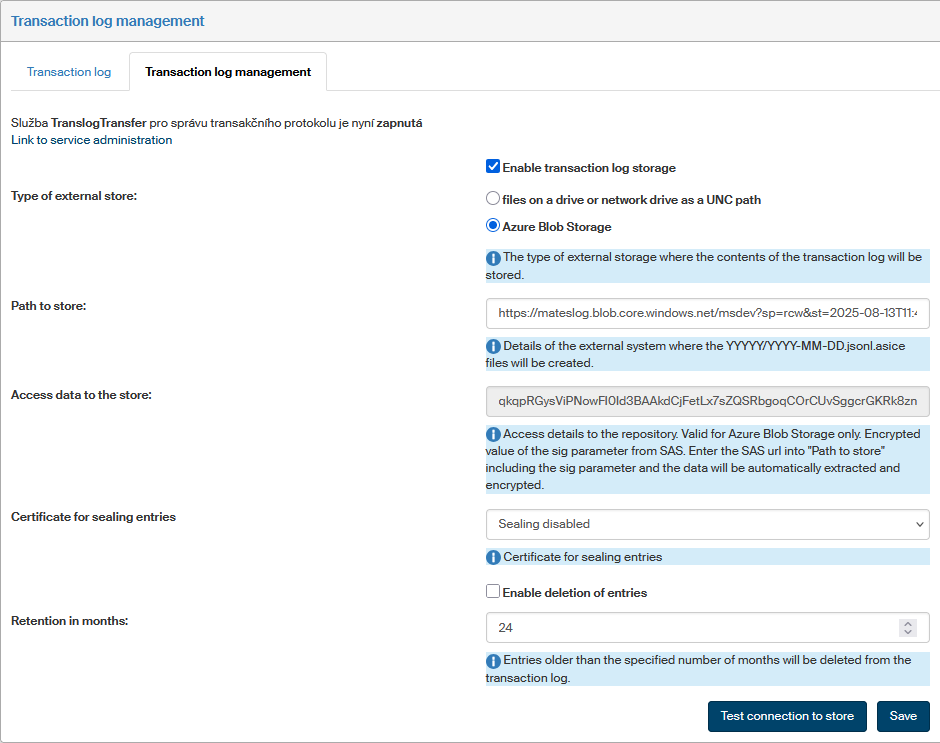
The transaction log may create many database entries, which impacts the performance. For this reason, it is possible to transfer old entries from the transaction log to an external store as JSON Lines files, and remove them from the database. Enable and set up this behavior on the Transaction log management tab.
The transfer and deletion of records is handled by a background service, TranslogTransfer. The upper part of the page displays information whether this service is running, and a link to the service management. For more information on background services, see chapter Background services.
The following settings are available for the transaction log:
-
Enable transaction log storage – if checked, log entries will be saved in the store.
-
Type of external store – the type of storage where transaction log entries will be saved:
-
files on a drive or network drive as a UNC path
-
Azure Blob Storage
-
-
Path to store – enter based on the selected external store type. For files on a drive, enter the UNC path; for Azure Blob Storage, enter the SAS url including the sig parameter.
-
Access data to the store – if the store type is Azure Blob storage, this field displays the encrypted value of the sig parameter from SAS based on the path entered in the previous field. Not used with files on a drive.
-
Certificate for sealing entries – select one of the electronic seal certificates stored in FormFlow. Created files will be sealed with this certificate.
-
Enable deletion of entries – if checked, transaction log entries transferred to files will be deleted from the database when their retention expires.
-
Retention in months – entries older than the specified number of months will be deleted from the transaction log.
Click Test connection to store to check whether the path to store is valid and the store can be accessed.