Qualified storage settings in forms
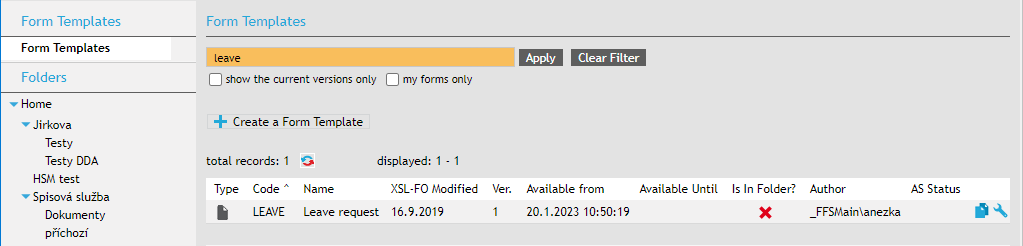
Go to to open the Templates screen. Select the template to edit and click  Edit form.
Form detail
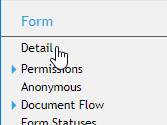
In the Detail section, go to Long-Term Docs. The options set here apply to all forms created from this template. For more details, see chapter Editing the basic form details.
Enable long-term preservation of signatures – check to place documents attached to these forms in the long-term preservation process.
Automatically preserve documents – this option applies to older form types that do not contain indication whether to include their attachments in long-term preservation. Check to preserve attachments from all forms based on this template automatically. If the option is not checked, you will need to include the selected forms in long-term preservation manually. In newer forms, this option is ignored and documents are preserved or not based on information included in the form.
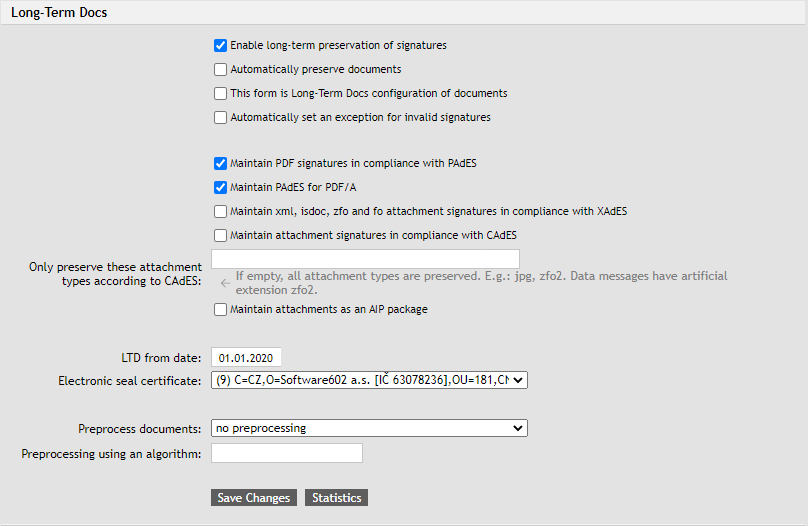
If Enable long-term preservation of signatures is checked, an additional group of options is enabled to set which document types the preservation process will apply to:
-
Maintain PDF signatures in compliance with PAdES – if checked, the process will preserve attachments of PDF type.
-
Maintain PAdES for PDF/A – if checked, the process will preserve PDF/A attachments, created by conversion in the Qualified storage module. Both this option and the one above relate to PDF files, but this one applies to copies (PDF/A versions) of the original document. If a PDF document compliant with the PDF/A standard enters the FormFlow, the Qualified storage module does not treat it as a PDF/A file, because it is only concerned with preservation (signatures and time stamps), not legibility.
-
Maintain xml, isdoc, zfo and fo signatures in compliance with XAdES – if checked, the process will preserve the listed attachment types.
-
Maintain attachment signatures in compliance with CAdES – check to preserve all other document types by applying an external signature.
-
Maintain attachment as an AIP package– if checked, the AIP package is preserved as set by the XAdES standard, when a signature is applied to the hashes of all relevant documents.
-
Data message reauthorization – check to reauthorize data messages that do not meet the CAdES standard.
Only a data message that meets the CAdES standard can be placed in the long-term archive. There are older data messages that do not meet the CAdES standard. These data messages can be sent for reauthorization that analyzes the document, validates it and provides the data message with a signature that meets the CAdES standard. For more information, see the DMIS operation rules (Provozní řád ISDS, in Czech).
If you check this option, data messages will be analyzed before entering the long-term preservation process and the messages that meet reauthorization criteria will be submitted to reauthorization. Only then the document will be long-term preserved.
LTD from date – documents will be long-term preserved starting with this date.
Electronic seal certificate – select an electronic seal certificate available in FormFlow to use in this form.
If there are older data messages to be reauthorized (see the Data message reauthorization described above) and the process has failed for some reason, you can start another attempt here. Do that using the option Move DM from "invalid signatures" state to "prepared for reauthorization" state. Click Run to start another attempt.
Preprocess documents – if checked, you can enter a preprocessing algorithm name to apply to documents before entering long-term preservation.
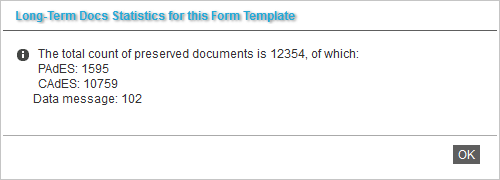
Click Statistics to display an overview of the number of documents from this form that entered long-term preservation, sorted by file type.
Attachments
XPath expressions to form elements that carry the details of documents attached to finished files can be set up in the Attachments section for each form template version (e.g. Versions – Version 1 – Attachments).
If the elements in gw_document are filled in, you can click Automatically insert XPath expressions to prefill these fields.
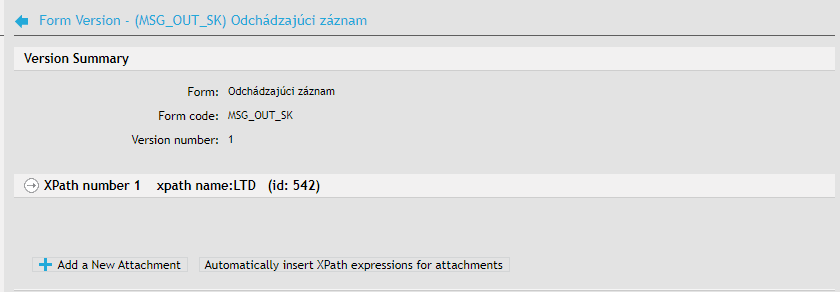
The attachment extraction service then uses these XPath expressions to file the documents in the database.
This mechanism can be used to set up several repeat sections at the same time.
-
doc_xpath_content – the path to the part of the repeating section that contains the attachment.
-
doc_xpath_mime_type – the path to the part of the repeating section that contains the attachment mime type.
-
doc_xpath_name – the path to the part of the repeating section that contains the attachment name.
-
doc_xpath_repe – the path to the part of the repeating section that wraps the repeating section.
-
doc_xpath_cades_content – the path to the part of the repeating section that contains an external signature.
-
doc_xpath_cades_mime_type – the path to the part of the repeating section that contains the external signature mime type.
-
doc_xpath_cades_name – the path to the part of the repeating section that contains the external signature name.
-
doc_xpath_ltv_accept – the path to the part of the repeating section that indicates whether to long-term preserve the document. Allowed values for this repeating section item are 0 and 1. If the XPath expression returns null (the XPath is empty or does not exist) and the option Automatically preserve documents in the Long-term Docs section of the form detail is checked, the document will be preserved.
-
doc_xpath_convert_pdfa – the path to the part of the repeating section that indicates whether to convert the document to PDF/A – allowed values for this repeating section item are 0 and 1.
-
doc_xpath_pdfa_ltv_accept – the path to the part of the repeating section that indicates whether to long-term preserve the PDF/A document – allowed values in the repeating section item are 0 and 1.
If the XPath expression returns null (the XPath is empty or does not exist) and the option Automatically convert to PDF/A in the PDF conversion section of the form detail is checked, the document will be preserved.
-
doc_xpath_pdfa_name – the path to the part of the repeating section that contains the name of the PDF/A file.
-
doc_xpath_pdfa_content – the path to the part of the repeating section that contains a new PDF/A file.
-
doc_xpath_pdfa_mime_type – the path to the part of the repeating section that contains the PDF/A file mime type.
-
doc_xpath_sb_sign_accept – the path to the d:sb_sign_accept element (item for placing/taking out the attachment from the group of documents to be signed) in the repeating section.
-
doc_xpath_sb_signed – the path to the d:sb_signed element.
Document preprocessing
Since FormFlow version 6.0, it is possible to manage preservation automatically for documents signed by certificates issued by the company authority. A company authority is not a trusted authority for long-term preservation, so such documents must be signed by a trusted certificate first. This evaluation, signing (and time stamping) process using a qualified certificate is called preprocessing.
There are several configuration options for document preprocessing:
-
evaluation algorithm definition to determine whether the document is suitable for long-term preservation. E.g. the 01_minimal_validity algorithm accepts a document for preprocessing if it is signed by at least one company or qualified signature and the signature is not cryptographically damaged. The algorithm 02_all only tests for the signature’s cryptographic damage. More algorithms can be added by writing your own plugin, a php script, and placing it in folder ltv_preprocess_document.
-
for the 01_minimal_validity algorithm, the company authority certificates are defined by the files containing the public part of a certificate issued by the company authority. These files are placed in folder LTV_HOME/customKS, where LTV_HOME is a mandatory configuration value from the config.php file.
-
the certificate to use for the signing and time stamping during preprocessing is defined on the form template as the Electronic seal certificate.
Check the Preprocess documents option in the form template management, section Detail – Long-Term Docs to enable preprocessing. Then select the algorithm to use for preprocessing in the following field.
