Trigger events
A retention trigger event is a moment when the retention period starts.
On the left panel in the Entities screen (), make sure the entity you want to edit is selected in the Entities list. Then go to Menu and click Trigger events. The screen Trigger events (entity name) is displayed on the right. It lists the existing retention triggers for the entity.
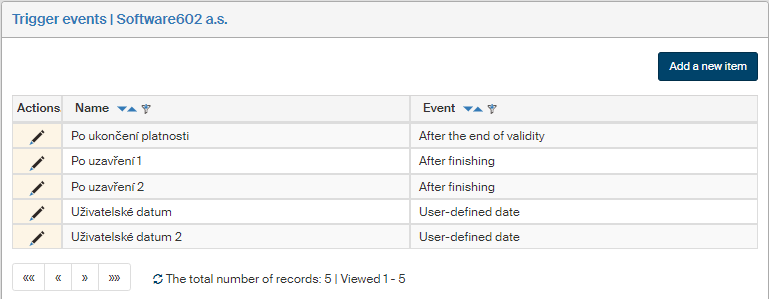
Each entry displays the Name and the event type (Event). The Actions columns contains two controls – Edit item and Delete item.
Creating a new trigger event
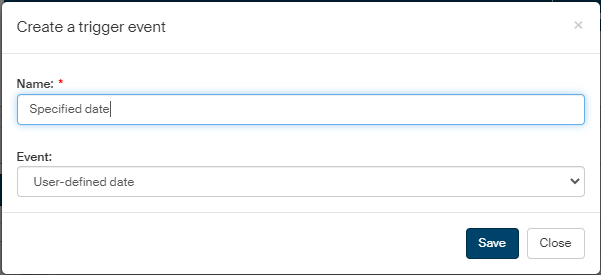
To insert a new trigger event, click Add a new item.
The window Create a trigger event is displayed. Give the new event a Name (mandatory). Click in the Event field to open a list where you can select the type of event to start the retention period (e.g. when a certain document is finished). Click Save to confirm the settings.
Editing existing trigger events
To edit one of the entries, click the pencil icon  Edit item on the corresponding row. The window Edit trigger event. Edit the Name and Event fields as needed and click Save to confirm the changes.
To remove a trigger item from the list, go to the Actions column and click the trash bin icon  Delete item. It is only possible to delete trigger events not used in any retention policy. After a confirmation dialog, the item is deleted from the list.