Login using Microsoft Entra ID
To use this authentication method, you first need to register the FormFlow instance at Microsoft and receive the credentials: Client ID, Client secret and Tenant ID.
FormFlow settings
Authentication details
To enable login using Microsoft Entra ID, set up the following parameters in the Microsoft Entra ID section of External authentication ():
-
Authorised redirect URI displays the address where users will be redirected after they are authenticated using Microsoft Entra ID.
-
Copy the details received during Microsoft Entra ID registration (as described in the next chapter) in fields Client ID, Client secret and Tenant ID.
-
Check Enabled.
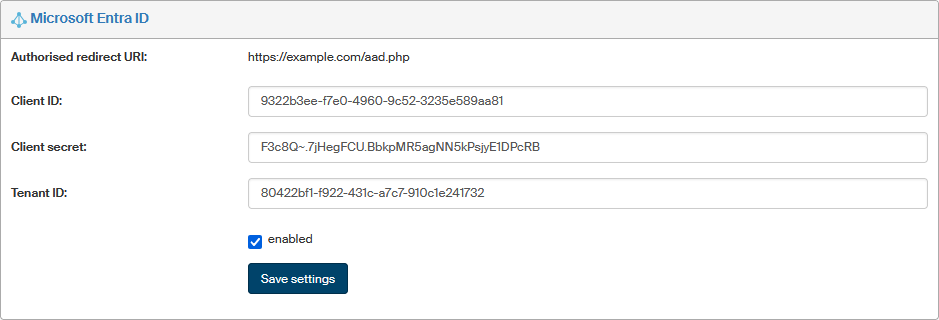
Select Save settings to confirm the configuration.
Once the settings are complete and saved, a button for login using Microsoft Entra ID oAuth2 is added to the login page.
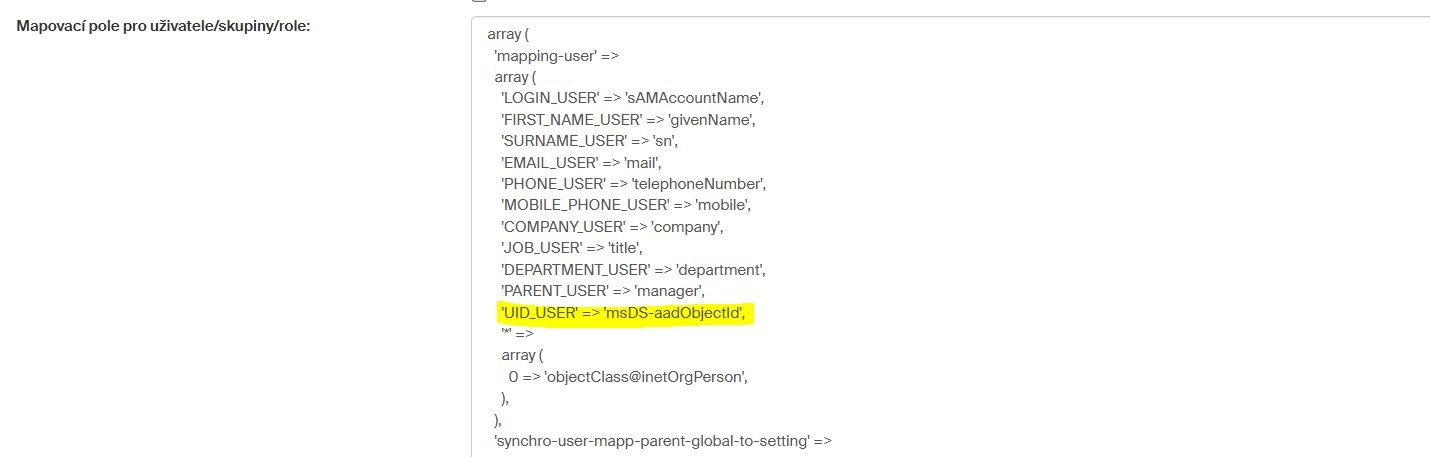

Registering FormFlow in Microsoft Entra ID
Let us suppose that your Microsoft Azure account already contains a created and configured Microsoft Entra ID. Creating the Entra ID is described in a separate document.
You can find the document in the installation zip file in folder \docs\FF10.2\.
The following setup will connect it to FormFlow.
Registering the application
Log in to https://portal.azure.com.
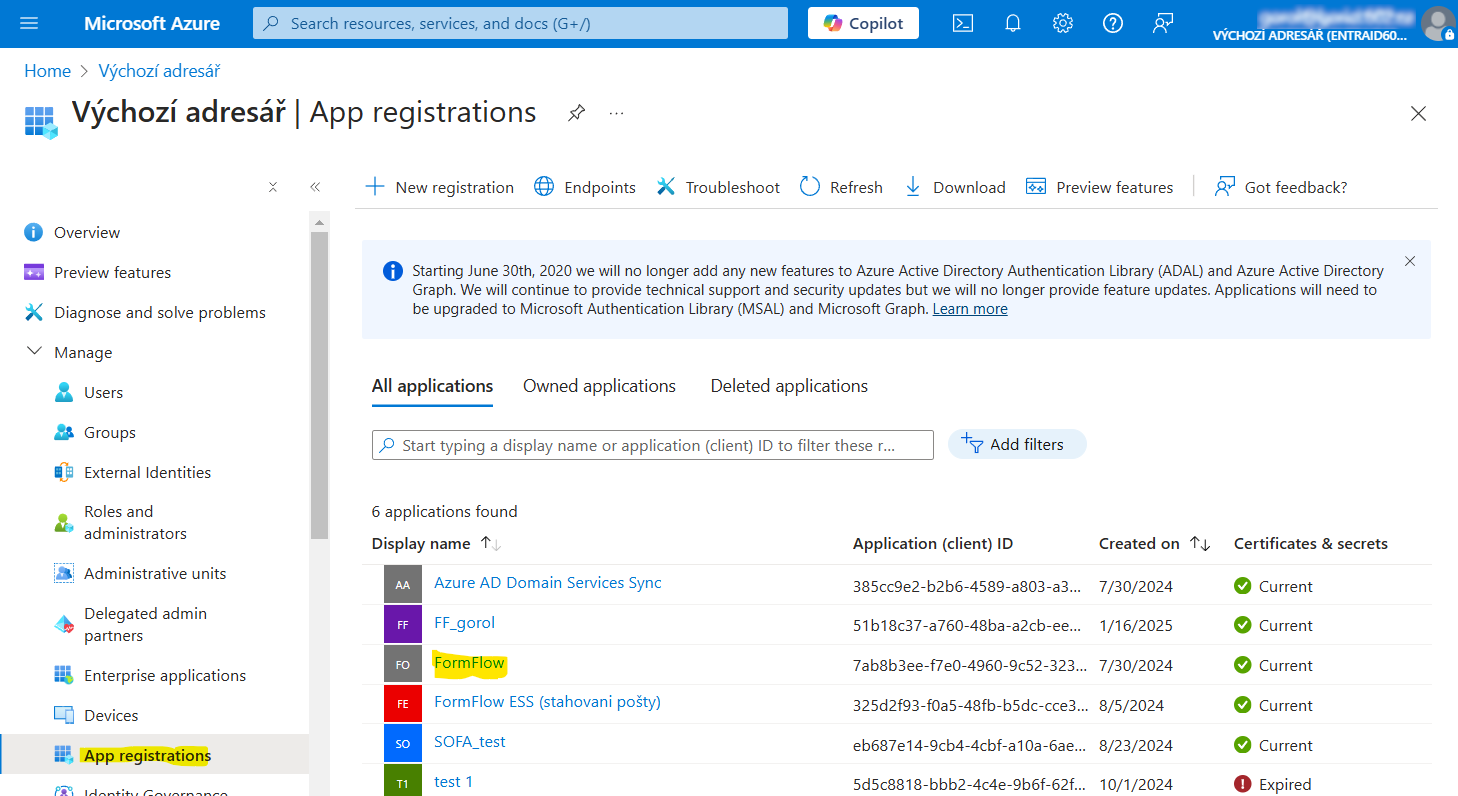
In Azure AD B2C in the menu on the left, select App Registrations.
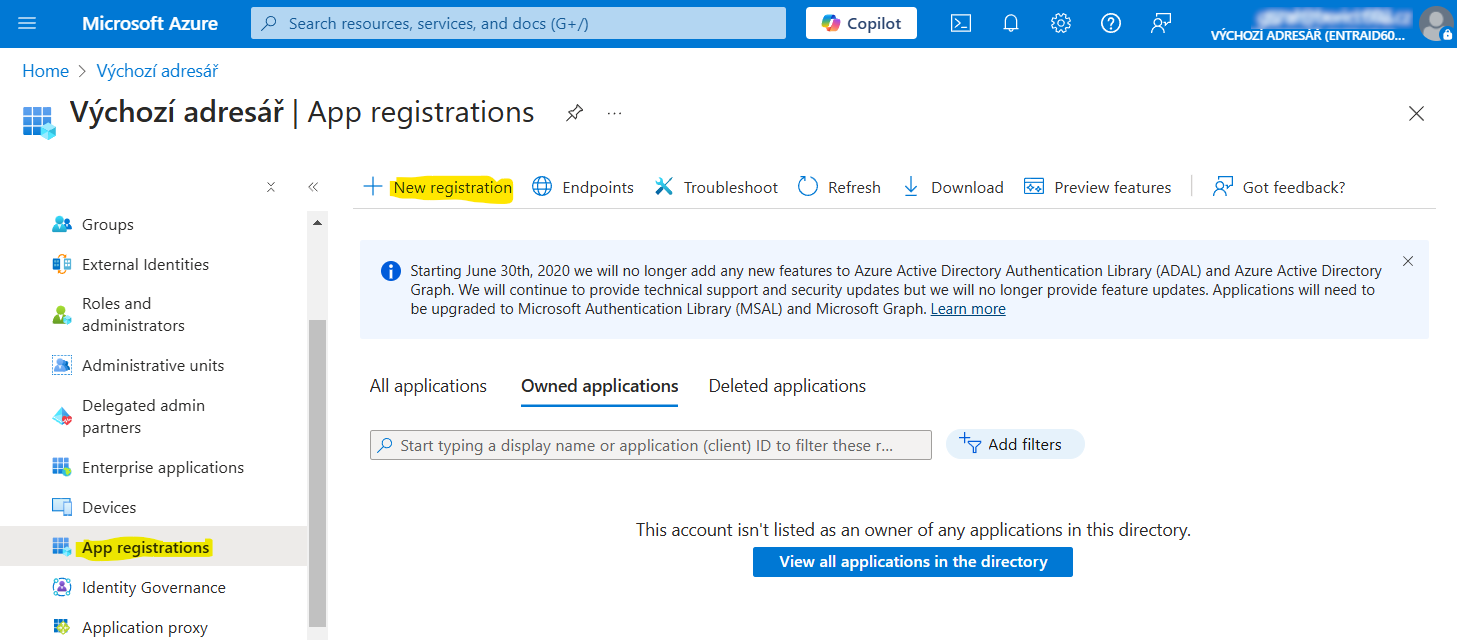
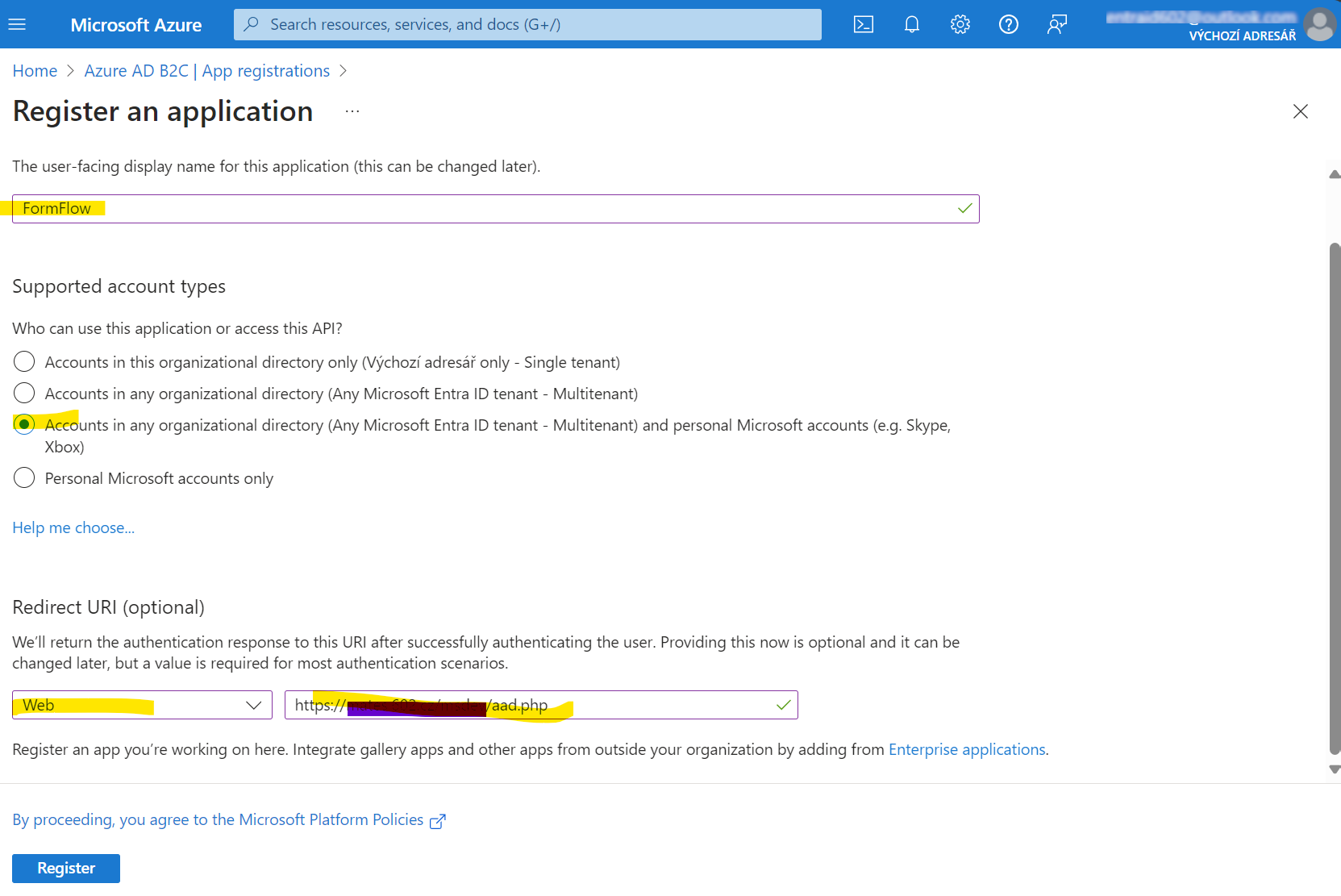
Select the button + New registration.
In the dialog Register an application, name the application (e.g. "FormFlow") and in account type, select "Accounts in any organizational directory". In Redirect URI, select "Web" on the left. On the right, enter the URL pointing to the FormFlow application and ending in /aad.php (this entry is described in the next chapter, Finding the Redirect URI).
Select Register to confirm the details.
A successful application registration is listed in App Registrations.
Finding the Redirect URI
The Redirect URI is unique for each FormFlow installation. It consists of the domain where FormFlow is running, any path to FormFlow serveru root, and the path to the aad.php service. Here is an example path: https://example.com/aad.php, where you need to replace the text "example.com" with the actual path to your FormFlow.
You can find the Redirect URI for your FormFlow directly in Microsoft Entra ID administration. Open FormFlow and go to . Locate the Microsoft Entra ID section, copy the path listed in the field Authorised Redirect URI and enter it in the registration dialog described in the previous chapter.
Authentication
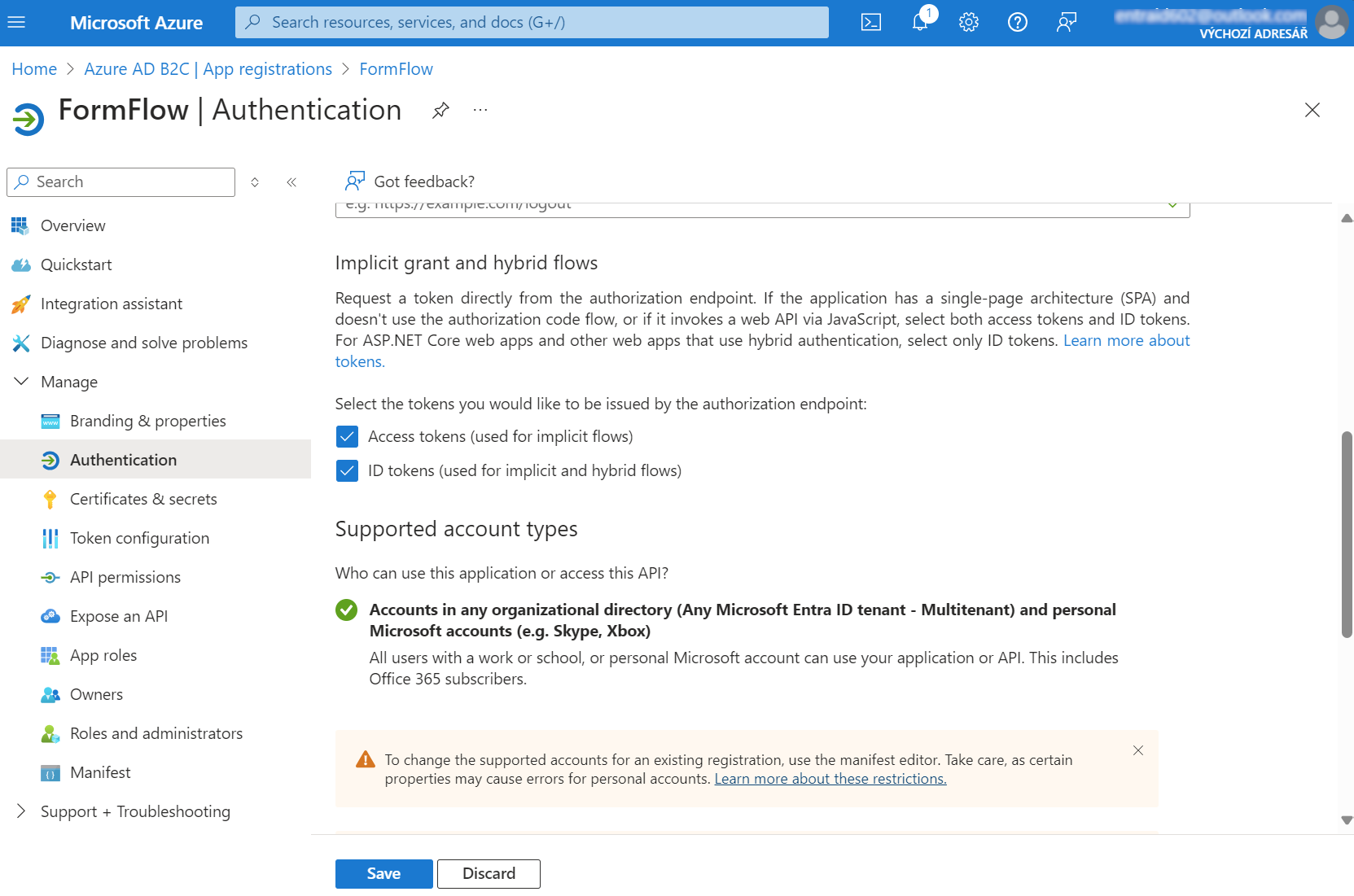
When the application is registered, open Authentication and check the following options:
-
Access Tokens – used for implicit flows,
-
ID tokens – used for implicit and hybrid flows.
Select Save to confirm.
Certificates and secrets
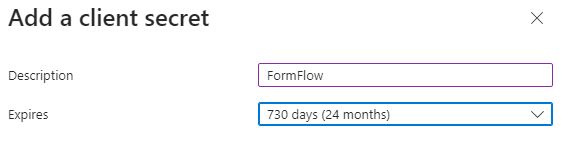
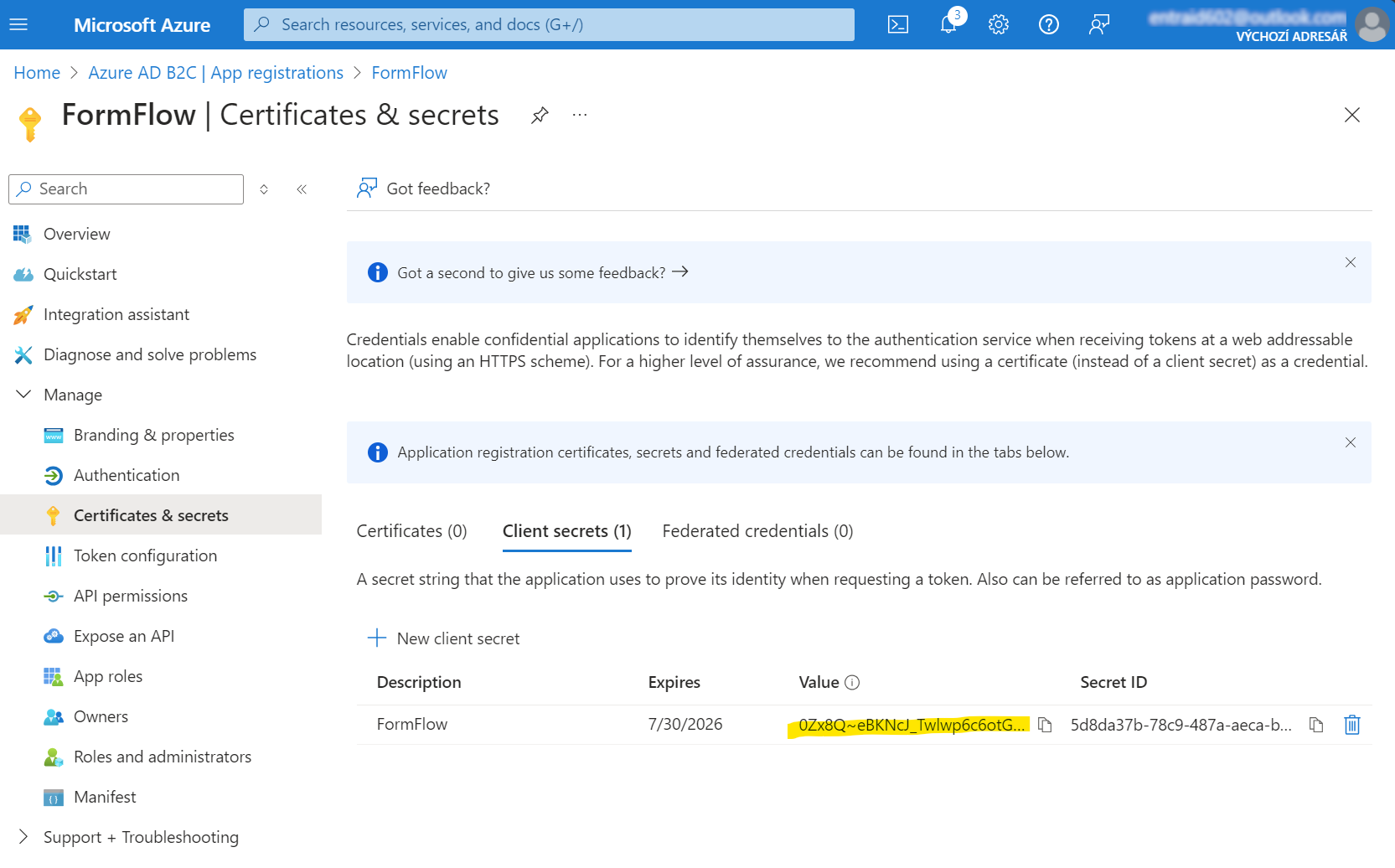
Select the registered application, then continue in the menu on the left to entry Certificates & secrets and select + New client secret.
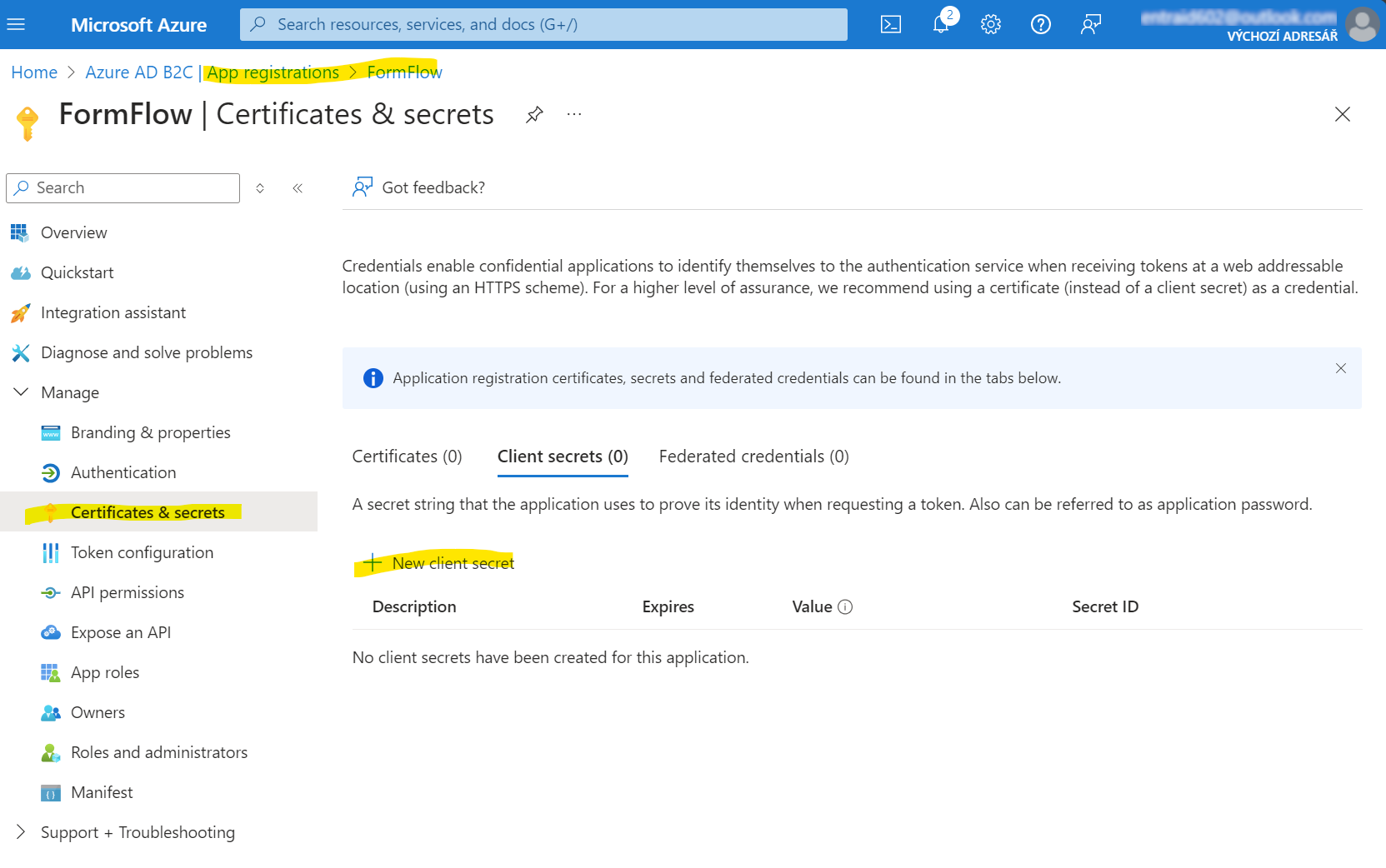
In the dialog, enter the Description (a name for the secret) and Expires (when the secret expires). Select Add to confirm.
After adding, the Secret value is displayed (you will need to copy it), the value will be needed in FormFlow to configure this authentication method. You can also copy it using the menu shown below.
Open the Overview menu option and copy Application (client) ID and Directory (tenant) ID.
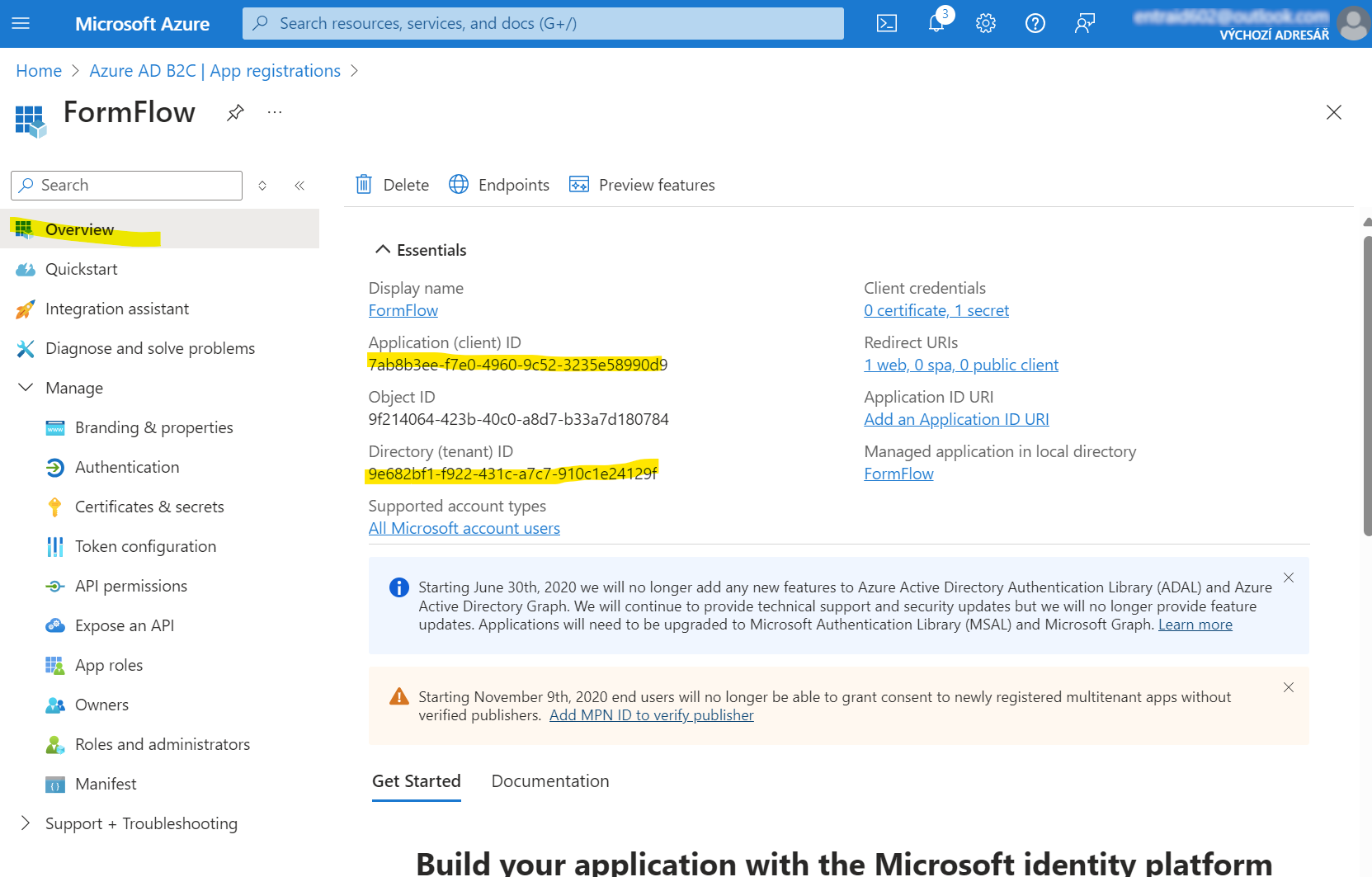
Then enter these values in FormFlow (as described in chapter FormFlow settings).