Password requirements
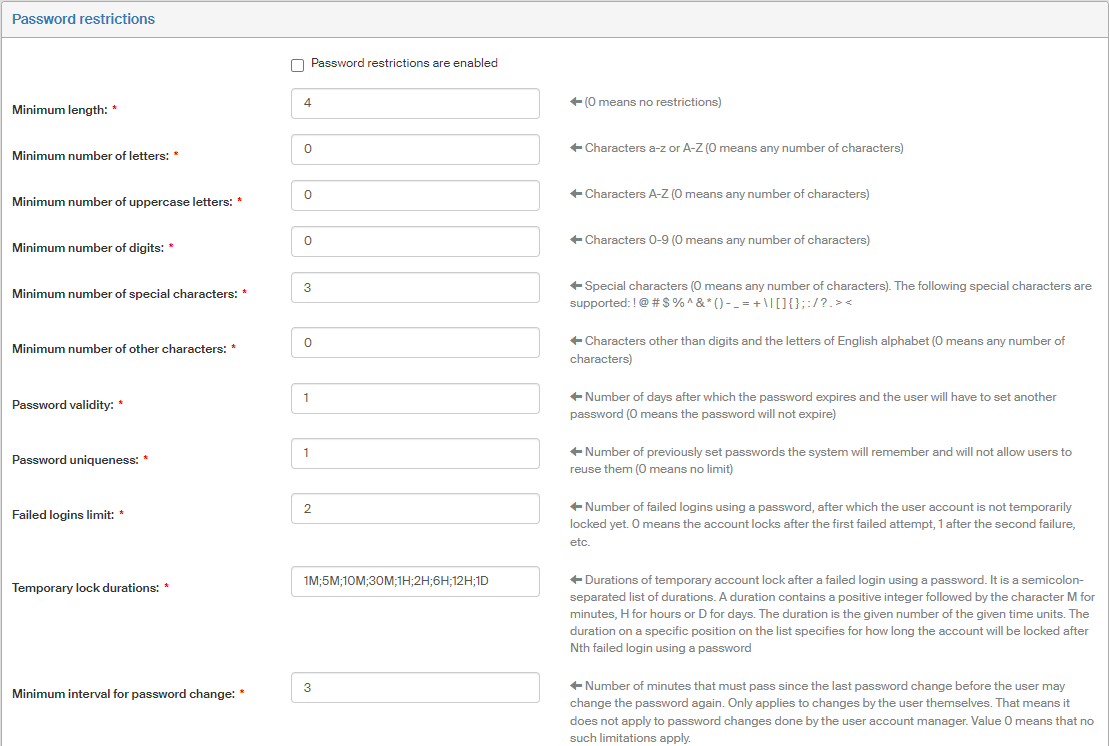
To improve user password security, the administrator can set up requirements on password complexity. The requirements can be set up using the screen Password restrictions ().
The check on password complexity is only applied if the box Password restrictions are enabled is checked.
Then set up the minimum number of types of characters to be used in passwords – letters (any), uppercase letters, digits and other characters. Use the following fields:
-
Minimum length – the minimum total number of characters (zero means any number).
-
Minimum number of letters – the minimum number of lowercase (a-z) or uppercase (A-Z) letters. Zero means any number of letters is allowed.
-
Minimum number of uppercase letters – minimum number of A-Z characters (zero means any number).
-
Minimum number of digits – the password must contain at least the given number of digits (0–9). Zero means any number.
-
Minimum number of special characters – the password will have to contain at least the given number of special characters. Zero means any number. The following special characters are supported:
! @ # $ % ^ & * ( ) - _ = + \ | [ ] { } ; : / ? . > < -
Minimum number of other characters – this field specifies how many characters other than digits and letters of the English alphabet must be used in the password. Zero means any number is accepted.
-
Use the field Password validity to set the maximum password validity period. When this period expires, the user will be prompted to change their password. If you enter a zero in this field, the password will not be limited by any time periods.
-
The option Password uniqueness specifies how many of the users' previous passwords will be stored in the system. The user will not be allowed to reuse these passwords. Zero means no restrictions, no passwords will be stored.
-
The option Failed logins limit allows you to set the number of unsuccessful logins using a password that will not yet trigger the user account lock.
If you enter a zero, the account will be locked immediately after the first failed login attempt, the value of 1 means that it will be locked after a second failed login attempt, if the field is set to 2, the account will be locked after a third failed attempt, etc.
User account lock is only applied if the checkbox described below is checked: temporarily lock a user account, if an incorrect password is used on login
-
Use the option Temporary lock durations to set up the durations for which a user account is temporarily locked after a failed login attempt using a password. The option is a list of semicolon-separated time intervals. Each interval is an integer followed by the character M (minutes), H (hours) or D (days). The resulting interval is the given number of the given time units (e.g. 30M means 30 minutes). An interval placed on the n-th position in the list specifies the duration of a temporary lock after the n-th failed login using a password.
A failed login is evaluated based on the Failed logins limit setting. If it is set to e.g. 3, the user can fail to log in three times without the account being locked. After a fourth fail, the first account lock is applied based on the locking duration schedule.
If you enter e.g.
1M;5M;10M;30M;1H;2H;6H;12H;1Din this field, it means that the account will be locked for one minute after the first failed login, for five minutes after the second one, for 10 minutes after the third and for 30 minutes after the fourth. The fifth failed login will lock the account for an hour, the sixth for two hours, the seventh for six hours and the eighth for twelve hours. If the user fails to log in for the ninth time, their account will be locked for a whole day.
The checkbox new users must change their password on the first login allows you to force newly registered users to change their password when they log in to FormFlow for the first time.
Check password recovery by e-mail to enable using electronic mail to request a new password. If the box is not checked, this option is disabled. If it is checked, the login page displays the element Lost your password? It is a link to the page where users can recover their password. Otherwise, this link is hidden.
If the option force password change for all users on their next login is checked, all FormFlow users whose access password is considered “weak” will be prompted to change their password on their next login after this configuration is saved.
Check the box temporarily lock a user account, if an incorrect password is used on login to place a temporary lock on any user account after an attempt to log in using an incorrect password.
You can use the field List of banned passwords to enter any specific passwords you want to ban from use in this FormFlow instance. Separate the passwords using a comma (only a comma, not a comma followed by a space).
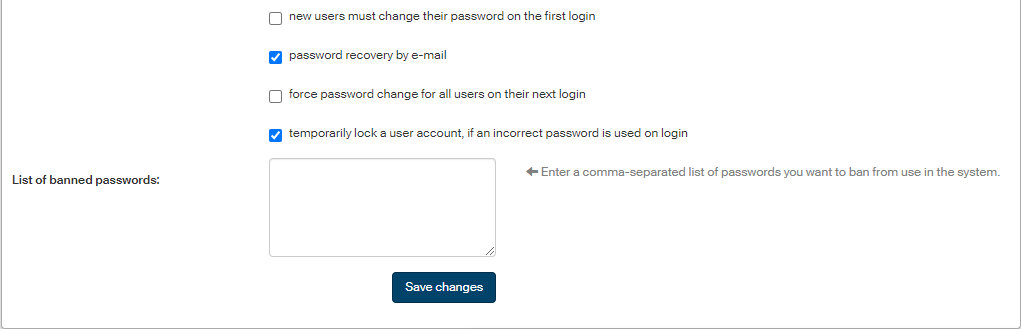
Click Save changes to confirm and save any changes to this configuration.