Internal certification authority
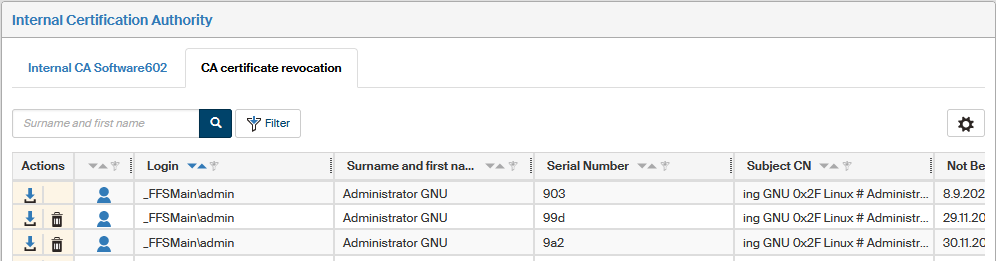
The internal certification authority is a FormFlow module that provides management of issuing and revoking certificates for FormFlow users. To allow the certificate issue process, the user must have their e-mail address entered and enabled in their account settings.
Access certificate installation
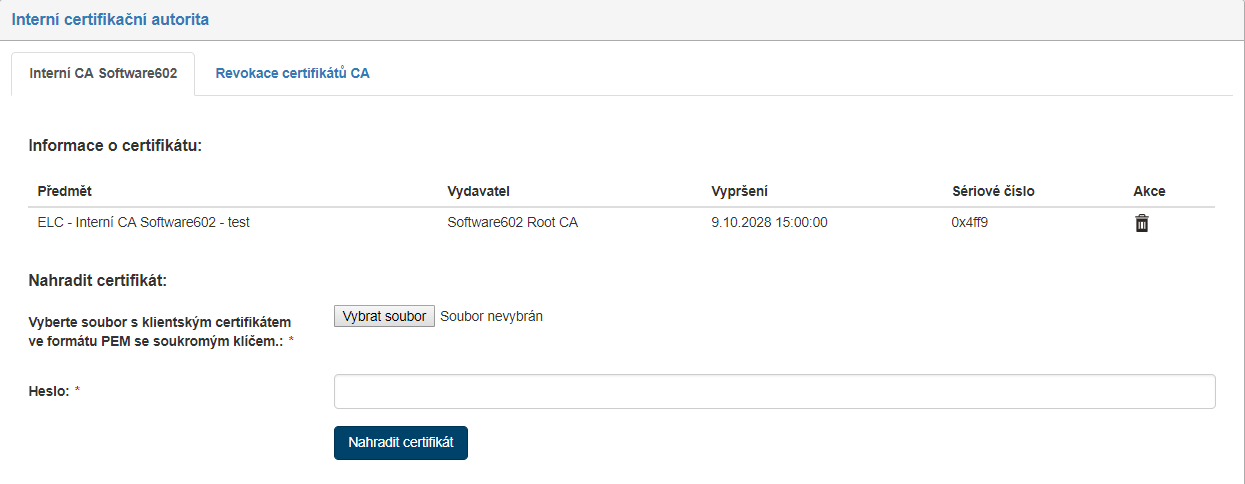
Visit the Internal certification authority screen () and go to tab Internal CA of Software602 to enter the license access certificate as a PEM file. A PEM file is a certificate file with a private key. You can get a PEM format from PFX by running the following command:
openssl pkcs12 -in certificate.pfx -out certificate.pem -nodes -des3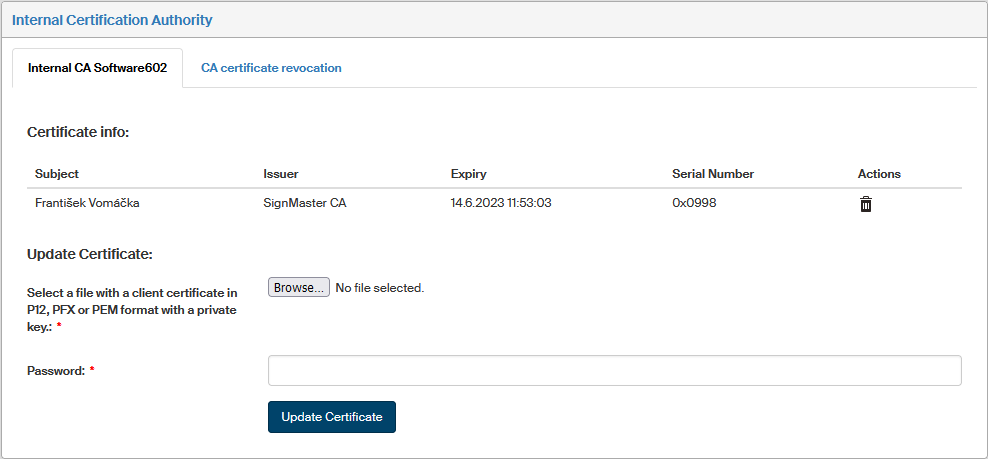
You need to enter the public part of the certificate at the 602ID portal (https://id.602.cz). Log in and go to the tab and upload the public part of the certificate, a .cer file. You may have more than one service certificate.
| The company details entered in the 602ID account are used in the subject field of the issued certificate. The 602ID account also must be a main account. |
Creating a process folder for the Internal CA in FormFlow
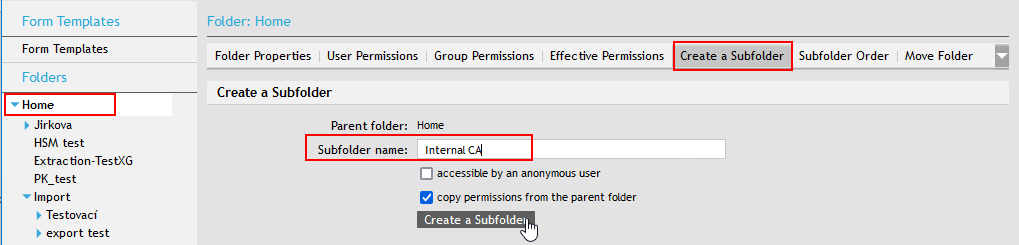
Visit the window opened by . In the list of folders on the left, click Home, continue to tab Create subfolder; enter the name “Internal CA” here. Click Create subfolder to confirm.
Installing the form for the certificate issue process
The form is used to issue a certificate from an unqualified Internal certification authority, Software602 a.s.
Insert the form as a workflow one:
-
Go to and click Create a form template.
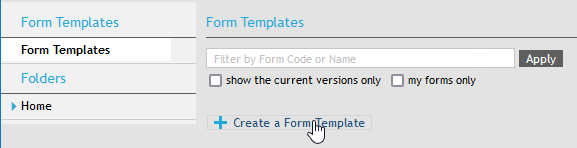
-
Enter the form code and name.
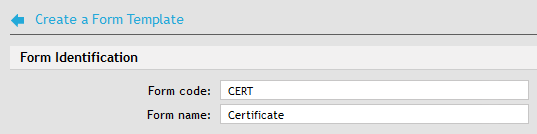
-
Select the file
FF-CreateCert.zfo. You will find the form file in the distribution package atFFS-10.2.x.0_2018-11-12_13.21.18_source_php-7-2.zip\docs\interni_ca\forms\
-
Click Create form.
Now you are managing a created form template. This is a workflow form. Go to section and add two signing steps:
-
Signing step 1:
-
Add one rule.
-
Configure this rule by going to the Final recipients tab and checking the following boxes in the form author row:
-
For approved form
-
For approved form is default
-
For rejected form
-
For rejected form is default.
-

-
-
Signing step 2:
-
Add one rule.
-
Configure this rule by selecting a user or group who will approve the end user certificate and check the following options for them:
-
Is recipient
-
Is default recipient.
-

-
-
Now you can release the form. The Release button is located in the branch .
-
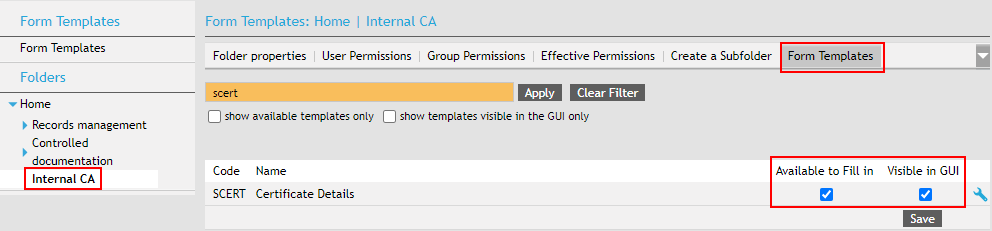
Select a folder where the released form will be available to fill in. Visit , click the process folder Internal CA and then on the right, click Templates. Find the released form Certificate in the list and set its visibility and availability in the GUI.
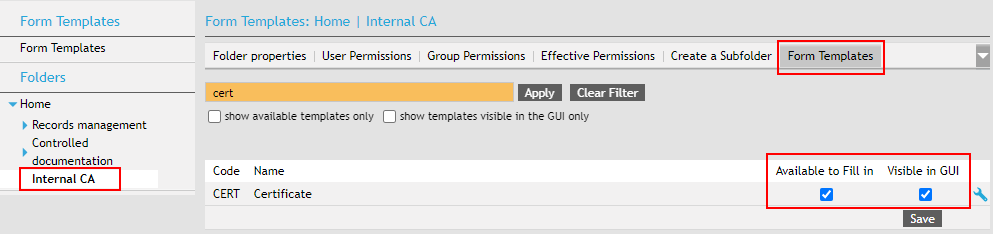
-
Introduce the form as ESS configuration:
-
Visit and click Add configuration.
-
Select a form, enter
CAFORMas the type and click Save.
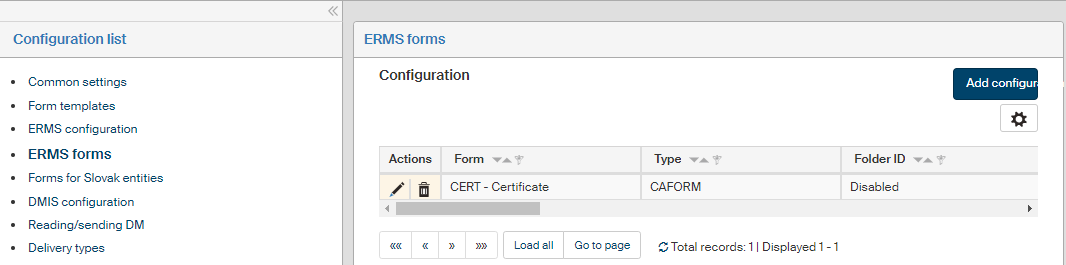
-
Installing the form for checking certificate details
The form is used to get information on issued certificates and allows revocation of issued certificates.
Insert the form as a collection one:
-
Open and click Create a form template.
-
Enter the form code and name.
-
Select the file
FF-SearchCert.zfo. You will find the form file in the distribution package atFFS-10.2.x.0_2018-11-12_13.21.18_source_php-7-1.zip\docs\interni_ca\forms\
-
Click Create form.
-
Now you can release the form. Go to branch and click Release.
-
Select a folder where the released form will be available to fill in. In window , click process folder Internal CA and then, on the right, select the Templates tab. Look up the released form FFS-SearchCert and select its visibility and availability in GUI.
-
Introduce the form as ESS configuration in the same way as in chapter Installing the form for the certificate issue process.
Revocation administration tab
The administration tab where you can revoke certificates is displayed as the second tab at . The tab is only be displayed to users who are members of the administrator group. They can download an issued certificate in the DER format and then revoke this issued certificate.