Adjusting panel display in the Dashboard
On the Dashboard page, there is an Adjust Page button in the lower left corner.
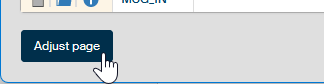
Click it to switch the page to an edit mode, and you can change panel order in the window and display or hide them.
Reordering the panels
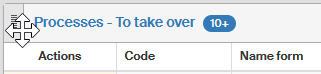
When in the edit mode, you can drag the panels using a mouse to another place on the Dashboard. Place the mouse on the gray rectangle in the upper left corner of the panel, hold the left mouse button and move the panel.
Then use one of the buttons in the lower left corner of the page:
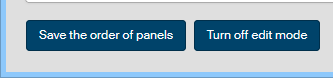
Click Save the order of panels to save the current panel layout. It will be used the next time you visit the Dashboard. The page switches from the edit mode back to normal.
Or you can click Turn off edit mode to return to normal mode without saving the panel layout.
Changing tab visibility
When in the edit mode, the upper right corner of each panel displays a button with an eye symbol. Click the button to hide the panel from view in the Dashboard window. This will also end the edit mode and the page will switch back to the basic view.
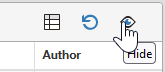
To display such a hidden panel later, follow a similar procedure: click Adjust page to switch to the edit mode and click the eye button in the upper right corner of the panel.