Quick launch bar settings
A FormFlow administrator or other authorized person can change the Quick launch bar settings. That means:
-
Specify which users are allowed to see the panel. You can access the settings using buttons
 and
and  placed in the upper right corner of the panel. The setting process is identical to access permission settings for other Dashboard panels and is described in chapter Panel permission settings.
 -
Add, remove or change the items and set their access permissions.
To edit panel items, click  in the upper right part of the panel (placed in the lower right part of the FormFlow window). The panel will switch to edit mode.
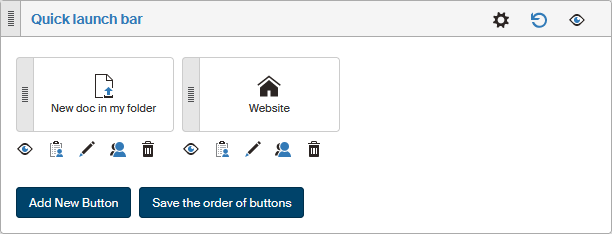
When in edit mode, a set of edit buttons is displayed below each button, and you can use them to set up its properties. The buttons offer the following functions:
-
 /
/  enable or disable the button. An enabled button will be displayed on the panel to users who have the corresponding access permissions. If a button is disabled, it is not displayed to anyone.
 -
Edit privileges – displays a dialog where you can assign or remove the privileges to see or edit the button. The setting process is identical to access privilege settings for the panels and is described in chapter Panel permission settings.
-
 will display a dialog window where you can change the basic properties of the button. The dialog is identical to the one when creating a new button and is described in chapter Adding a new button below.
 -
Effective privileges – displays a window with a list of users who are authorized to see the button.
-
 Delete – removes the whole button.
There is no confirmation dialog, and the button is deleted immediately.
You can adjust the placement of buttons on the panel: while in edit mode, use the mouse to drag a button by the gray rectangle on the left and drop it at a selected place. Then select the Save the order of buttons button in the lower part of the panel to save the changes.
The button Add New Button displays a dialog to create and set up the properties of a new button.
Adding a new button
Click the button Add a new button to display a dialog, where you can set up the properties of a new button in the Quick access panel.
You can set up the following properties:
-
Title – text displayed as button description.
-
Button type – select one of the following options – User-defined, From ribbon, Document creation and Process creation.
Based on the Button type setting, more controls will be displayed.
Adding a user-defined button
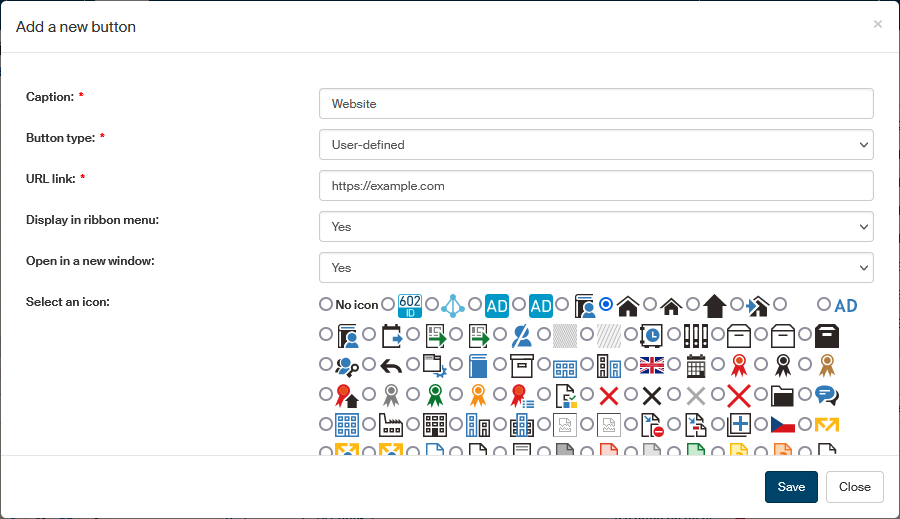
If the Button type you selected was User-defined, the following controls will be added to the Add New Button dialog:
-
URL link – this item is only displayed if there is “do not inherit button from ribbon” selected in the first field. Enter the address to which the button should link.
-
Display in ribbon menu – if you select Yes, the button will be also displayed on the DASHBOARD tab on the ribbon.
-
Open in a new window – select Yes or No to specify whether the activity run by the button will open a new FormFlow window or not.
-
Icon selection – select an icon from the list to display on the button.
Click Save to confirm the properties and create the button.
Adding a button from the ribbon
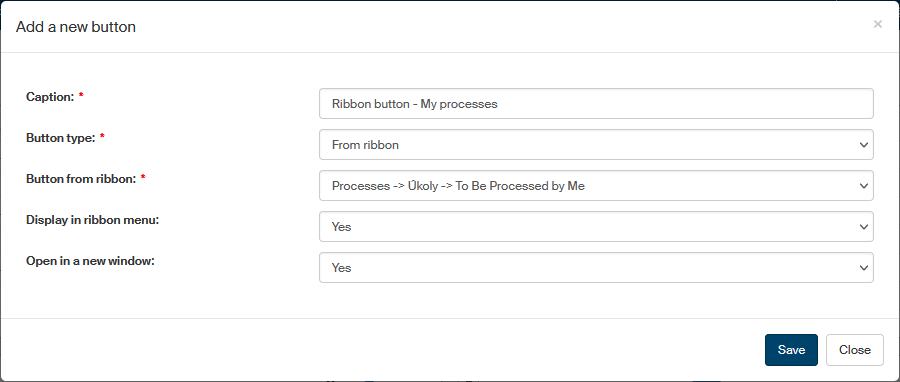
When adding buttons to the Quick access panel and/or the DASHBOARD tab, you can use buttons from other ribbon tabs. In such a case, set the Button type option to From ribbon. Use the option Button from ribbon to select the button to display on the DASHBOARD tab. Let’s take the To be processed by me button as an example.
Use the option Display the button in ribbon to specify whether to display the button on the DASHBOARD tab and the option Open in a new window to decide whether the activity run by the button will open a new window.
Adding a button to create a new document
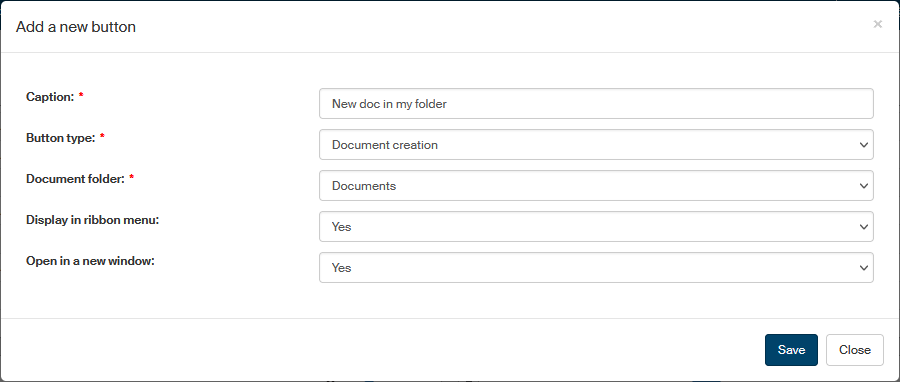
When adding buttons to the Quick access panel and/or the DASHBOARD tab, you can add a button for creating a new document in a selected FormFlow document folder. In such a case, set the Button type option to Document creation. Use the Document folder option to select where to place the new documents.
Use the option Display in ribbon menu to specify whether to display the button on the DASHBOARD tab and the option Open in a new window to decide whether to open a new window for the document creation.
Adding a button to run a new process
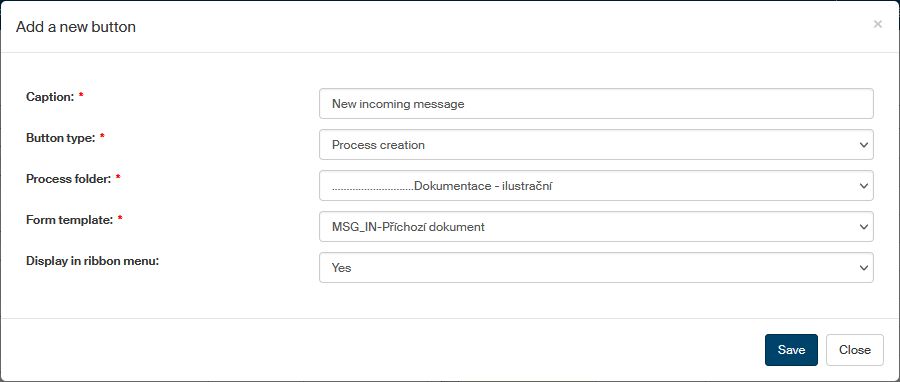
When adding buttons to the Quick Bar and/or the DASHBOARD tab, you can add a button for creating and running a new process. In such a case, set the Button type option to Process creation. Use the Process folder option to select where to place the new process.
Use the Form template option to select the process type to create. For example, to create a new incoming document, select MSG_IN-Incoming document.
Use the option Display the button in ribbon to specify whether to display the button on the DASHBOARD tab.
Displaying the button to users
A new button is added to the Quick Bar (and, if so selected, also to the DASHBOARD) when you click the Save button. Now click below the button and set who will be allowed to see it. The setting is described in chapter Panel permission settings.