Creating transaction logs
Click the Creating transaction logs entry to configure the parameters for transaction logs – when and how they will be generated.
Check or uncheck Enabled next to each configuration entry to set whether it is in use.
Click  next to any configuration entry to display a help window.
-
trans_log_create_from – transaction logs will be created starting from this date on. This parameter only makes sense to set on the initial configuration, before any transaction logs are created. As soon as at least one transaction log is created, this parameter is ignored. You can use this parameter to create transaction logs retroactively.
-
config_trans_log – configuration for generating the transaction log. The configuration is entered in two nested arrays. Index of the first array is ID_CERT of the entity, the second array contains parameters in the format key => value.
The following keys can be set:
-
spis_id_fmve = ID_FMVE of a form of SPIS (record) type.
-
msg_out_id_fmve = ID_FMVE of a form of MSG_OUT type.
-
id_user = ID_USER of the user who creates and finishes transaction logs.
-
spis_znak = file plan code to be assigned to the record and outgoing document with the transaction log.
-
spis_id_fldr = folder ID where records with transaction logs will be placed. Optional key.
-
msg_out_id_fldr = folder ID where outgoing documents with the transaction log will be placed. Optional key.
-
el_znacka_uid = electronic seal UID; this seal will be used to sign the transaction log PDF file.
The electronic seal UID can be found in .
-
CertificateID = may be used instead of key "el_znacka_uid", in that case the LTD module creating the PDF file will automatically sign the PDF and provide it with a time stamp.
The "CertificateID" key will have a value similar to this one:
urn:sha:hNBQGbggs8L5dYmSNiUp2+un8Jg=
-
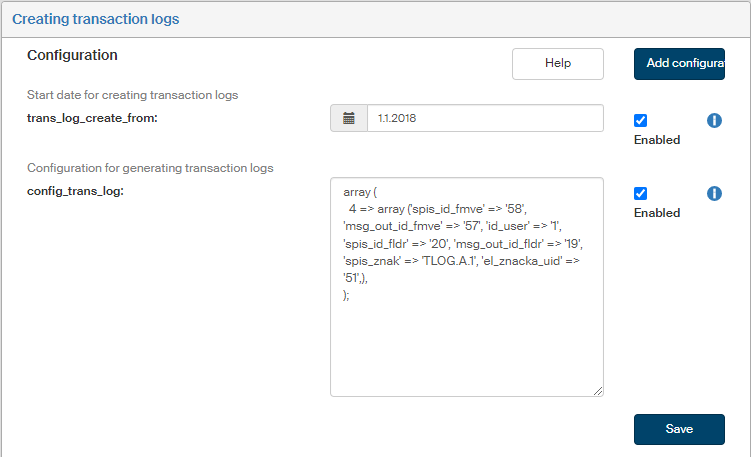
Example configuration for two entities ID_CERT = 28, 35:
array (
  28 => array ('spis_id_fmve' => 47, 'msg_out_id_fmve' => 53, 'id_user' => 286, 'spis_znak' => 'TLOG.A.1', 'spis_id_fldr' => 43, 'msg_out_id_fldr' => 44, 'el_znacka_uid'=>2),
  35 => array ('spis_id_fmve' => 4, 'msg_out_id_fmve' => 3, 'id_user' => 1, 'spis_znak' => 'TLOG.A.1', 'CertificateID'=>'urn:sha:hNBQGbggs8L5dYmSNiUp2+un8Jg=')
);
If you are missing a configuration entry from the list, you can add it. Click the Add configuration button in the upper right corner of the screen. The dialog Add configuration is displayed.
Enter the Variable name and Variable value. Select the Variable type from the list, the options are the following: Variable, Define and Array.
Then click Save to confirm the new configuration and its changes.