Document sharing
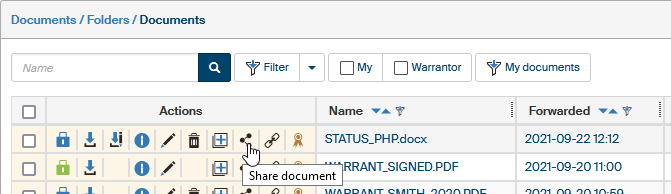
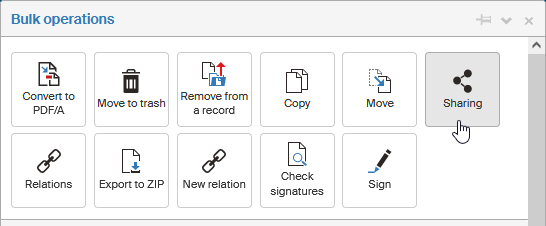
If you have access to a document, you can share it to other users. The sharing setup dialog is available from the list of documents, if you click  Share document in the Actions column, or a similar button (after checking the boxes in the first table column to select documents) in the Bulk operations window.
Sharing options
The Share document xxx screen to edit sharing consists of the following three tabs:
-
Users – to grant or remove permissions to/from individual users.
-
Groups and roles – to grant or remove permissions to/from groups and roles.
-
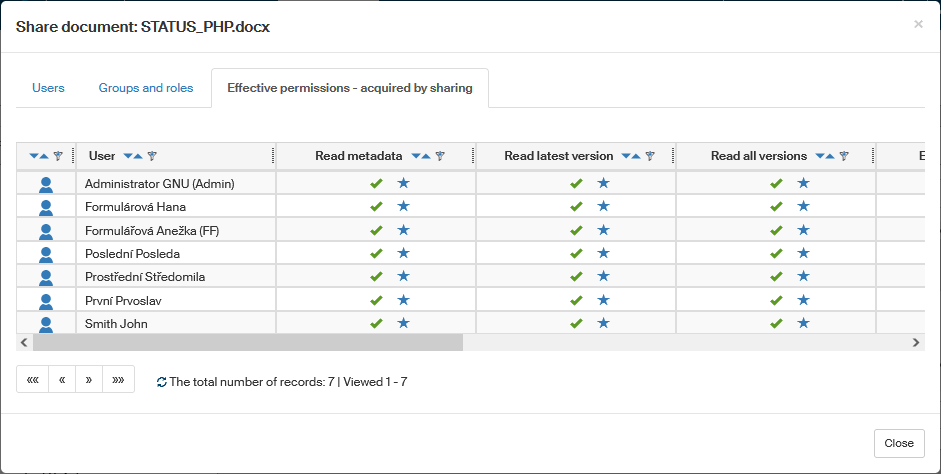
Effective permissions – acquired by sharing – displays a list of users who have been granting a permission by sharing, either directly or through group membership.
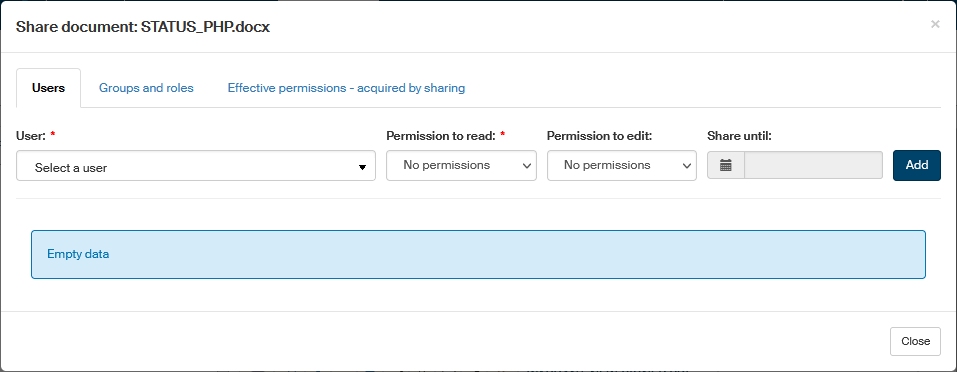
If the document has not been shared to anyone yet, the screen displays the message Empty data.
-
Both tabs, Users and Groups and roles, are used the same way. The tab contains the control User (Group or role) with the list of all users (or all groups and roles).
Grant the permissions to the selected user (group/role) by changing the option in one of the columns Permission to read (grants permission to view the document) and Permission to edit (grants permission to edit the document). You can choose from the following permission scopes:
-
No permissions – no permission will be granted.
-
Metadata – grants the permission to read or edit document metadata, but not the document itself.
-
Metadata + latest version – grants the permission to read or edit document metadata, and also the latest document version, but no permissions to previous document versions, if there are any.
-
Metadata + all versions – grants the complete permission to read or edit the document.
You can the permission for a limited time only, if you set a date and time in the option Share until. This detail will be displayed in the Share document screen in column Sharing until.
Then click Add to confirm the permission settings.
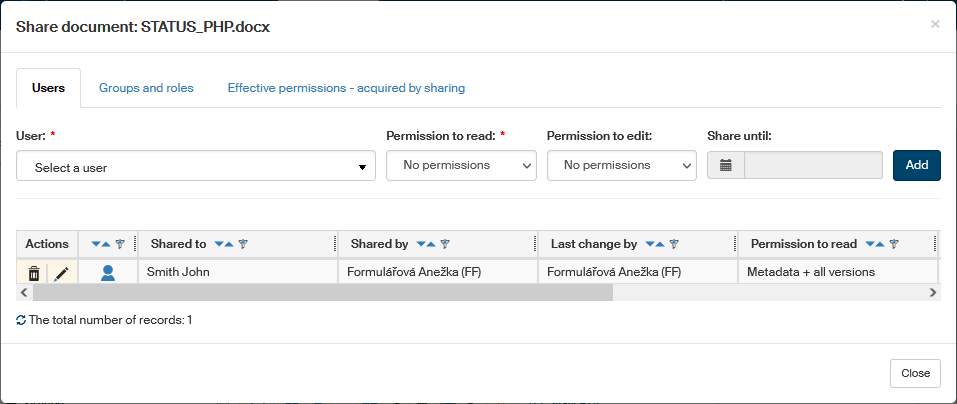
A new entry will be created on the tab for the selected user, listing who shared the document to whom and what permissions were granted.
The settings on the Groups and roles tab can be managed the same way.
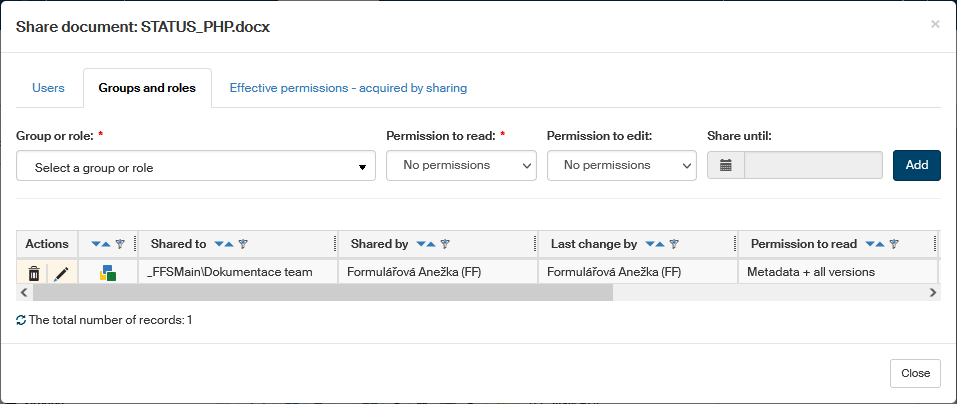
As of version 10.2.3.2, a new column Last change by has been added to the table, showing which user out of those who share the document has edited it the most recently.
The tab Effective permissions – acquired by sharing lists an overview of permissions granted for the shared document to a specific user or group (role).
Shared documents
The previous chapter described how you can share your documents to other users. If someone has shared their documents to you, you will find it in a special folder available on the Documents tab, if you click the Folders button. Go to the Folders section on the upper left and click Shared with me.
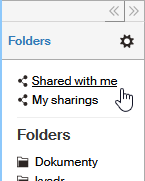
This will display the Shared documents screen with a list of all documents shared to you by anyone.
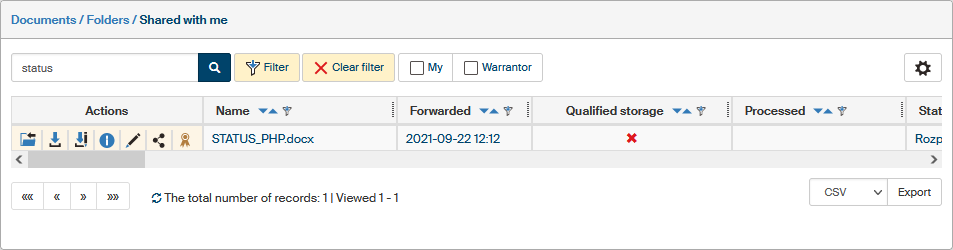
You can click into folder in the Actions column to display the document folder containing the shared document. If you are not authorized by the administrator to view the folder, clicking the button into folder will display a message, e.g. Agnes Newton is not authorized to view folder "Documentation". The user wanted to run the following operation: fetch visible metadata definitions.
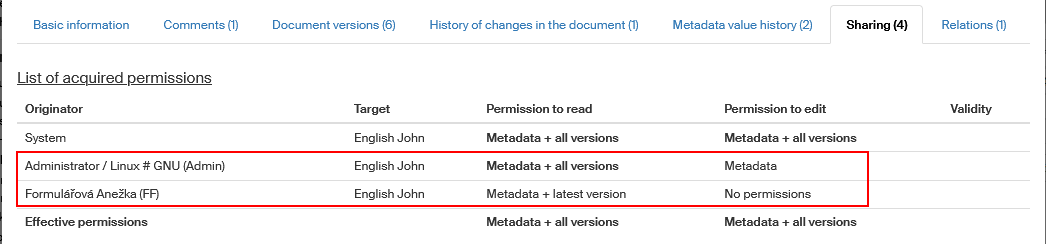
If a document has been shared to you by more than one user, you can view their list on the Sharing tab on the Document information screen opened by the button of the same name ( ). The following figure displays a situation when the same document has been shared by two users.
My sharings
The list of documents shared by the current user (me) to someone else is now available in a separate virtual folder My sharings. This folder does not list individual documents but individual sharings. It means that if I share a certain document to five users (including various sharing expiry times), this folder will contain five entries for this document, each referring to one sharing instance. This is a difference from the folder Shared with me, where each document is a single entry in the list, even if it has been shared to me by more than one user.
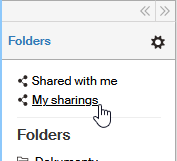
Open the folder My sharing by clicking the link of the same name in section Folders on the left of the screen.
The following figure shows an example, where a single document is shared to several users.
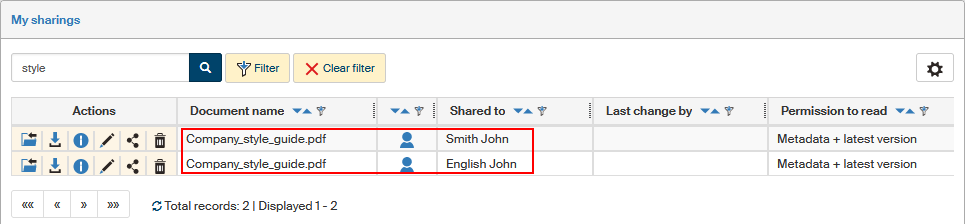
You can check the sharing parameters for the individual entries in the list; to change them, click  Edit sharing in the Actions column.
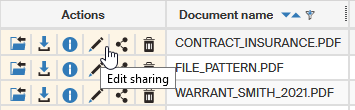
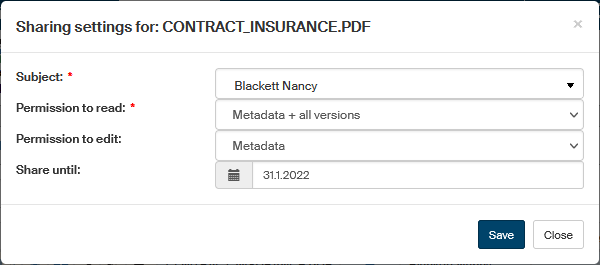
The dialog Sharing settings for allows changing the subject you are sharing the document to or change the read or edit permissions and the date of sharing expiry.