Signature book
When a document is created in one of the above-described ways, the final document usually needs to be approved. The process Signature book is designed to approve a larger number of documents easily.
There are two ways of starting this document approval process:
-
Select your working folder on the PROCESSES tab. Click Create process and select PKD – Signature book from the menu.
You can also click Folders, then click Controlled documentation and, in the submenu, click Signature book.
A form opens from the template; fill out the form as described in the following chapters.
-
Select your working folder in the DOCUMENTS tab and look up the documents to insert in the approval process. Check the leftmost box on the row with each of your selected documents to display a floating window with available operations. In section Processes in the window, click Signature book. Click Run to open the form and fill it out as described in the following chapters. Unlike the previous method, you do not need to look up the documents for approval again – they will be inserted in the form automatically.
If the document is already part of controlled documentation, for example it has undergone the Documentation creation process, you can run the approval process as a follow-up process, without having to handle the document file and fill out any of its details.
Entering the document details
The first part of the Documentation approval form is similar to the process forms for document creation and contains the document identification data.
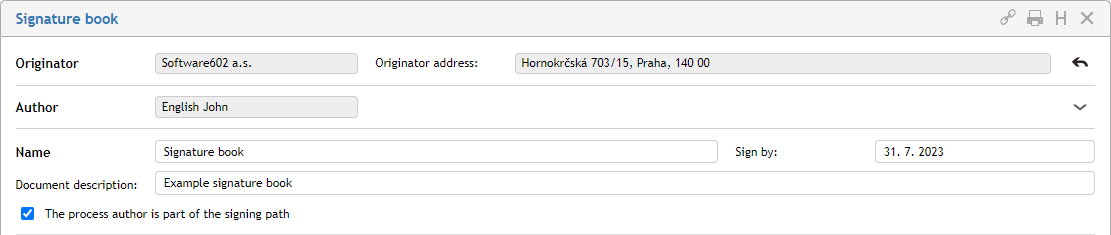
The Originator section is only present if controlled documentation is connected to records management. The section contains the organization (company, department, etc.), who owns the controlled document. If you handle documents for more than one originator, you can use this section to select which one of them owns the document.
The Author field lists your details as the person who starts the document process. You cannot edit this section; the details are taken from the server. You can click the arrow on the right to display some additional details – they are also read-only.
Enter process description in the following fields.
-
The text from the Name field will be used as the form name and displayed in process lists in the Name column.
-
You can add more details on the process in the field Process description.
-
You can also enter a date in the Signature deadline field. When the process starts, additional fields Process start and Process end will be displayed here; they are filled in automatically.
-
This section also contains the checkbox The process author is included in the signature path. Depending on this checkbox, the controls for document signing will or will not be displayed to the process author.
Setting up the signature path
Set up the list of users who will sign the attached documents in the section Signature path. You can add users to this list one by one or use a preset group to add them all at once.
Choose a preset group from the list Select group. Click OK in the confirmation dialog and the system will add the group members in the signer table. If you do not want to use a preset group, leave the option set to User-defined path and add users to the signer list manually.
| If you are managing documentation for more than one originator, the list of groups available in the list depend on the originator selected for this document. |

You can adjust the contents of the approver table, regardless of whether it has been prefilled from a group or empty. The following options are available:
-
Adding another user to the revision group: Click
 in the Add column to add an empty row in the table. The row will be placed just below the row where you clicked the button. Enter the user’s name or a part of it in column Signers – after the first few characters, the form will offer a list of matching names; select and confirm the required name.
 -
Removing a user: To remove a user from the list of signers, use the
 button to delete the corresponding table row.
 -
Changing the order: The Signature book will be presented to the signers sequentially, so their order in the list is important. Use the arrows in the Move column to adjust the order as needed.
-
The fields Role and Mandatory are copied from group settings (if a preset group was used). If the box in the Mandatory field is checked, the user is required to comment on the process. When the list of signers is set up and edited manually, it is not possible to set this value. This means that if it is set in the group, it cannot be removed in the form. If the Role entry is not filled in, you can (but do not have to) add it – it describes the user’s role in the approver group.
Attached files
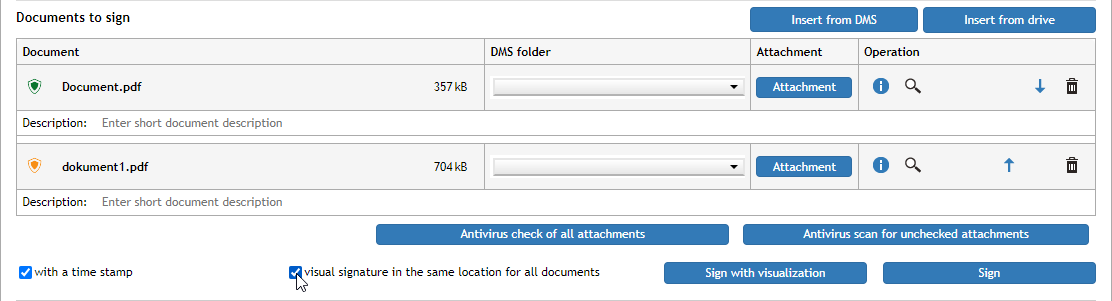
Add the documents to be signed in section Documents to sign. To attach more files, click Insert from DMS or Insert from disk again to insert more attachment sections.

The procedure is the same as described above in chapter Inserting the documents for revision.
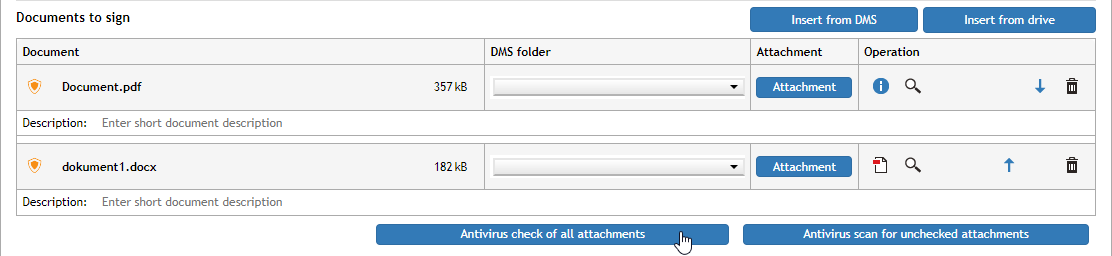
It is again recommended checking each document for viruses first.
Before starting the process, all the attachments need to be converted to PDF. Note the symbols in the Actions column.
-
Click
 Convert to PDF to convert the attached document to the PDF format.
 -
If the attached document is already in PDF, you can use the
 Display PDF details button.
 -
If there is more than one unconverted file in the form, the button Convert all is displayed on the left below the form – click it to convert all the files that need it.
-
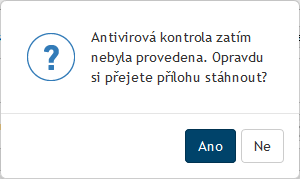
The Attachment buttons contains options to display the document in the corresponding application or save the document file on your local drive. If an antivirus check has not completed for a document, the user will be notified about it with a query asking whether you are sure you want to handle an unchecked document.
-
The magnifying glass button
 Display attachment preview in another window displays a preview of the document contents. The pencil button (Display metadata) displays the document metadata loaded from the document section. The index card button (Display in DMS) opens a window displaying the document entry in the corresponding document folder.
 -
For a better overview of the documents you can enter the Description field for each of them.
To insert another file, click Insert from DMS or Insert from disk again. If there is more than one document attached, you can adjust their order similarly to the Signers section above using arrows in the Move column.
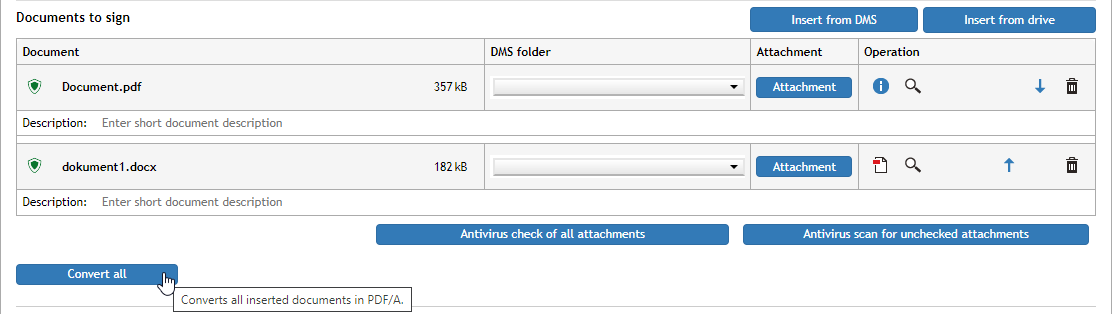
If you have inserted a document by mistake, you can click the trash bin button (Remove attachment)to remove it from the section.
If the box The process author is included in the signature path is checked in the upper part of the form, the controls for document signing are also displayed here. Their meaning is described in chapter Approving the form – signing.
You can find more details on signing in chapter Signing.
Comments and additional files
You can use the Comments section to attach a message to the form.
In section Other documents, you can attach additional files to the form to be used for reference; these files will not be included in the approval process.
Saving and submitting the form
You can click Save at the lower part of the form any time during your work to save your progress. FormFlow will save all changes you have made up to that moment, and close the form. When you decide to return to the form, you will find it in FormFlow in folder To Be Processed by Me.
When the form is ready and contains all required details and attachments and the signer list is set up, click Start the process to run the approval workflow.
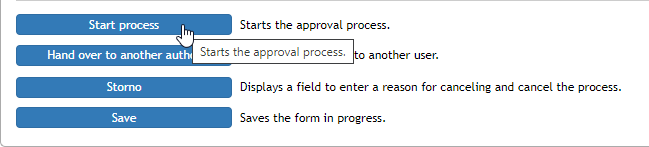
If all the documents have not been converted to PDF, the process cannot continue. An error message is displayed. Click OK to close it, convert the files and then continue starting the process.
Handing a form over to another author
Before you start the process, you can hand it over to another author. You can use this step for example when an assistant fills out the form and prepares the process for their superior. The superior then takes over the process, submits it, continues to act as its author and manages the rest of the process.
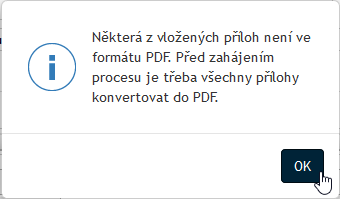
To hand over the document, click the button Hand over to another author, placed at the end of the form.
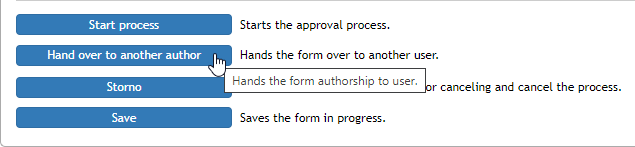
The form will display a search field to look up the new author. Select the name in field Hand over to user and click the button Hand over to user to confirm the selection.

The form will be closed, and the new user will find it in their folder To Be Processed by Me.
Ending the approval process during the approval workflow
The author can end the process any time and at any stage during the approval workflow. Simply open the form and click the Take over button. The process ends and the form is handed back to the author.

Approving the form – signing
The user who received the signature book form for signing is notified by e-mail and can find the form in FormFlow in folder To Be Processed by Me. The signer can open the form, view its contents, and sign the documents.
The user signing the documents can only edit the section Documents to sign, the rest of the form is only for the signer’s reference.
If a document is placed in the DMS, the DMS folder column displays the folder name and the Actions column contains links to the document metadata and to display the folder. The Attachment column contains a button to preview the file or download on your computer drive. Details on the signing process so far are placed below these controls, as well as a section where you can add Comments.
The important controls are placed below all the attached documents: you can set the signature properties here and then confirm it.
-
To attach a time stamp to the signature, check with a time stamp.
-
Click Sign to display the electronic certificate selection dialog. Select your certificate and the application will sign all the documents in the form. You can click the magnifying glass button (Display attachment preview in another window) to view the signed document.
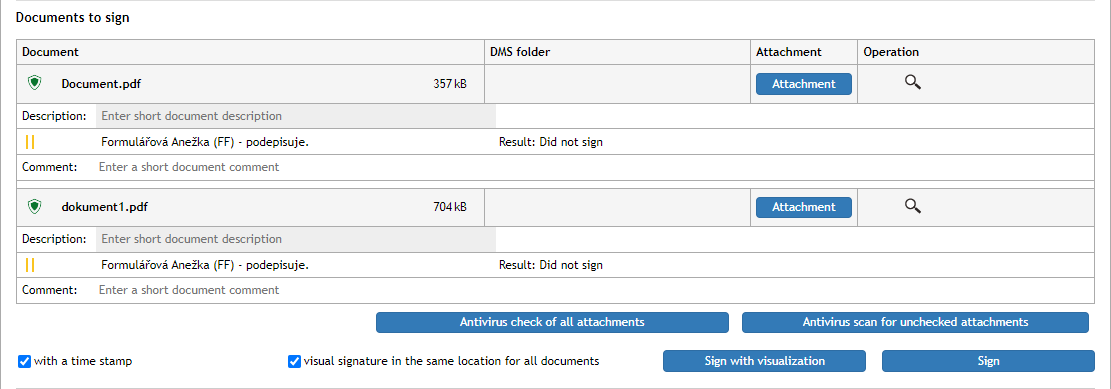
Optionally, you can add a visualization to your signature – an image displaying the fact that the document has been signed. To use visualization, sign the files using the button Sign with visualization. In such a case you will be prompted, after selecting the certificate, to also set up the visualization – select where on the document page the signature will be placed. You can set up the visualization separately for each document.
To use unified visualization, check visual signature at the same place for all documents before you start signing. The dialog for visualization setup is then displayed only once and will be used for all the documents.
A record of each user’s signing is entered in the form.

When you have signed and optionally commented on the documents, click Forward to next to submit the form. FormFlow will forward it to the next signer. Instead of signing, you can choose Return to previous to send the form back to the previous signer.
If you do not want to submit the form yet, you can click Save to confirm any changes you have made. The form will stay on your desk, and you can return to it later.
Adding approvers during the process
If enabled by the Signature book administrator, it is possible to add more signers even if the signing process has already started. The search field and the buttons to add more users are still available to the process author.
New signers can only be placed after the user who is handling the documents at this point. Click to add another row or rows (they are placed right after the row where you clicked the button) and enter the additional users or groups in them. Save the form. From that point on, the new list will be used when forwarding the form.
Click Save.

Marking the approval process
During the approval process, form lists in FormFlow display a group of numbers next to the form name, marking the progress of the process.
Displayed as: Form name (A/B/C)
-
A – number of users who filled in and forwarded the process,
-
B – number of users skipped (excluded from the process),
-
C – number of users for whom the process was started.

Document processing
When the signing process passes through all the users in the list, the form returns to the author. Besides that, the author can step in the signing process in some ways: if the author opens the form, they can click Forward to user to move the form to another step on the signature path or click Take over to end the signing altogether.
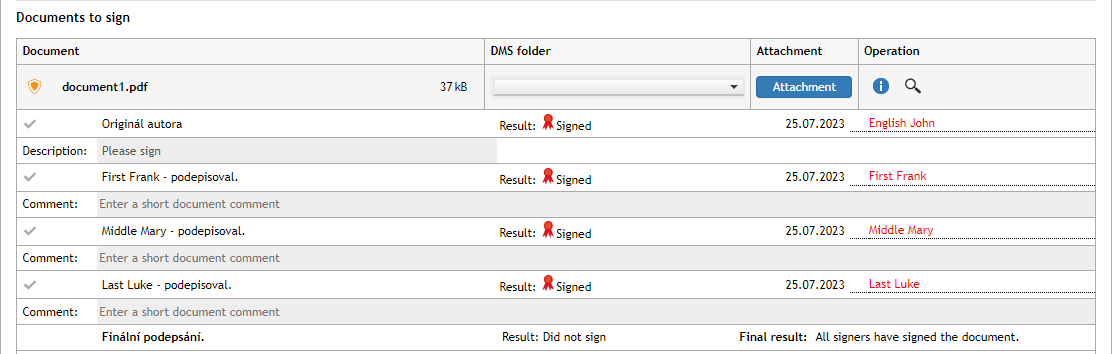
When the form returns to the author, the author can click Finish process. The documents are then archived, and the process is complete.
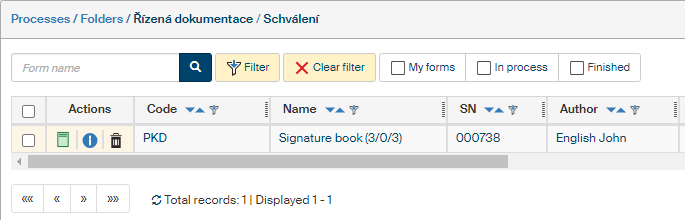
To make lists clearer, process result is displayed in the list of archived documents using colored form icons:
-
 green means an approved process,
 -
 red for rejected processes, which means approval processes interrupted by the initiator.
 -
 gray is used for forms in progress.