Form templates
To select Electronic records management forms to use for each of its functions, open the Settings screen and select Form templates from the menu.
User forms
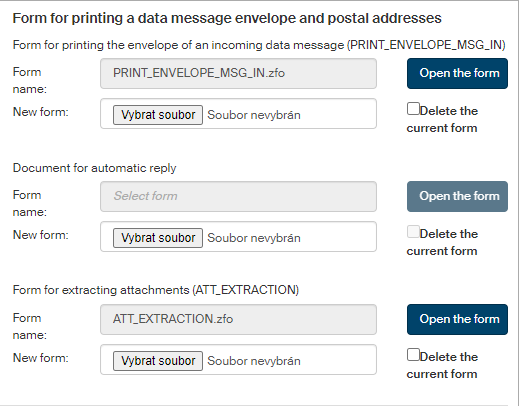
In each entry in section User Forms, select an installed template from the list. The template will be used when creating forms of the corresponding type.
-
Form for incoming data message or e-mail message (usually MSG_IN).
-
Form for outgoing data message, e-mail message or internal document (usually MSG_OUT).
-
Record form (usually SPIS).
Service forms
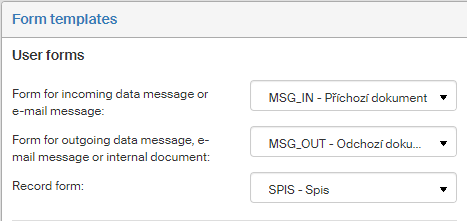
In each entry in section Service forms, select a service type form (for a shredding procedure or bulk posting forms):
-
Form for Czech bulk posting form (usually POST_ARCH).
-
Form for Slovak bulk posting form (for bulk posting forms in Slovakia).
Form for printing a data message envelope and postal addresses
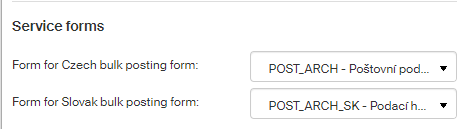
The following form templates can be set in section Form for printing a data message envelope and postal addresses:
-
Form for printing the envelope of an incoming data message (usually PRINT_ENVELOPE_MSG_IN),
-
Document for automatic reply – a document that will be attached to an automatic reply from the electronic mail room (to set the reply itself, go to , as described in chapter Notifications).
-
Form for extracting attachments (usually ATT_EXTRACTION).
If a template is set, its name is displayed in field Form name, and you can click Open the form to display it directly.
To insert a new template or replace an existing one, click Browse to display the file selection dialog and look up the template file. Forms to be used in this section are usually available in the DZHP package in folder DZHP/formulare/file name.
To remove an existing form, check Delete current form. Then click Save changes to confirm the changes.