Outgoing document
To create a new outgoing document (MSG_OUT), fill out the Outgoing document form ().
The new document can be intended for the data mailbox system, e-mail or traditional paper mail. The same form is used for internal documents that are not sent to any recipients and are used within the organization only.
Starting from January 1st, 2023, it is possible to send ASiC attachments (with container structure) as a data message using the Outgoing document form.
The new document form is usually submitted to a workflow and receives electronic signatures from users that rake responsibility for the message contents and sending.
When the message is approved and the person responsible attaches their electronic signature, the Electronic records management submits and archives the message. If the Outgoing Mail Room is enabled, a selected user (mail room staff) takes over the responsibility for submitting the paper mail (printing, placing in an envelope and posting) and then enters the actual posting date in the form.
New and existing outgoing documents
Creating a new outgoing document
To create a new outgoing document in the Electronic records management, open the RECORDS MANAGEMENT tab, click New and select Outgoing document.
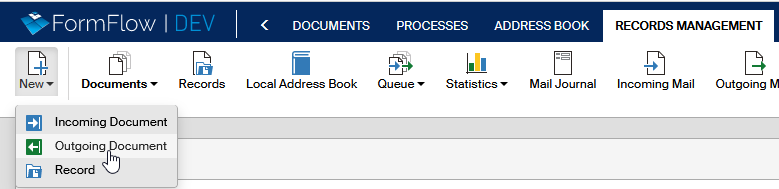
This action will open the corresponding form, and you can start filling it out. You also become the person responsible for processing the document.
A new outgoing document can be also created automatically by the system, for example as a reply to an incoming document. In such a case the person responsible will find the document on the RECORDS MANAGEMENT tab in the Documents window, or on the PROCESSES tab in window To Be Processed by Me.
Existing outgoing documents
A new message can be also created by some else who then hands it over to you. You will find such messages on the tab RECORDS MANAGEMENT> in the Documents window, or on the tab PROCESSES in window To Be Processed by Me. If you take over a document, you become the person responsible for processing it.
Some documents can be presented to you by someone else during their processing. You will find these files on the tab PROCESSES under the button To Be Processed by Me as well. In these cases, just attach what is needed – for example a signature or a comment – and forward the document to the processor or to another user for statement.
You can also open the Documents section on the RECORDS MANAGEMENT tab to look up any documents being processed or finished, outgoing or incoming. Use the filter button placed above the list to refine your search based on the name, processor, processing status or other details. You can find more details on searching the document list in chapter Filtering.
Outgoing document form
Outgoing and internal documents
The Outgoing document form has two modes: apart from creating an outgoing document, it can be used to create an internal document that stays within the organization. Next to the form name, Outgoing document, there is an arrow button  .
.

Click it to open a section with two buttons – Change to internal document and Change to outgoing document.

Click the corresponding button to switch the document to the selected mode; the form heading will change as well.

Document workflow setup tabs
The tabs in the form header (Hand over, Path, Document copy and Insert into record) relate to its workflow. For the description of the individual tabs, see chapters Handing over and assigning outgoing documents, Document path, Document copy and Inserting an outgoing document in a record.
Buttons in the upper right corner of the form
There is a group of buttons placed in the upper right corner of the form:
-
The
 Relations button opens a window where you can create parent and child relations to the document.
 -
The
 Document sharing button allows you sharing the document with other users. Sharing is described in chapter Sharing documents and records.
 -
Use the
 Print form button to print out the form. Printing is described in chapter Printing documents and records.
 -
The
 Document history button displays the document history, which is a list of operations run on the document since it was created – creation, insertion in a record, viewing, handovers, etc.
 -
Use the
 Close form button to close the form window for the moment. If you have made any changes, remember to click Save in the lower part of the form first to confirm them.
Sender (originator)
The sender and originator of the message is your organization. If you are managing more than one data mailbox, you may need to choose from more than one originator. In that case, use the Originator option to select to which originator the outgoing document relates.
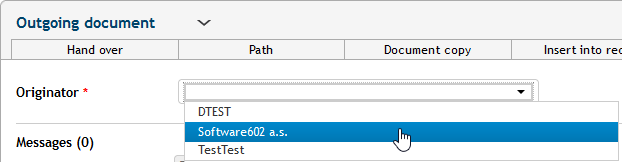
Selecting the originator is necessary for some of the next document processing steps, such as assigning the reference number or selecting the file plan class.
UID and Reference number
To process a document in the Electronic records management, it needs to be assigned a UID (unique identification number, an unchangeable number) and a Reference number. The buttons to generate these values are available as soon as the originator is set for the document. The way the buttons are displayed depends on the records management settings by the administrator:
-
If the type is set to Document linking, selecting the Originator will only display one button: Get Reference number. Clicking the button will set both the UID and the Reference number at the same time. Such a document will keep its reference number assigned at the beginning throughout its lifecycle and can be inserted in more than one record (as long as the record is of the same type – document linking).
-
If the type is set to Collection sheet, there are two buttons displayed: Get UID and Get Reference number. Click the button Get Reference number to assign both the values or click Get UID to assign the UID only. You can assign a reference number or not, it depends on its insertion in a record. If you place this document in a record, it will accept the record’s reference number with a preset mask. Such a document can only be placed in a single record.
The format of both numbers is preset by the Electronic records management administrator. It may differ for different originators, therefore you need to select the correct originator first in the following section (as described in chapter Document recipients).

Document recipients
The document may be intended for one recipient or more; create their list in section Messages.

The details required depend on the method the message will be sent: whether be using a data mailbox, e-mail or traditional paper mail. You can combine these options and select a different method for each document recipient.
| Adding the recipients requires having the UID assigned. And the UID can only be assigned when the originator is set. |
Selecting the recipient using autocomplete
If the recipient is already entered in FormFlow, you can select them directly, using the autocomplete – enter three or more characters from a part the address (name, surname, city, street, etc.) in the New message field. Select the correct address from the displayed list.
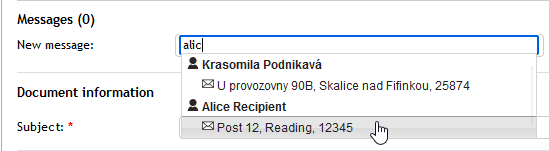
| There may be up to three addresses listed for each recipient. |
-
With the blue “at” sign (
 ) – for e-mail messages.
 -
With a black envelope (
 ) – for paper mail.
 -
With a yellow half-envelope (
 ) – for messages sent using the data mailbox system (DMIS).
Click the entry that corresponds to the method you want to use for sending. The selected address will be inserted in the table below the New message field.

If the recipient is a legal person, its representatives and places of business are included in the selection.
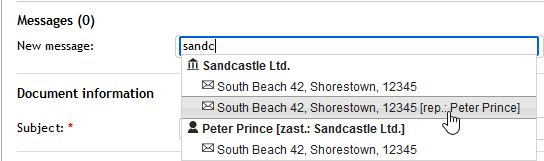
If there is a representative recorded for the company, it is displayed in the autocomplete list along with the company. The representative name is then filled in the field To the attention of if you select the corresponding contact. If there is more than one representative available, you can change their selection by entering the name or with the help of autocomplete – enter three spaces to display all representatives. If the company is edited to create a new version of the contact entry, the autocomplete for the company or its representative will only suggest the current version.
Selecting the recipient using Address book labels
Another option is to select the recipient with the New message using label button. This way you can make use of labels entered in the Address book. Click the button to open a window with the Address book label field and select the label with the help of autocomplete. For example, if you enter “im”, the labels Important or Important client can be displayed. When you have selected the label, use the Select contact priority option to select the contact type the label applies to (e.g. Residence or Delivery address).
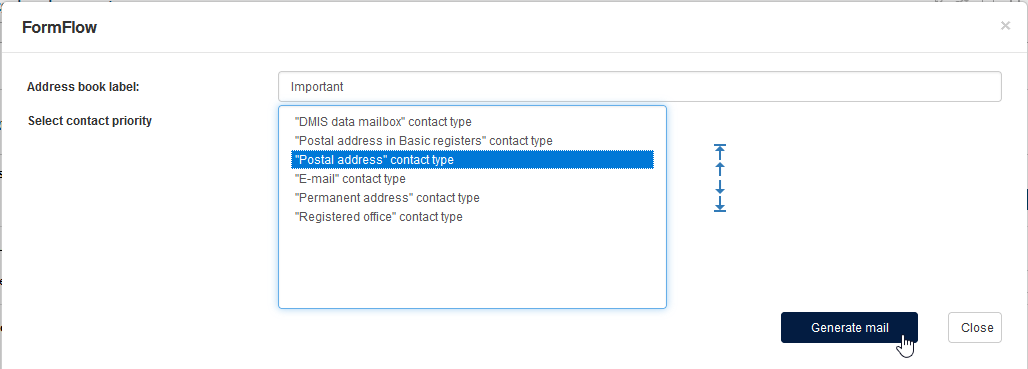
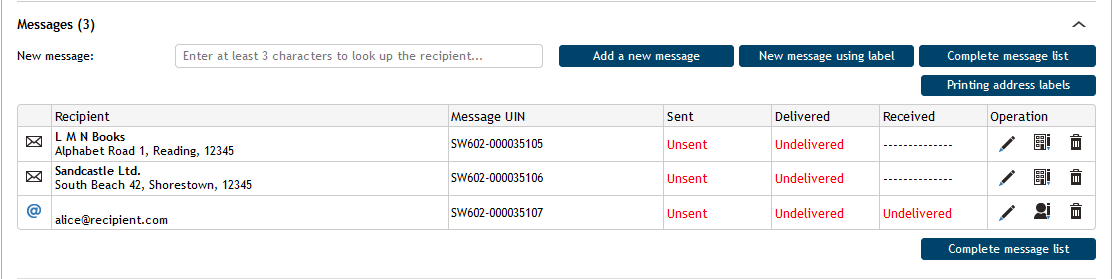
Click Generate mail to look up all addresses matching the criteria and insert them in the Outgoing document form in section Messages. Now you can click Remove message in the Actions column to delete unwanted entries or the combine the selection with other selection options.
This way you can get for example the addresses or all contacts labeled “Important customer” regardless of the address type.
Creating a new address
The third option of specifying the address is using the button Add a new message. Click it to open a new window, where you can:
-
look up and insert a contact address from the Address book and edit it if needed,
-
or create a new contact address of a selected type.

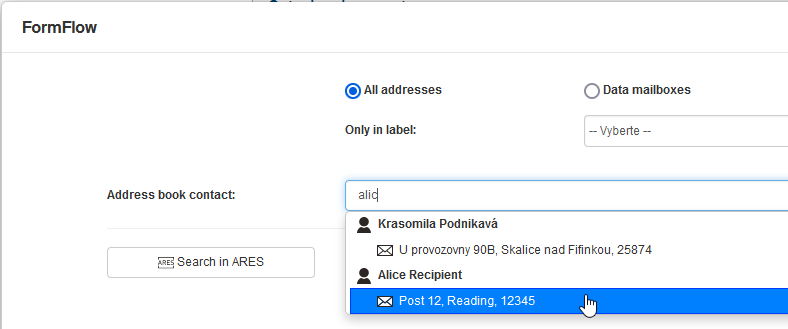
First, let us look how to look up an existing Address book contact. Use the switches in the upper part of the window to narrow down the address type – instead of looking up all addresses, you can choose to search in data mailboxes only, or traditional addresses, or e-mail addresses only.
The Address book contact field has the autocomplete function, so you can enter the first few characters of a part of the address for the searched contact. For example, if you enter the characters “wol”, you will look up any contacts named Wolf or Wolfgang or living in Wolverhampton. Click to select your chosen contact. The screen with the message detail is then displayed.
If the recipient is not in the Address book yet, you can create a new contact. Click one of the buttons – Natural person, Entrepreneur or Legal person. The Address book window opens, where you can insert the contact details.
When you save the entry, it will be available for lookup in the Address book contact field.
| Creating or editing contacts is only available when a UID has been assigned. |
Simplified address entry
If Simplified recipient creation is enabled, clicking the button Add a new message will not open the standard Address book screen. A modal window is displayed instead with the controls to enter the basic contact details. The details will then be transferred to the Address book. There are buttons Natural person and Legal person available (a button for an entrepreneur is not available in this screen).

Click one of the buttons to display a modal window to create a new contact. If you have selected a legal person, the window displays a switch for contact type (Legal person and Premises), and you can also add a representative for these types.
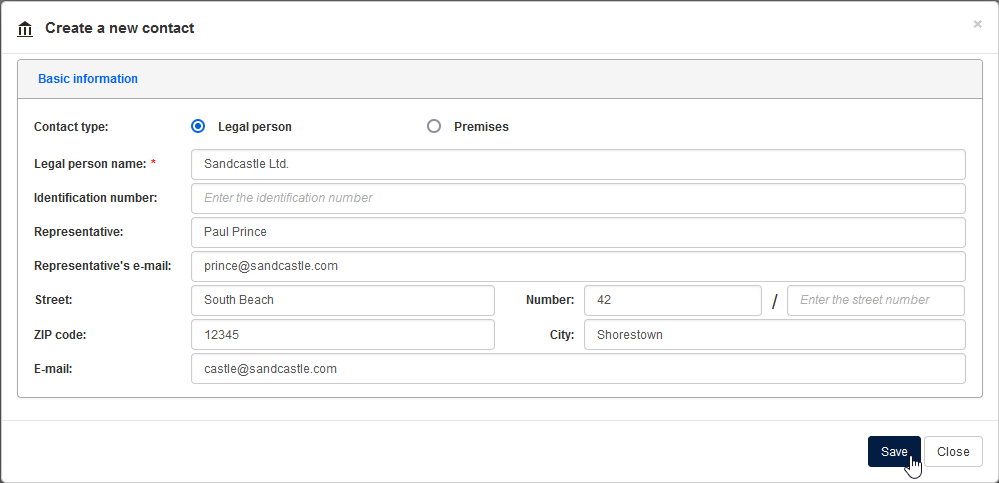
When you fill in the details and save them to the Address book, the values will be transferred back to the form (to display the recipient details). To edit the recipient further, visit the standard Address book screen.
| The Administrator can enable or disable Simplified recipient creation in Electronic records management configuration. |
Inserting more than one recipient
Repeat the previous steps to insert more recipients for the outgoing document. The recipients are added to the list in the table below the Messages field. The first column contains a graphical symbol (with a tooltip) to indicate the message type – e-mail, traditional paper mail or data message.
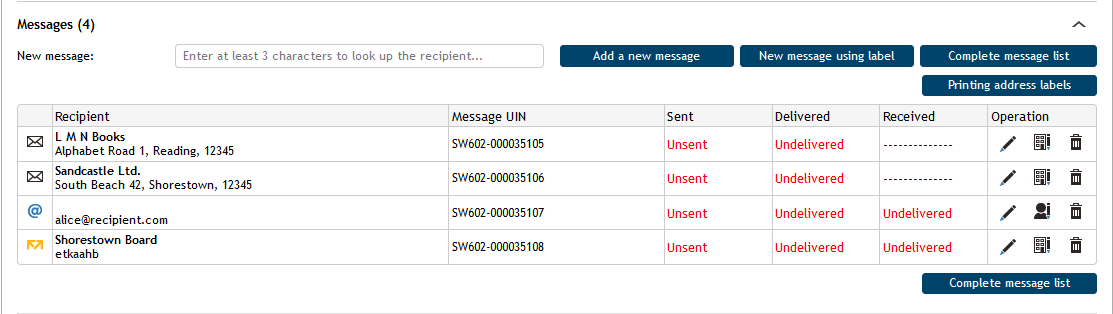
Icons in columns Sent, Delivered and Received change according to the message status (Unsent/Sent, Undelivered/Delivered, Not received/Received).
There are three buttons in the Actions column that provide edit options for each message.
-
Click
 Edit message to open a window displaying the details of address book entry for the message recipient and address details based on the message type. For more details, see the following chapter, Displaying the list of messages.
 -
Click
 Edit natural person (or
  Edit entrepreneur,
  Edit legal person) to open an Address book window where you can edit the contact.
Click
Edit legal person) to open an Address book window where you can edit the contact.
Click  Remove message to delete a recipient from the message.
Displaying the list of messages
If you have set up a large number of messages, you can list them in the Outgoing document form by opening the Messages section and clicking Complete list. The button opens a window where you can view the complete list of messages. You can also edit them here, delete, or add more.
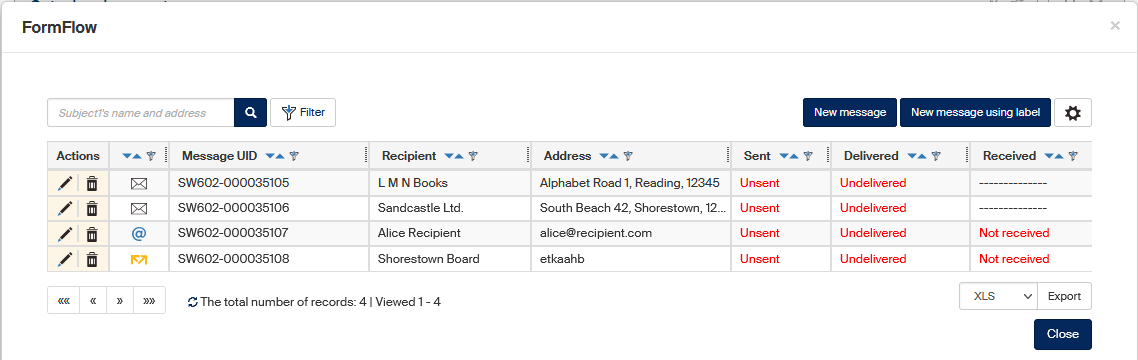
Editing the message parameters
Click Edit message in the Actions column to open the Edit message window.
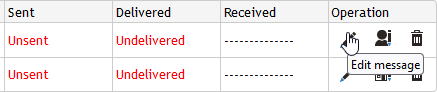
The window is divided into two sections. The upper part is always identical and is named Address book contact. The lower section depends on the message type.
Contact address
The Address book contact section displays a read-only field Contact name with the name of the recipient.

There are two buttons placed on the right of the field:
-
 Display contact version details – displays the order number for the contact version and the date and time it was created.
 -
Edit contact – opens the Address Book screen to edit contact addresses for the version.
The Contact detail field is a list where you can switch between address types. If there is more than one address available for the contact, you can change e.g. a message addressed to a data mailbox to an e-mail account or to a traditional paper mail.
Send by e-mail
The lower section for an e-mail address is titled E-mail and contains two read-only fields – Company (institution) name with the address (recipient) name and e-mail, containing the e-mail address itself.

Send by data mailbox
The lower section for a data mailbox address is titled Data message and contains read-only fields with the data mailbox contact detail (Mailbox ID as well as Identification number, Name and surname and owner Address).
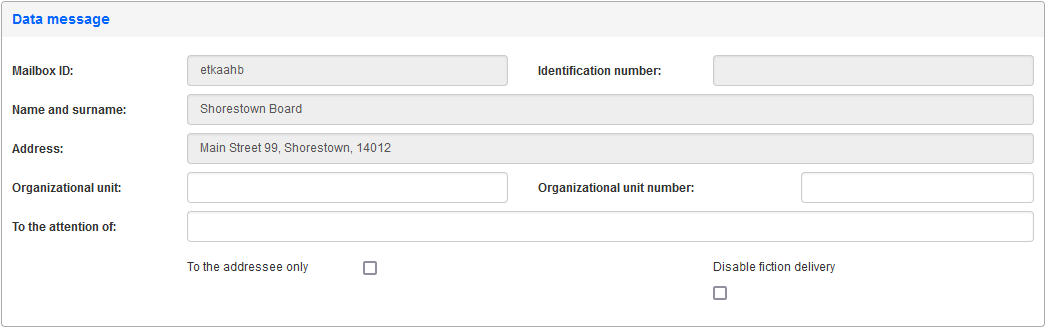
There are also three editable fields available where you can enter additional details for the data message delivery – Organizational unit, Organizational unit number and To the attention of.
Send by paper mail
For paper mail, the lower section is the most complex. First of all, you can select the message delivery method here.
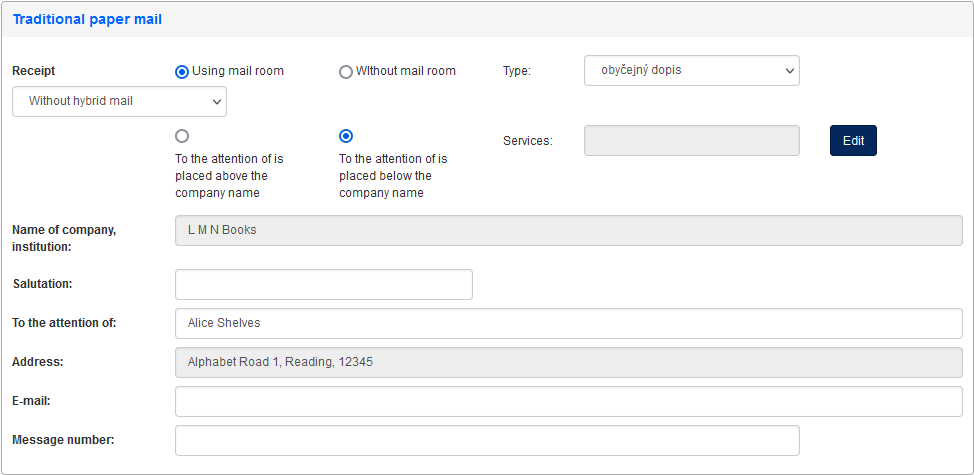
The Delivery options Using mail room or Without mail room are only available when sending Without hybrid mail.
-
If Without mail room is selected, the message is considered sent immediately and the user who processed it is also responsible for the mailing (handing the mail physically to the post office, courier, etc.).
-
If the option Using mail room is selected, the message is not considered sent immediately, but it is passed on to the mail room – a specialized department responsible for creating the actual message and mailing it (at the post office, handing to a courier service, etc.). The mail room staff then marks the message as sent, enters the actual send date and finishes the form.
Use the Type option to select the delivery type such as ordinary mail, registered mail, mail with a certificate of receipt, courier service or delivery service. The option is only enabled for the setting Without hybrid mail.
That is because one of the available sending methods is the Czech Post’s hybrid mail. If you use this method, the message is sent to the service digitally, the post office will print it out and send as paper mail to the specified address. When delivered, the service will return a digital receipt to FormFlow. To enable this option, an administrator must set up and enable hybrid mail in FormFlow settings.
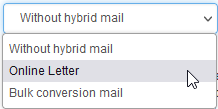
-
Without hybrid mail – the hybrid mail service will not be used to deliver this message.
-
Letter Online – the message will be delivered by hybrid mail using the Letter Online service in economy mode.
-
Letter Online + checked Priority mode (the checkbox is only available for this option) – the message will be delivered by hybrid mail using the Letter Online service in priority mode, which means that it will be printed out, packaged and sent on the same day you have submitted it to the Czech Post data mailbox.
-
Bulk conversion mail – the message will be delivered by hybrid mail using the Bulk conversion mail service. If a PDF document signed by a qualified certificate is included in the message, a conversion clause will be printed out with the document to certify that the document has been printed out from a file signed by a valid qualified certificate. You can choose the Priority mode for this service as well.
For more details on hybrid mail settings, see chapter Selecting the hybrid mail service.
The switch To the attention above company name / To the attention below company name changes the order and availability of the remaining fields in the lower part of the section where you can set up the message address header.
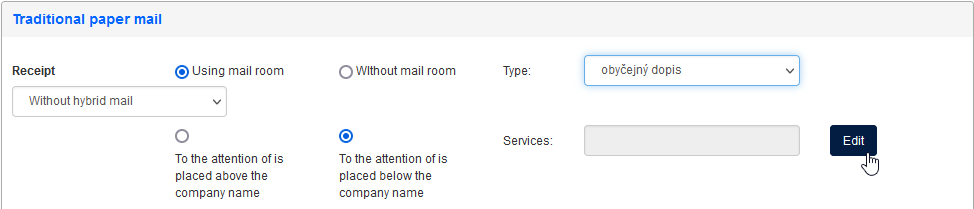
Use the Edit button if you want to request a specific service for the message, such as a certificate of delivery, delivery to the addressee only, shortened pick-up period, to declare the shipment value, etc.
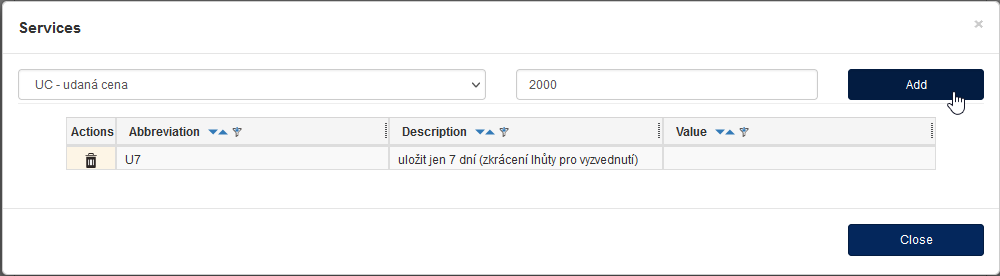
Click Edit to open the Services window and set up a list of services to be used for the message.
-
Look up the service name in Select service – e.g. UC – udaná cena (declared value).
-
Based on the service type, you might need to enter a specific value in the field Enter value (such as the value in CZK for the declared value service).
-
Click Add to save the setting, then add more services if needed. The shortcuts for the selected services will be displayed in section Traditional paper mail section and its field Services.
Printing address labels
When preparing paper mail, you can use the button Print address labels to prepare a sheet of recipient addresses for the envelopes.
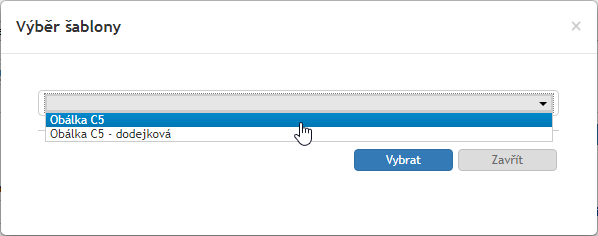
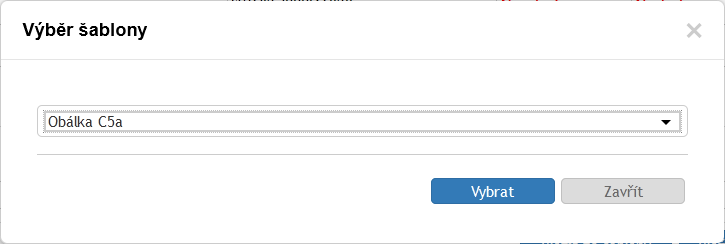
Click the button to display a template selection dialog. Select a template and click Select to confirm. The Electronic records management then prepares an MS Office file and offers it to you to download and print out.
Document information
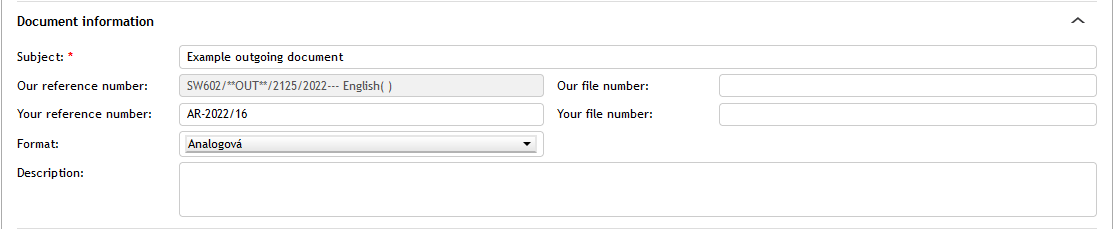
If the document has been handed to you by a different user, the Document information section contains a prompt to take over the document. Only then you will be able to make any changes to it. For more details on handing over, see chapter Handing over and assigning outgoing documents.
The Subject field is mandatory, and the document cannot be sent without it. You can click to expand the section and fill in all the fields: both your and the recipient’s reference numbers (Our reference number is filled in automatically based on the Reference number; Your reference number can be also filled in automatically, if copied from an earlier data message, otherwise you need to enter it manually), also the file number and, optionally, the Description. You can also enter a name in the corresponding field to address the message “To the attention of” a specific person or “To the addressee only”; choose the Form (electronic, analogue or hybrid) and optionally disable fiction of delivery.
If it is an e-mail, the section also contains a field with the whole Message body.
Attachments
The form can contain one or more attachments – files that are part of the message. For data messages, an attachment is mandatory.

There are several methods of adding an attachment:
-
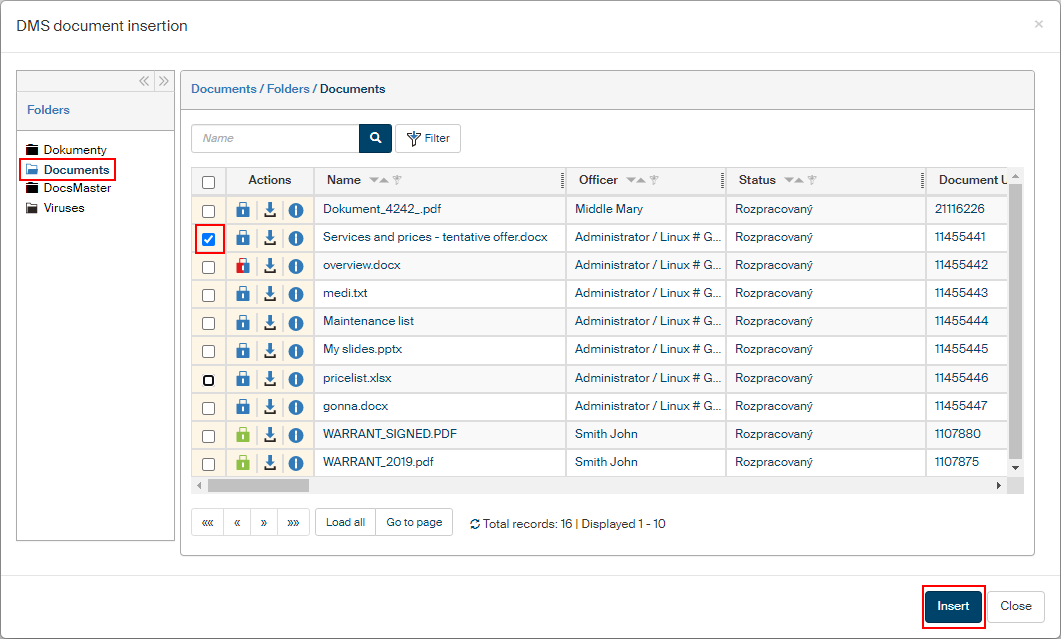
To load a document from a FormFlow document folder, click Create from DMS. A modal window Document list is then displayed.
-
The left side displays the document folder structure. Select the required folder and click it. You can narrow down or minimize this part of the screen using the double arrow icons in its upper right corner.
-
On the right, look up the file(s) you want to insert in the form and check the boxes in the left-most column to select them.
-
Click Insert to place the selected files in the form.
The selected document might be already placed in another process. In such a case a query is displayed whether you still want to insert the document in this process too. It depends on FormFlow settings whether placing a DMS document in more than one process is allowed (an administrator can change this setting at ).
-
-
Attaching a file from your drive – to attach a file from your computer drive, click Insert from drive and select it in the following dialog (or simply drag and drop the file to the Attachments section; the drop area will be marked with a dashed line). You can click Attachment to download an attachment (e.g. to sign it with a certificate) or click the trash bin icon to delete it.

-
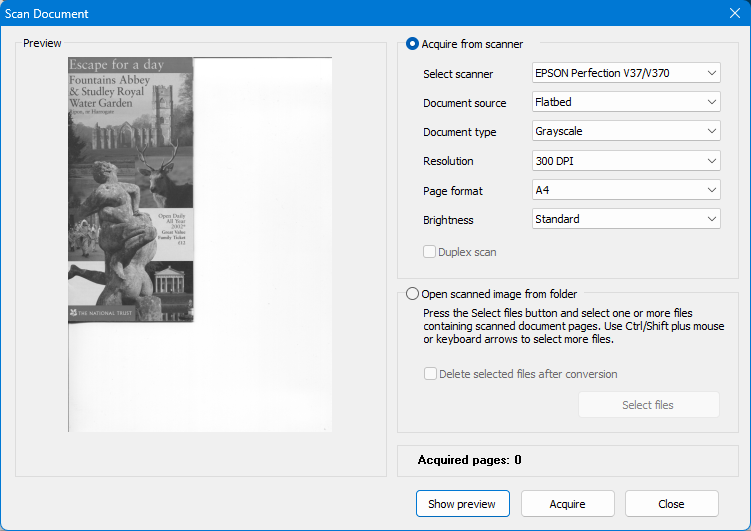
Scanning a paper document – if you do not have the document ready as the corresponding file type yet, click Insert from scanner. The button displays a dialog where you can prepare the attachment. If you have a scanner at hand, you can use it directly to create a digital version of your paper document.
But it is not the only option. You can also use this dialog (by clicking Open a scanned document from a folder) to create a PDF file from images (already scanned pages, photos, etc.) saved on your computer drive. The selected files will be combined in a single PDF document and inserted in the form as an attachment.
-
From template – if you have templates for creating attachments automatically, click Insert from template.

Select a template from the list in dialog Template selection and click Select to confirm. The document will be generated automatically from details filled in the form.
-
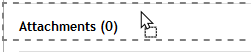
Drag and drop – you can insert files from your computer by dragging them to the Attachments section; drop them in the area marked by a dashed rectangle. You can insert more than one file at once.
To attach more than one file, repeat one of the procedures above.
Attachments exceeding the limit
There is a limit to the attachment size. If the received attachment is too large (exceeds the limit), it will be highlighted in yellow in the Incoming document form.

The framed text – "The inserted attachment is too large. Some form features will be limited" – warns, that features such as conversion to PDF, signing and conversion to paper will not be available for this attachment.
Document preview and conversion to PDF
Click the magnifying glass button ( ) to display a preview of an attachment directly in the browser next to the form, if the file type is supported. Otherwise, the file is offered for download after an antivirus check.
Click Convert to PDF to convert the inserted file to the PDF format. If the conversion is successful, the original file is replaced in the form by the converted version. For more details, see chapter Converting attached files.
Antivirus check and signature check
| If you have your own antivirus method set up, the buttons and the indicator are not displayed. |
There may be two icons displayed on the left of the filename, indicating the status of electronic signature check and antivirus check.
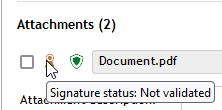
The signature status can be one of the following:
-
 a brown seal symbol indicates a file where signatures have not been checked yet. Start the check by clicking Validate signatures below in the expanded Attachments section.
 -
 a gray seal symbol indicates a file that does not contain any electronic signatures.
 -
 a green seal symbol indicates a file where electronic signatures have been checked, and they are valid.
 -
 a red seal symbol indicates a file with an invalid electronic signature.
If antivirus check is set up, an icon with the antivirus check status is displayed on the left of the file name. If the antivirus check is disabled, the symbol is not displayed.
-
 an orange shield symbol indicates a file that has not been checked by antivirus yet. Click Antivirus check of all attachments or Antivirus check of unchecked attachments to request checking the file now.
 -
 a green shield symbol indicates a file that has been checked and is safe.
 -
 a red shield symbol indicates a file marked as infected by the antivirus check. You cannot handle such a file: its download and preview are disabled.
Other settings in section Attachment
When the Attachment section is expanded by the button on the right from the button Insert from drive, additional controls are displayed for each attachment.
-
You can enter any text with the description and/or purpose of the attached file in the field Attachment description.
-
Use the buttons
 to sign a PDF attachment digitally or provide with a time stamp. The documents need to be checked by the antivirus fist. Until then, they cannot be signed, and a warning dialog is displayed. Both the buttons are available, if signing using Signer is set up. If you are using signing with the Remote signing service, only the button Sign document is available.
You can find more details on document signing in chapter Signing. -
The button Document conversion offers several ways of converting the attached file from paper to electronic form or back. For more details, see chapter Converting attached files.
-
The field DMS folder allows you to choose the folder in the document section of FormFlow where to save the document. Select a folder and confirm the selection. FormFlow will then display the same document insertion screen as when inserting a document directly in the DMS section. If you view this document later in DMS, the Relations section will display the process containing the document.
-
The Qualified storage option – use it to change long-term document preservation settings.
-
Use the switch Primary attachment to indicate which document is considered the main attachment (if there is more than one attachment).
-
Anonymized attachment – you can insert an anonymized version of the document (with personal details removed), suitable e.g. to be published. Click the button to display a dialog window, look up the anonymized document on your computer drive and insert in the form. You can use the arrow on the right end of the button to open or save the attachment.
-
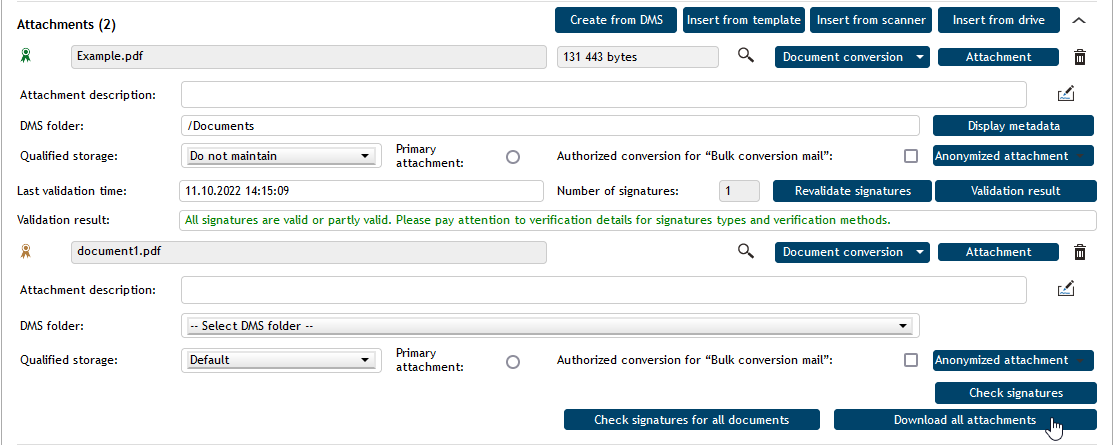
Click Check signatures to validate signatures for a single document. Or you can click Signature check for all documents to validate the signatures in all documents in the form.
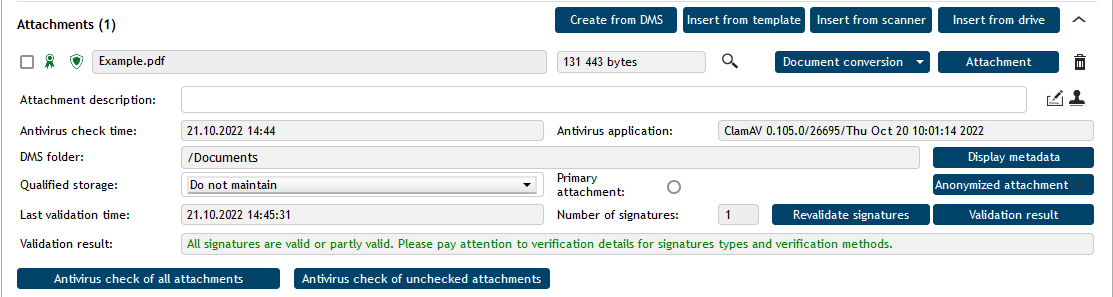
Click Revalidate signatures to run the validation again. For more details, see chapter Signature validation result.
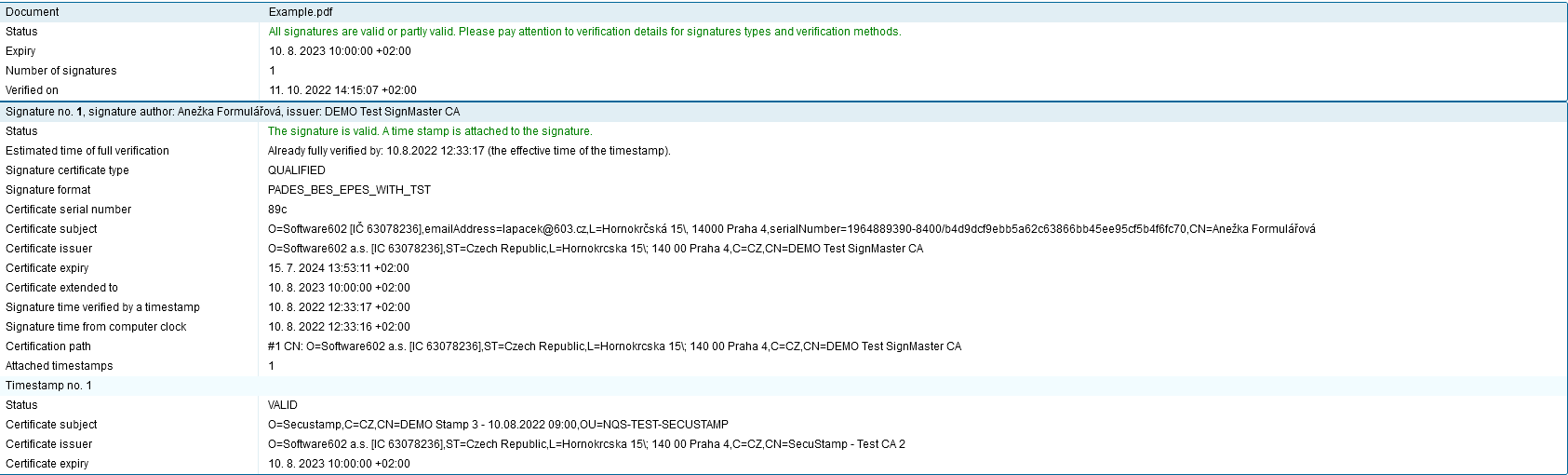
If a file is signed electronically, you can click Validation result to display a list of signatures with details on their issuer and validity in another window. A simple validation status is also displayed directly in the form.
Downloading all attachments
If the outgoing document has two or more attachments, you can download them all on your computer drive at once. Click Download all attachments to create an archive ZIP file from all the attachments. Then the system will offer you the file for download.
Additional information
Section Additional information allows you to place the document in one of the preset categories. Use the Category option to select a category from the list.
Some categories may have a processing period prescribed, which will then apply to the document. If the period expires and the document is not processed, the system sends an e-mail reminder to a selected person. Based on the settings, such reminders may be sent repeatedly in preset intervals before the period expires. Set up the period in field Processing period.
You can also attach labels to the document. On the right from the Labels field, click and select a label from the list. You can attach more than one label.
The last two fields in this section can be used to enter the Number of physical sheets of the document and Number of physical sheets of attachments.

The button Related documents is only displayed if there are other documents related to this one (e.g. documents created as a follow-up process, document copies, etc.) or if the document has been placed in a record. Click the button to display the list of these events.
Older versions of FormFlow also displayed the button Display record (only if the document was placed in a record). The button has been moved to the upper part of the form, above the UID and Reference number fields. Click the button to display the RECORD field containing the record.
Comments
Every user can add their own note for the document in the Comments section and, if they choose, attach an attachment or more to the comment.

In the default state, before any comments are added, the section might be displayed “collapsed”. To insert the first comment, click the button on the right to expand the section.

You can use the same button later to collapse the section again.

-
New comment – input field where you can enter the comment text.
-
Insert attachments to comment – click the button to display a file selection dialog and look up the attachment file on your computer drive. You can also use the mouse to drag & drop files from your file manager to the comment section.
-
Attachment – opens a dialog where you can load the attachment in the browser or save in a file.
-
Remove attachment – removes the attachment from the comment.

To attach more than one file, repeat the procedure. Click Save comments to save the comment contents in the form. If you do not save the comments and close the form window, the comments will not be present the next time you open the form.
Document processing
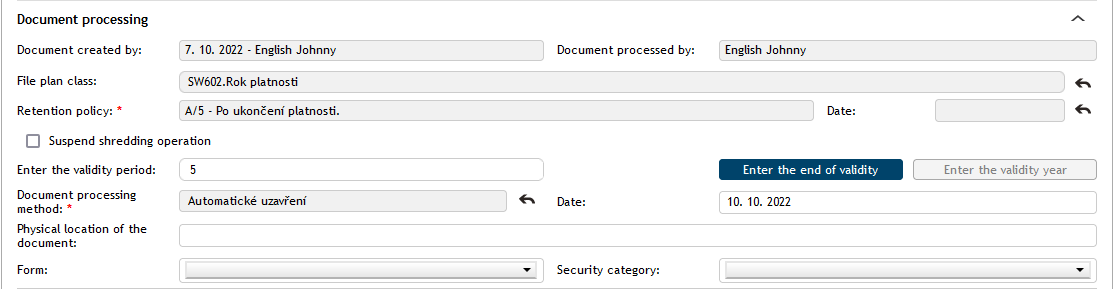
The Document processing section contains the details related to the procedure of processing the document.
The document creation date and who created it (Created by) are read-only details. The person processing the document (Processed by) is also transferred from the document properties and cannot be changed directly, only by handing the document over to someone else, as described in chapter Handing over and assigning outgoing documents.

These details are the only two visible if the section is collapsed. Expand it by clicking on the right.
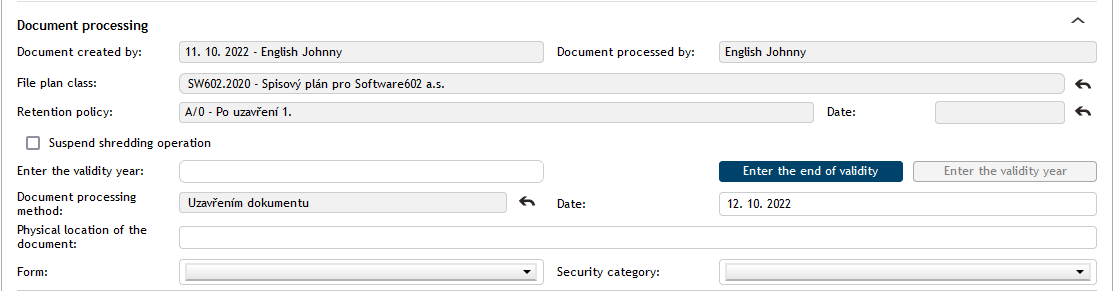
The field File plan class is mandatory. You can enter the file plan class name directly. The autocomplete feature will offer a list of matching classes as soon as you enter at least three characters. Enter more characters to refine the search.
For clarity, the autocomplete list includes file plan titles written in bold and marked with the  symbol. You cannot select these titles (they are deleted from the form after selection). File plan classes are displayed in a tree structure based on their level and with an arrow icon
  .
.
Other ways to ease your search:
-
Press the space key three times to display all file plan classes.
-
To display the last ten file plan classes used, enter three asterisks (*).
To change your selection later, click  .
.
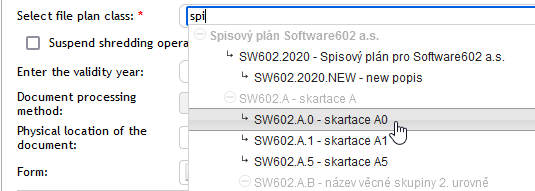
The following settings relate to the retention policy. The retention policy specifies how to deal with the document in the future: whether it will be shredded or archived.
If the File plan class has only one Retention policy assigned, it is prefilled automatically based on the class.
If there is more than one, select the corresponding policy from the list. Click on the option Retention policy to display the list of available policies.
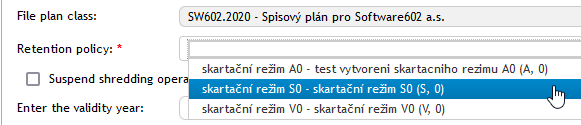
Retention policy consists of a retention code (A – archive, S – shred, V – undecided). There is also the retention trigger specified, meaning the moment from which the retention period is calculated.
The retention trigger can be reaching a specific date, or the end of the document validity, or the moment of finishing (processing) the document.
Based on the retention trigger, enter one of the following:
-
The retention trigger is a user-defined date – enter the Date.
-
The retention trigger is the end of document validity. It can be entered as a specific date or simply a year. If the button Enter validity date is enabled, use the calendar control to enter the Validity date. To enter the year alone, click Enter validity year and enter the year number in the field Enter validity year.
-
The retention trigger is when the document is finished – in this case there is no need to enter any dates, the retention period starts when the document is finished/processed.
|
You can edit both the file plan class and the retention policy later by clicking .
|
If you check Suspend the shredding operation, this document (nor the record that contains it) will be placed in a shredding procedure. When such a form is reopened, a note on shredding operation suspension and the date is displayed.
The option Document processing method specifies how this document is processed (e.g. acknowledging, processing, etc.). Use the related field Date on the right to enter the document processing date. To change your selection later, click .
The optional field Physical document location can be used to write down where the physical document is archived.
The Form option specifies what form of the document is stored here: e.g. original, copy, summary, etc.
In Security category, select one of the entries on the security category list.
Lending a document
The Lent section allows you to look up a user who was lent the document, and set a specific time interval for the lending. Use the field to look up a user this document was lent to. You can enter the first three characters of the name, then the autocomplete function will list matching users. Enter more characters to refine the search.

When a user is selected, the form will display the fields Lent from, Lent until and Returned. Enter the lending time interval in the first two fields, then enter the return date in the third when the document is actually returned. All lendings are saved in the document history.

The Lent section stays visible even if the previous section – Document processing – is collapsed.
Outgoing document relations
Relations are used to specify how a document is related to processes, records and address book contacts – e.g. superiority and subordination, connections, importance, etc.
Click Relations to open the window to create and edit relations. It is placed in the upper right corner of the Outgoing document window.

Use the Entity option to select the entity, meaning the type of entry to connect: it can be a document from the DMS section, records management document, record or process, or an address book contact.
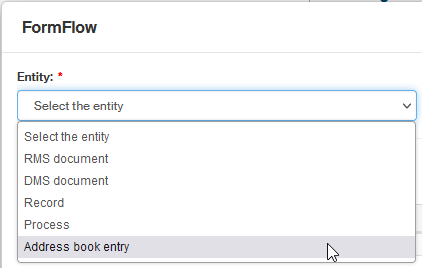
Enter at least the first three characters in the Name field and click the magnifying glass icon. A list of matching items is displayed. Click on an entry to select and confirm it.
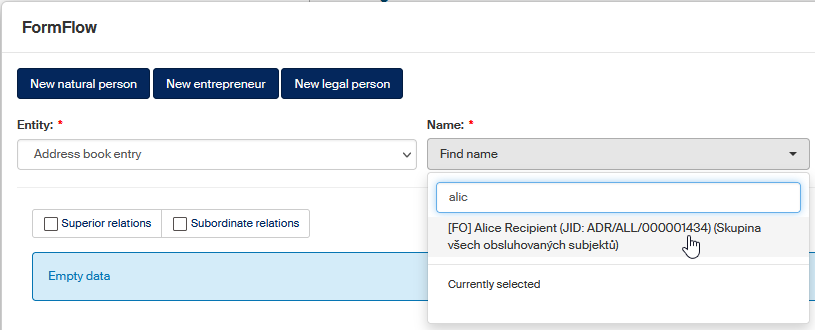
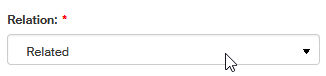
Note the three buttons New natural person, New entrepreneur and New legal person. It is displayed when you select the option Address book contact and allows you to create a new contact if needed and save it in the Address book. Then select the relation type (e.g. subordinate, superior, etc.) in the Relation field.
Click Add relation to confirm your selection. You will be notified about the successfully added relation by a message The relation has been saved. Relation details are displayed in the window as a table. There are two buttons available in the Actions column for each entry:
-
Edit – displays the Edit relation window, where you can add or edit details for the relation.
-
Delete – deletes the whole relation entry.
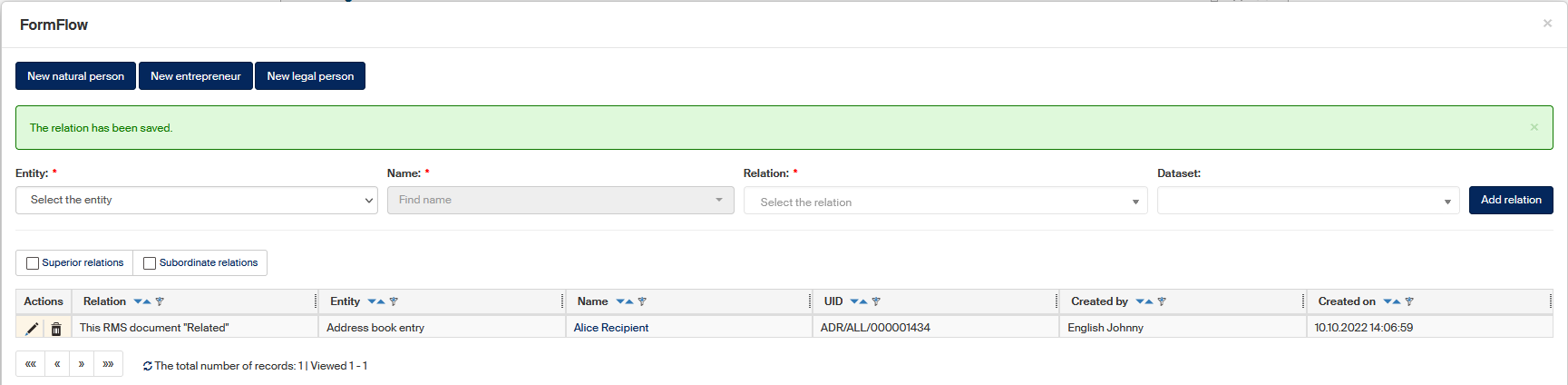
You can filter the list of relations in the table to display the superior relations only (check Superior relations on the left above the table) or the subordinate relations only (check Subordinate relations).
Handing over and assigning outgoing documents
The person who created a document is automatically responsible for processing it. But this role can be changed:
-
You can hand a document over to another person. The recipient must confirm the handover.
-
Another option is to assign the document; in such a case the change is valid immediately, the recipient does not need to confirm it and cannot reject the document. Only users with the corresponding permission are authorized to assign documents directly (and have the corresponding button displayed in the form).
| Handing the document over or assigning it means you give up all responsibility for its processing permanently. If you want to present the document to another user for additions, comments, etc. and then continue processing it yourself, use the workflow in section Document path, as described in chapter Document path. |
To hand over or assign a document for another user to process, click the Hand over tab in the form header.
First select the username of the person who will receive the document in the field Hand over to user. Type the first three characters of the name, the autocomplete then starts to suggest names; add more characters to refine the search.

Handing a document over to another user
To hand over the document, confirm the selection by clicking Hand over to user. The document is then handed over and the form will close for you. You can reopen it later, but only in the read-only mode.
The selected user will be informed and if it was a handover, they will need to confirm the change. Then they take over the responsibility to process the document. If the user rejects the takeover, the document will be returned to you and the rejection reason will be displayed in the form.

Taking over or rejecting a document
If someone has handed a document over to you for processing and e-mail notifications are correctly set up, you will receive a message:

The message includes a direct link to the document.
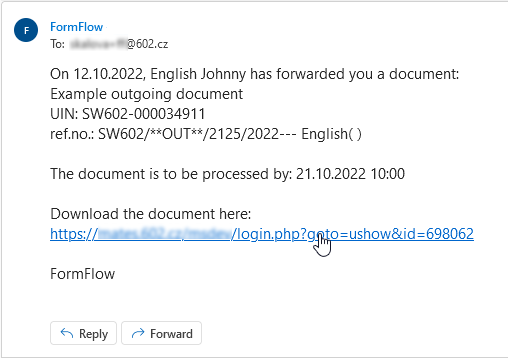
You can also find it by going to the , or .
The Outgoing document is displayed in read-only mode first, until you take it over.
The prompt to take over the document is displayed in section Document information below the Messages section. View the document and decide whether you want to take it over. You can click the arrow button on the right of a section to display additional (read-only) details for the document.

Taking over a document
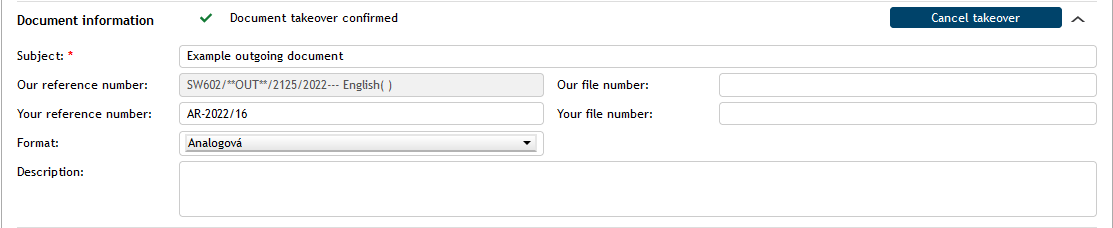
Click Confirm takeover and the section Document information will display the message Document takeover has been confirmed with a green checkmark. You have just taken over responsibility for the document, and you can start processing it.
After the takeover, the button Cancel takeover will still be displayed in the form, and you can cancel your choice later. In such a case you will need to confirm the takeover rejection manually. Remember that changes made to the form in between will be present in the form even after the rejection.

If you click the arrow button to expand the section, more document description will be displayed.
Rejecting document takeover
If you choose not to take over the document, click Refuse takeover. The field Rejection reason is then displayed; enter your reason for not taking over the document. Then click Refuse and return to confirm the rejection. Electronic records management will return the document to the original author.

Your reason for rejection will be displayed to the document author in a blue rectangle every time they open the document. The reason message can be hidden by clicking the cross button on the right.

If the user who rejected the takeover change their mind, they can click Do not refuse to return the section to the previous state and then click Confirm takeover.

Assigning a document
A user can only assign a document if they have the corresponding permission. Permissions are set by the administrator ().
To assign a document, do the following:
-
With the help of autocomplete in the field Assign to user, look up the name of the user who will receive the document.
-
Click Assign to user.

-
Confirm a query and the document is assigned to the selected user.
The user who assigned the document can now only view it read-only.
The user who was assigned the document does not need to confirm anything and cannot reject the assignment. They can still hand the document over to someone else.
Inserting an outgoing document in a record
A document from an Outgoing document form can be inserted in a record directly from the form. It can be placed in an existing record or a completely new one. A document can only be in one record at a time.
Before inserting, the Originator must be selected – see chapter Sender (originator). A document must have a UID assigned (see chapter UID and Reference number) before it can be placed in a record. The tab Insert into record with the corresponding controls is located in the form header.
The tab Insert into record consists of the Look up record field in the upper part, where you can locate existing records, and the button Create a new record, placed below.

Inserting in an existing record
To place the document in an existing record, use the field Look up record with autocomplete that will help you find the record based on its name, file number or managed entity name. You can check My records only to narrow down the selection.
When you look up the record, the record details (File number, Name, Entity) are displayed along with a pair of buttons.

Click Display selected record to open a modal window with the record details. Check that the record is the one you were looking for.
If you have selected a wrong one, you can click the arrow button above the Name field to cancel your choice.
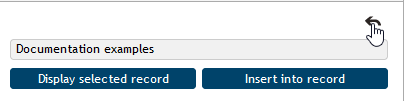
Click Insert into record to complete the insertion. Before the insertion, you need to specify the subject (in the Subject field) and the reference number (the button Get reference number).
A message framed in blue will notify you about a successful insertion.

The button to Display record will be still available in the section.
Inserting in a new record
To insert the document in a new record, click Create new record. Confirm your choice and FormFlow will create a new record and place this document in the new record. You can then find the new record on the Records management tab under the button Records, with a name matching the document name (you can change the name later).
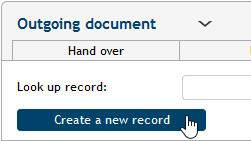
When you click the button, the new record is created, and the document placed in it.

Click Display record to open the RECORD window where you can set up some parameters for the new record.
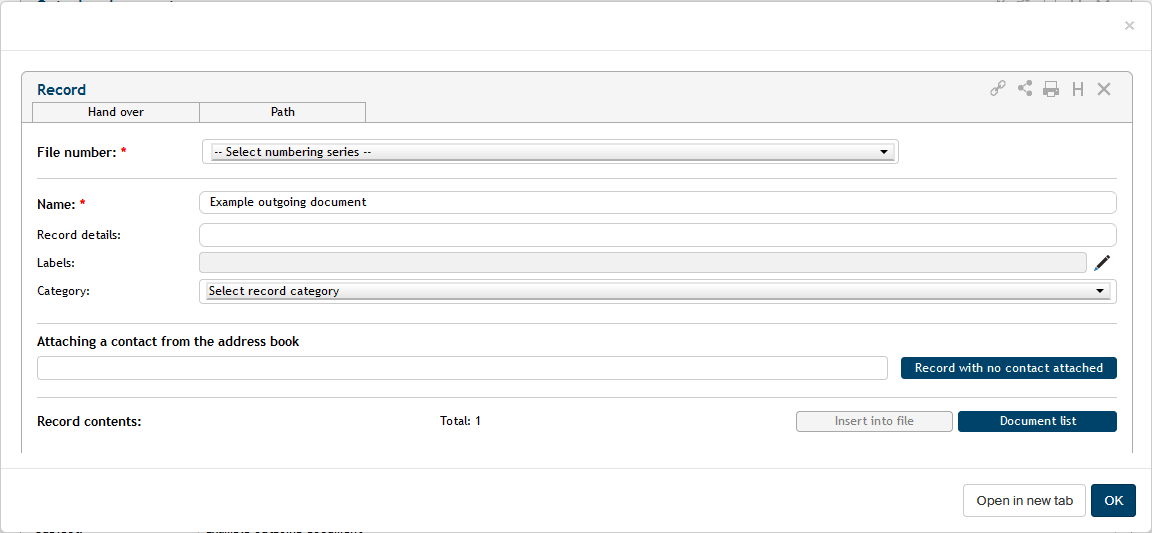
Note that the window contents are not visible whole, but you can use the scroll bar to move them.
Click OK to return to the original document.
Document path
Although there is only one person responsible for processing the document at any point in time, more users can participate in the processing during the document’s lifecycle. Set up a document workflow to present the document for statement to a list of selected people.
Click the Path tab in the upper part of the form. A table is displayed where you can set up the document workflow.
Every table row corresponds to one user. Select who will receive the form for statement in the User column: enter the name or a part of it in the field and select the user from the list. You can enter text in the Comment column; it will be displayed to the user.

You can set up the document this way to be presented to more than one person. Use the + buttons to add as many list entries as you need and select more users to receive the document in turn. You can click – to remove any rows you do not need.
When the workflow is set up, click Start workflow to submit the document to the first user on the list. The document will be displayed in their folder To Be Processed by Me, and they will be able to edit it: add some details or notes, attach a comment, etc. If they have notifications configured, they will receive an e-mail notification about the document.

Then the user selects the button Forward to next, placed in the upper part of the window, to submit the document to the next person on the list. If a user who is part of the workflow finds there is something lacking in the document, they can return it to the workflow author. Use the button Return to author to return the document. They cannot change the workflow any other way.
There are icons on the right of usernames indicating the workflow progress: user marked  has already given their statement, user marked
  has it on their desk right now.

When the document receives statements from all people on the list, it will return to the user processing it.
The processor cannot edit the form during the workflow. The only option they have is to click Take over the form to stop the workflow and return the document to their desk.
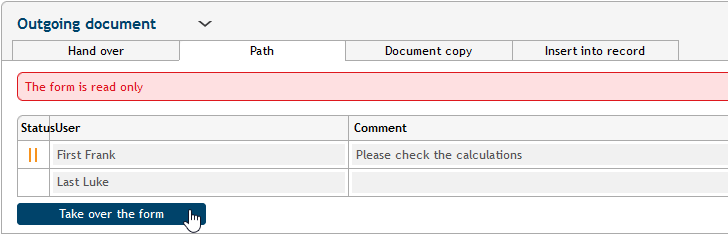
Then they can continue processing it or, if needed, change the workflow or create a new one.
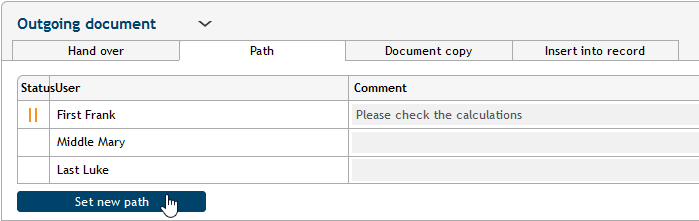
If everything is in order, the processor can take the document that has passed the workflow and submit it to the recipient(s).
Document copy
Sometimes it might be useful to create a document copy: a new document with its own reference number but the contents identical to an existing document. You can use the section Document copy to create one. Click the tab of the same name to display the section.
In the table Users, go to the field Look up user, enter a part of the name of the user who will be the new document author (processor) and select the person from the list. You can click + to add more rows and create more copies at the same time.

Then click Copy to create a document copy (or copies); they will be displayed to the selected Records management users in section To Be Processed by Me.
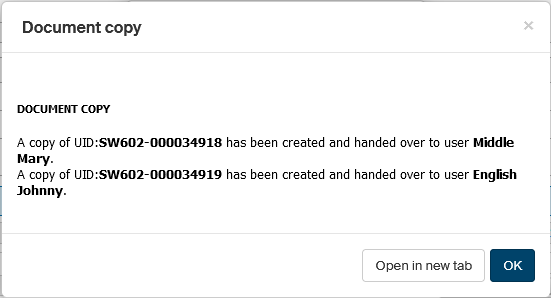
Document processing
Processing a document means completing it, submitting (if it is an outgoing document) and finishing the whole form.
The person responsible for the processing is always the user listed in field Processed by. This person is the only one authorized to digitally sign the document, send it and finish and therefore to take responsibility for the document correctness and for completing all requirements. To leave the document processing to someone else, hand the document over to them (see chapter Handing over and assigning outgoing documents).
If the document meets all requirements, click the button Send document. If the form requires an electronic signature, attach it in the following dialog. If the document is only sent digitally (either by e-mail or using the data mailbox system), the message is finished and ready for sending as soon as you confirm the signature (and then sent by the background services). The same applies if the recipients include a traditional postal address, but sending without the use of mail room has been selected (see also chapter Document recipients).
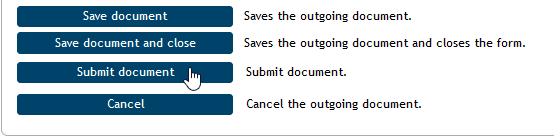
If the message includes both electronic and paper mail recipients, and mail room has been selected for the paper ones, the electronic versions are ready for sending with background services after signing, while the paper mail with Using mail room selected are forwarded to the mail room. In such a case the document cannot be finished immediately. The mail room staff prints out the document, places it in envelopes and mails them. Then they enter the actual send date in the corresponding field in the Recipient section and click Confirm send to save it. Only then is the document finished and archived.
If a message is being sent to traditional addresses only, the mail room staff can still return it to the processor before sending, e.g. if they find an error. They can use the Return for completion. The processor can then remove their signature, edit the document, and then sign again and send to the mail room.
Saving your progress
If you make any changes to the document and need to pause your work, click the Save document button in the lower part of the form to save the changes. The changes are then saved to the Electronic records management server.
Processed document options
You can view processed documents.
You cannot edit a document if it has been already sent. An exception is a document send by traditional paper mail that has been submitted by the author but is still waiting for mailing in the mail room. If the mail room returns the document, the author can use the Reopen button. The document then returns among the documents in progress, and you will find it on the PROCESSES tab, under the button To Be Processed by Me.
Outgoing messages to Slovak data mailboxes
If the electronic records management is set up for sending electronic messages to UPVS (Ústredný portál verejnej správy), you will find them among outgoing documents as a separate form type. Most of the fields, identification details and controls are identical to other incoming documents. This chapter describes the differences when creating a data message.
| The forms used for handling Slovak data messages are only available in the Slovak language. |
Creating an outgoing Slovak data message
Create an outgoing message to the Slovak data mailbox system the same way as other outgoing documents, by selecting the corresponding template. The template for Slovak data messages is typically distinguished by using a Slovak name – e.g. Odchádzajúci záznam.
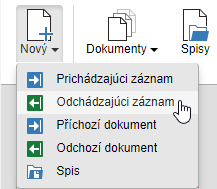
Compared to common outgoing documents, the form for Slovak data messages contains several additional fields needed to create a correct data message. These fields are not available until the identification details are entered. When you open the form, start by the following:
-
specify the message originator (described in chapter Sender (originator));
-
assign the UID and the reference number (described in chapter UID and Reference number);
-
specify the message recipient (described in chapter Document recipients).
When all these details are entered, an additional section, Formulár UPVS (UVPS form), is displayed in the form. Look up the required form (data message) type in this section: enter a part of the name and the autocomplete function will offer the matching options.
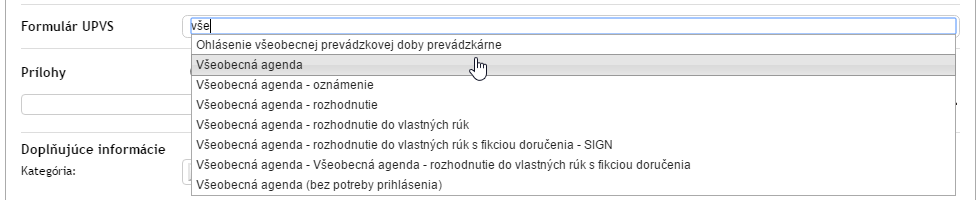
Click the mouse or select the form using arrows and press Enter to confirm your selection. The button Otvoriť formulár UPVS (Open UPVS form) is then displayed in the form; click it to enter the data mailbox interface.

This interface will be displayed over the Electronic records management form and provide the controls to set up the data message itself. Availability of various parts of the interface depend on the form (message) type, but the fields for entering the message subject and body will be always present, as well as the attachment section.
You can insert attachments either using this interface or in the ERMS form; whichever one you use to insert the attachment, it will be then displayed in both places. If you want to use this interface, click Vložit (Insert) first and select the file on your computer drive. Confirm the dialog and the corresponding fields will display the basic details of the file: its name and size. Then click Pridať prílohu (Add attachment) to confirm adding the attachment again.
With the attachment in place, the Insert button will change to Replace, and you can use it to replace the file with another one. Other options include the Stáhnout (Download) button to save the file back to your drive or Náhled (Preview) to view the document contents.
If you want to insert more than one attachment, click  to add more sections to the form and repeat the procedure. To remove superfluous sections, click
  .
.
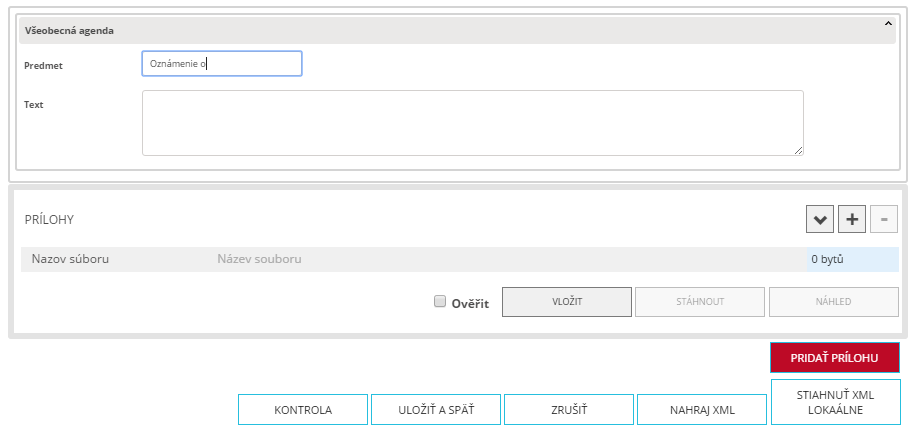
The following buttons are available in the lower part of the dialog window:
-
Uložiť a späť (Save and back) – save the changes and return to the ERMS form;
-
Zrušiť (Cancel) – return to the ERMS form without making any changes;
-
Nahraj XML (Upload XML) – enters data message details (e.g. text details such as the message subject and body) from a prepared XML file. Click the button to open the file selection dialog;
-
Stiahnuť XML lokálne (Download XML locally) – saves the entered data message details on your drive as an XML file.
When you enter the required details, click Save and back to confirm the changes and return to the ERMS form where you can continue processing as you would for any other outgoing document.