Application settings
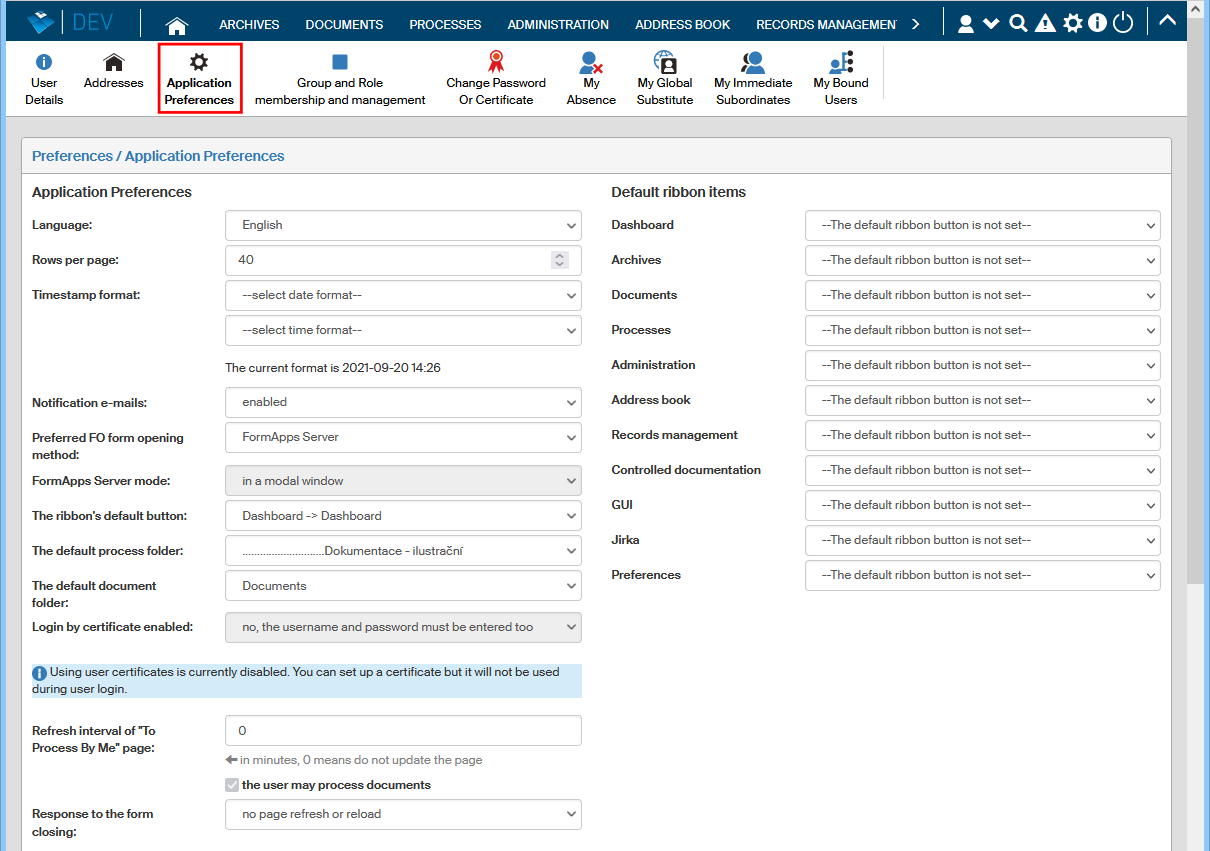
The window opened by going to My settings and clicking Application settings allows you to adjust how the FormFlow window is displayed.
Language and timestamp settings
The Language entry sets the FormFlow environment language (Czech, Slovak, English).
Number of rows per page sets how many rows are displayed in lists (of documents, processes,…) in a given window. The maximum value for this field is set by the administrator, but you can choose a lower one.
The pair of options Timestamp format can be used to set how date and time records are displayed (for example the order of day – month – year in a data item).
Notification e-mails
Use the Notification e-mails option to enable or disable sending notification e-mail messages – notifications of status changes in forms in whose workflow you are taking part.
Opening forms and running the FormApps server
Preferred FO form opening method allows you to select whether to open forms using Form Filler or FormApps Server. This setting will only apply to forms suitable for both the applications, other forms are always opened in the application they are intended for. The following settings specify the manner in which the forms will be opened in either of the applications.
FormApps Server Mode sets how forms are opened:
-
in a new window – a new window is always opened and the form loaded in it;
-
in a modal window – the form is displayed over the FormFlow web page, that is, the rest of the page will not be accessible until the form is closed again.
Selecting the signing method
There are two ways of signing documents, based on the location of the signature certificate.
-
Using an installed browser extension combined with the Signer application. The signature certificates are in this case stored locally – in the Windows store or on the user’s qualified device (token). This method has been the only one until June 2020.
-
Now the documents can be also signed using the server signing service – the certificates are stored in a remote store, on a server. The advantage is independence from a specific computer of physical presence of a qualified device.
Use the Signing method option to set up how to sign the document. The option may not be available for some users, depending on permissions set by the Administrator.
Default values for the ribbon and the process folder
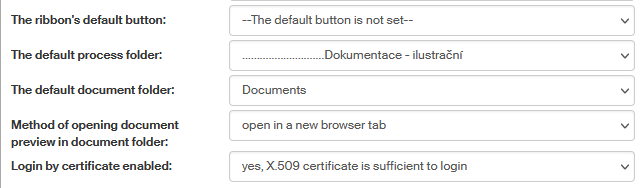
The option The ribbon’s default button allows you to set which of the FormFlow screens will be displayed after login. You can select from both standard and user-defined tabs, if the administrator has added any to the FormFlow ribbon.
The default process folder allows you to set which item in the folder structure on the Processes tab will be selected when you display the tab. Similarly, the field The default document folder can be used to set a folder on the Documents tab.
Method of opening document preview in document folder – select whether clicking the document item on the list should display the preview in the same browser window or on a new tab.
Default ribbon page setting
On the right column of the Application settings screen, you can select for most ribbon tabs which page to display after selecting the tab.
If nothing is set, the tab’s default page will be displayed after selecting the tab, and you will need to select the required page using a button.
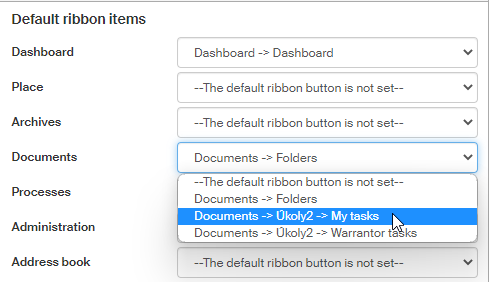
| The section only displays sections (tabs) you can currently access – those you are allowed to see. If you lose access to a tab or gain a new one, the change will be reflected in this setting too. |
Required login details
The field Login by certificate enabled sets which details will be required to log in to the application. If set to yes, X.509 certificate is sufficient to login, the application will not require the name and password to log in, unlike the stricter option no, the username and password must be entered too. You will only be able to change this setting if the administrator has allowed users to change it.
Automatic refresh of folder To Process By Me
If you like to keep the page To Process By Me open, you can use this setting to make it refresh automatically after a given time. Enter the time in minutes in the field Refresh interval of "To Process By Me" page. If you enter 0, the page will not refresh automatically.
| This setting depends on the previous setting items Preferred FO form opening method and Form Filler mode or FormApps Server mode. Page refresh will only be enabled if you have set opening forms outside FormFlow: in the case of FormApps Server, it means the option in a new window. If you have set to open forms in a modal window, the page will not refresh automatically regardless of this setting. |
Permission to be a document processor
If the field the user may process documents is checked, you can act as a document processor. Only an administrator can change this setting.
Response to form closing
Use the option Response to the form closing to set the action after closing the window with a processed form. If you select no page refresh or reload, the page from which the form has been opened will stay without any changes. The options page refresh and page reload will refresh or reload the page after the form is closed to reflect any changes.
Color setting
Colors of FormFlow components are primarily set by the administrator. You can adjust this setting to your preference. The setting is available in section Colors in the lower part of .
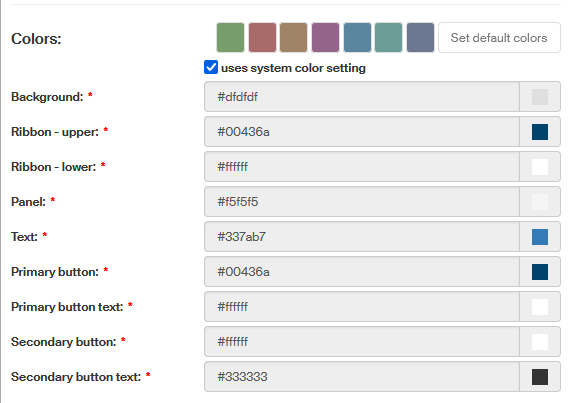
To use system colors set by the administrator, check uses system color setting. Then all the options will be disabled, and the colors will be set to the default palette.
Otherwise, uncheck the field. Then you can use the fields to set colors for individual parts of the environment.
To return to the original color palette displayed on top of the section, click Set default colors.