Qualified storage settings
Basic long-term preservation settings
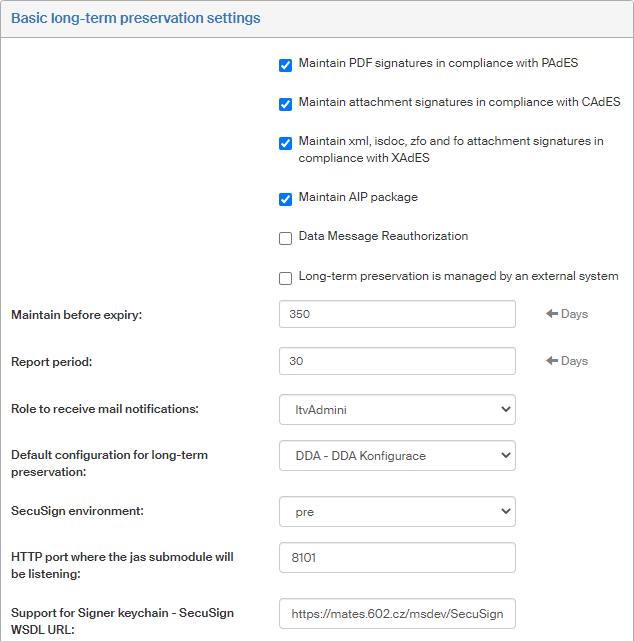
Set up which document types to include in long-term validity preservation in section Basic long-term preservation settings in the Settings screen ():
-
Maintain PDF signatures in compliance with PAdES – if checked, the process will preserve attachments of PDF type.
-
Maintain attachment signatures in compliance with CAdES – check to preserve all other document types by applying an external signature.
-
Maintain xml, isdoc, zfo and fo signatures in compliance with XAdES – if checked, the process will preserve the listed attachment types.
-
Maintain AIP package – if checked, the AIP package is preserved as set by the XAdES standard by applying a signature to the hashes of all relevant documents.
-
Data message reauthorization – check to reauthorize data messages that do not meet the CAdES standard.
Only a data message that meets the CAdES standard can be placed in the long-term archive. There are older data messages that do not meet the CAdES standard. These data messages can be sent for reauthorization that analyzes the document, validates it and provides the data message with a signature that meets the CAdES standard. For more information, see the DMIS operation rules (Provozní řád ISDS, in Czech).
If you check this option, data messages will be analyzed before entering the long-term preservation process and the messages that meet reauthorization criteria will be submitted to reauthorization. Only then they will be long-term preserved. -
Long-term preservation is managed by an external system – if this field is checked, an external system can determine whether to preserve documents and which ones.
-
Maintain before expiry – because it takes some time to maintain each document, a time interval must be set here to determine how soon before the expiry will the document be handed to the long-term preservation process to attach another time stamp. The recommended value in this field is 30–90 days, depending on the number of documents.
-
In field Report period, set up the frequency (in days) of e-mail messages with information from the long-term preservation process to be sent to users with the corresponding role. Select the corresponding role from the list in the next field, Role to receive mail notifications. The notifications will be sent to all users in the selected role. The period set up here is also reflected in the Statistics section. This period is used for the from-to interval to display current statistics.
-
The notification e-mails will only be sent to the users in the role selected in Role to receive mail notifications.
-
Default configuration for long-term preservation – select the outgoing document (MG_OUT) or LTA configuration.
-
SecuSign environment – select the environment to use (e.g. test or production, if there is more than one set up in FormFlow).
-
HTTP port where the jas submodule will be listening – enter the port number. Jas is a Java application that uses sdar sdk to work with signatures and time stamps in PDF documents, data messages and general internally or externally signed CMS files.
-
The configuration selected in field Default configuration for long-term preservation will be the default option when selecting configuration.
-
Enter the URL address for the web service where the corresponding SecuSign SDK server is running in the field support for Signer keychain - SecuSign WSDL URL.
Confirm by clicking Save changes.
Logging in to the DMIS to reauthorize data messages
Enter the login details to access the data mailbox in section Sign in DMIS in the Settings screen ().
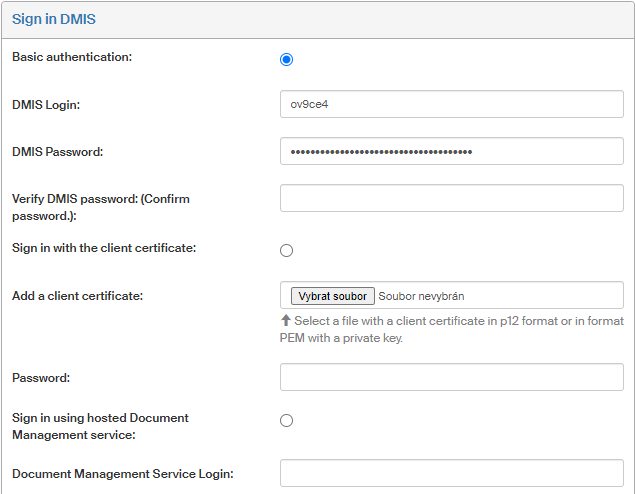
This setting will be used to reauthorize old data messages. A valid data mailbox is needed to reauthorize data messages If data message reauthorization is disabled, this section does not need to be set.
There are three ways of logging in to the DMIS: basic authentication (name and password), using a client certificate or using a hosted records management service. Start by selecting one of the options and then fill in the corresponding details.
-
Logging in using a name and a password: enter the DMIS Login and DMIS Password. Repeat the password for confirmation in the field Verify DMIS password.
-
Sign in with the client certificate: click Browse to look up the client certificate file. Enter the corresponding password in the Password field. To delete the certificate later, click the trash bin icon
 .
. -
Sign in using hosted Document Management service: enter the hosted service ID in the Document Management Login field.
Click Save changes to confirm the settings.
Connection test
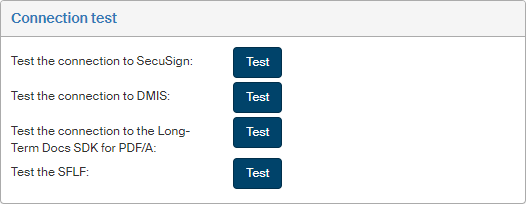
In section Connection test in the Settings screen (), use the Test buttons to test the connection to various services: SecuSign to manage time stamps, the Data Mailbox Information System (DMIS), the Long-Term Docs server used for converting documents to PDF/A and to the remote attachment store (SFLF).
Global PDF/A settings
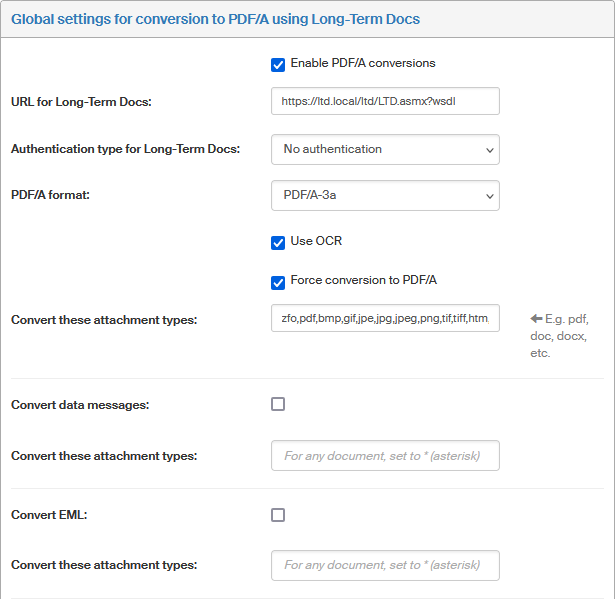
To view and edit the general settings for conversion to the archival format, PDF/A, visit the Global settings for conversion to PDF/A using Long-Term Docs section of the Settings screen (). These settings can be then adjusted individually for specific form templates.
-
Enable PDF/A conversions – check this field to globally enable conversions to the archival format, PDF/A.
-
URL for Long-Term Docs – enter the URL address of the conversion service.
-
Authentication type for Long-Term Docs – select one of the options No authentication, BASIC authentication or NTLM authentication. BASIC means simple authentication to access a website. NTLM (abbreviation of NT LAN Manager) is an authentication protocol used by some Microsoft Windows network protocol implementations to authenticate users or connections.
-
PDF/A format – select one of the PDF/A versions to be used in conversions.
-
Use OCR – if checked, the OCR (optical character recognition) technology is used during conversion to convert scanned images to text. The resulting text will be attached to the document.
-
Force conversion to PDF/A – if checked, all form attachments will be converted to PDF/A, regardless of settings in the form itself.
-
Convert these attachment types – list of file types to be converted to PDF/A. Other file types will be ignored on conversion. To convert all file types, enter an asterisk (
*). -
Check or uncheck the options Convert data messages and Convert EML to select whether to also convert incoming data messages and e-mail. You can also select which attachment file types to convert (Convert these attachment types) for each of the options.
Click Save changes to confirm the settings.