Record list
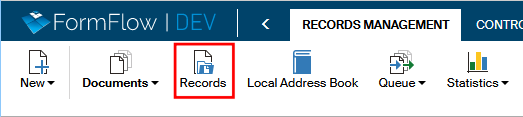
The Records section provides access to all records registered in the Electronic records management. Open it by clicking the button of the same name on the Records management tab.
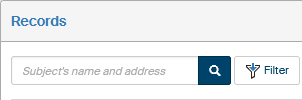
The records are organized in a table where each row corresponds to one entry (it is described in more detail in the next chapter, Record list). There are controls for filtering the data available above the table (for more details, see chapter Filtering).
Record list
The table with the list of records displays all records in the Electronic records management.
Every row corresponds to a record and the columns to individual details kept for the records.
Below the list you can find controls for browsing the list if there are more entries found than is the set page size. The total number of entries is located next to the controls. You can click  to update the total.

If there are preset filter sets to be displayed as labels, you can find them above the list next to the Filter button. Filter set settings are described in chapter Filter sets.
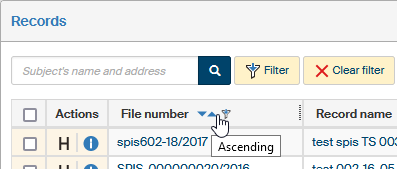
If there are not too many entries (the threshold is again set by the FormFlow administrator), you can order or filter them based on one of the table columns. You will find the corresponding controls in the header of each column. Set the order by clicking  Descending or
  Ascending. If there are too many entries, narrow the selection down using a filter.
A so-called column filter is available for quick filtration. Click the  button in the column header and use the field displayed to enter a part of the text contained in the column. The system immediately displays only those documents that match the filter.

| For a more precise search, use the filter tools described in chapter Filtering. |
The table itself contains checkboxes for bulk operations (they are described in more detail in the following chapter Bulk operations on records), the Actions column with several buttons and, in the rest of the columns, details of the individual entries.
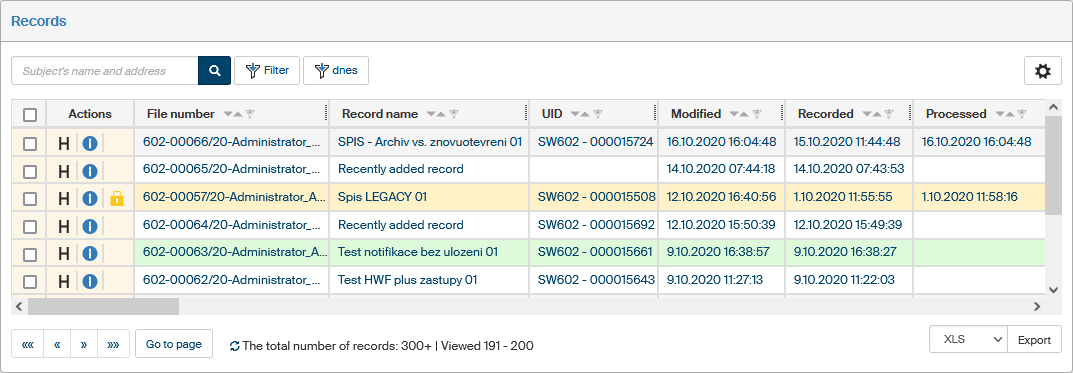
Buttons in the Actions column provide the following features:
-
 display the record history, meaning information who and when created the form, filled it out, read, finished, etc.
 -
 display the list of all record metadata.
 -
 the record is on another user’s desk, but you can click to take it over.
Displaying other details (metadata) is optional; you can set their visibility and order in the filter (described in chapter Columns).
Displayed details:
-
Record name, UID, File number – record identification details.
-
Several time stamps related to record processing:
-
Modified – date and time of the last change in the record.
-
Recorded – date and time the record was entered in the records management system.
-
Processed – date and time the record was processed.
-
Finished – date and time the record was finished.
-
-
Users taking part in the record life cycle:
-
Processor – user responsible for processing the record.
-
Finished by – user who marked the record as Finished.
-
-
Processing time – number of days since document creation to its processing or until now if it has not been processed yet.
-
Completion time – number of days since document creation to its finishing or until now if it has not been finished yet.
-
Status – current processing status.
-
Lent to, Lent from, Lent until, When the lent document/record was returned – details of document/record lending.
-
Shredding year – the year to run shredding.
-
Processing method, File plan code, Retention code, Retention period, Record format, Physical location>, Conversion to paper, Attached subject, Rec., Labels, Category, Entity, To finish – other details on the record keeping and processing (see also chapter Record processing).
Click a field with record identification details to open the corresponding form and view or edit it.
Bulk operations on records
The Bulk operations window
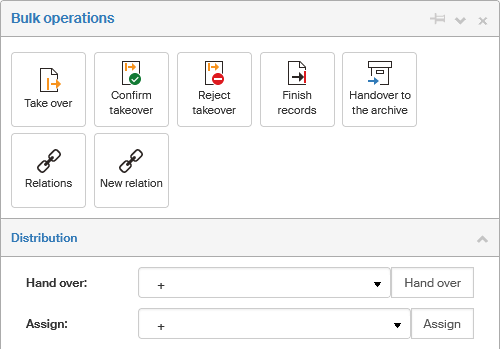
Check the box in the leftmost column for one or more table entries to display a floating window with a list of operations you can run for all the selected records at the same time.
-
Takeover – click to take over the processing for all selected records.
-
Confirm takeover – if the selected records have been handed over to you, click this button to confirm taking over all of them.
-
Reject takeover – if the selected records have been handed over to you, you can click this button to reject taking over all of them.
-
Finish record – change the status of all selected records to Finished.
-
Handover to the archive – if the record is finished, it will be stored in the Archive.
-
Relations – displays a list of relations along with information who created the relation and when.
-
New relation – marks the selected document as primary and allows creating a new relation.
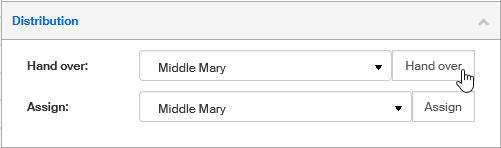
The Distribution section provides the option to change the officer – the person responsible for the record. Select the officer from the list and click Hand over or Assign to pass them all selected records. If you have selected Hand over, the usual handover procedure follows, meaning that the selected user must confirm taking over the record, and they have the option to reject it. If you have selected Assign, the officer change is applied immediately.
Exporting a record list
A list of records based on the current filter can be exported to file and then processed in other software: the available formats include CSV, PDF, XML, XLS, XLSX and HTML. The export controls are not in the Bulk operations window but below the table of records. Select the target format in the first field, then click Export to confirm the operation. The system will offer you the resulting file for download.