Using the Sofa add-in in Word and Excel
The Sofa add-in controls are displayed after installation on both applications' toolbars.
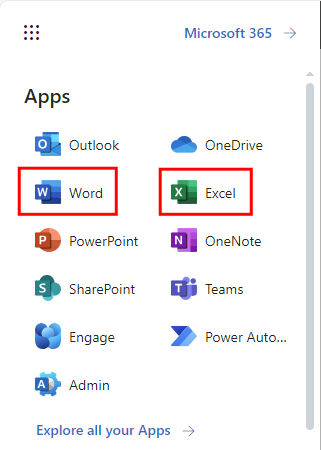
Let us start with the web interface. Run one of the Office applications, for example Word (click the button with nine dots in the upper left corner of the window and select Word).
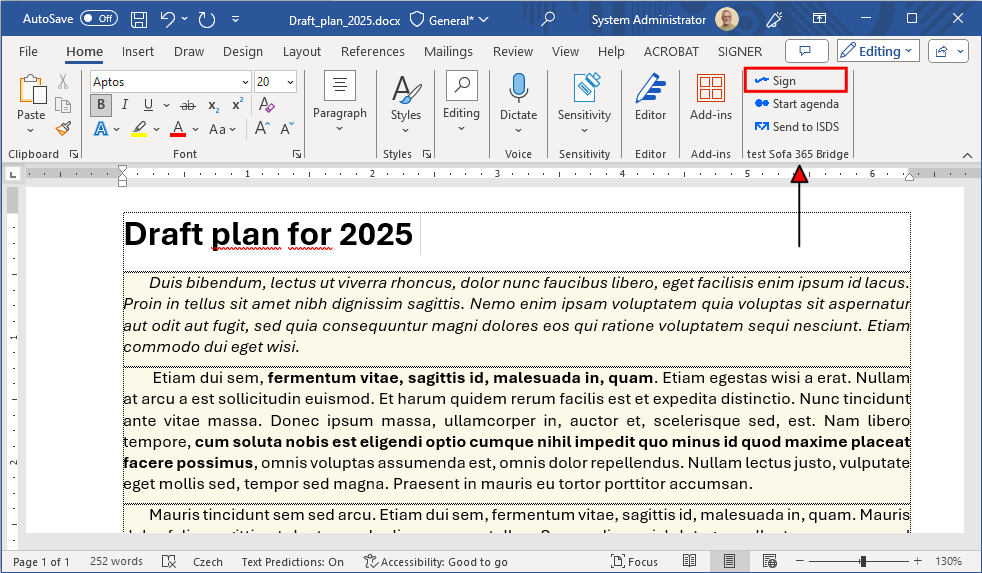
The Sofa add-in controls should be directly visible on the right of the Home tab, in the Sofa section.
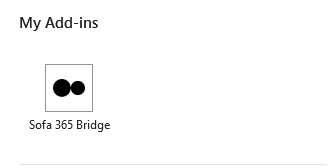
If the add-in is not visible for some reason, go to the Home tab and select the button in section Add-ins. In My add-ins, select Sofa.
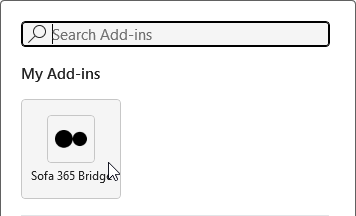
The desktop Word setup is similar.
If you add the add-in to Word, it will be automatically available in Excel too (and the other way around). This applies to both web-based and desktop versions. In Excel, a new section Sofa with three controls is added to the Home tab as well.
List of required permissions
To set up permissions for the Sofa app, you need administration permissions. If you apply the setting to the whole organization, the application will gain access to the resources for all users in the organization. This means that no other users will be prompted to set up or check the permissions.
If you accept the permissions, the Sofa add-in will be able to use your data as listed in:
-
The license agreement (https://www.602.cz/eula).
-
The personal data protection declaration (https://www.602.cz/gdpr).
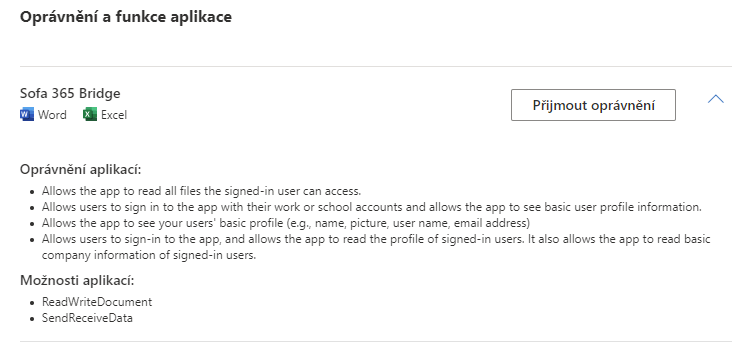
The Sofa add-in needs the following permissions:
-
Allows the app to read all files the signed-in user can access.
-
Allows users to sign in to the app with their work or school accounts and allows the app to see basic user profile information.
-
Allows the app to see your users' basic profile (e.g., name, picture, user name, email address).
-
Allows users to sign in to the app, and allows the app to read the profile of signed-in users. It also allows the app to read basic company information of signed-in users.
Additionally:
-
The app includes the capability ReadWriteDocument to read and write documents.
-
The app includes the capability SendReceiveData to send and receive data.
When deploying the app, you need to allow the following:
-
Read all files that user can access.
Allows the app to read all files the signed-in user can access. -
Sign in and read user profile.
Allows users to sign in to the app, and allows the app to read the profile of signed-in users. It also allows the app to read basic information on the company of the signed-in user. -
Maintain access to data you have given it access to.
Allows the app to display and update the data you have given it access to, even while the users are not actively using the app. This does not give the app any additional permissions.