Connection for email
A connection to Microsoft 365 for email accounts can be either OAuth 2.0 or SMTP:
-
The OAuth 2.0 type is used to create a connection with trigger events set up.
-
The SMTP type is used when configuring outgoing mail.
In both cases you need to know the organization’s Tenant ID. This value can be generally found at the Microsoft Entra admin center portal (at https://entra.microsoft.com) – for more details, see chapter How to get organization’s Tenant ID.
OAuth 2.0 access settings
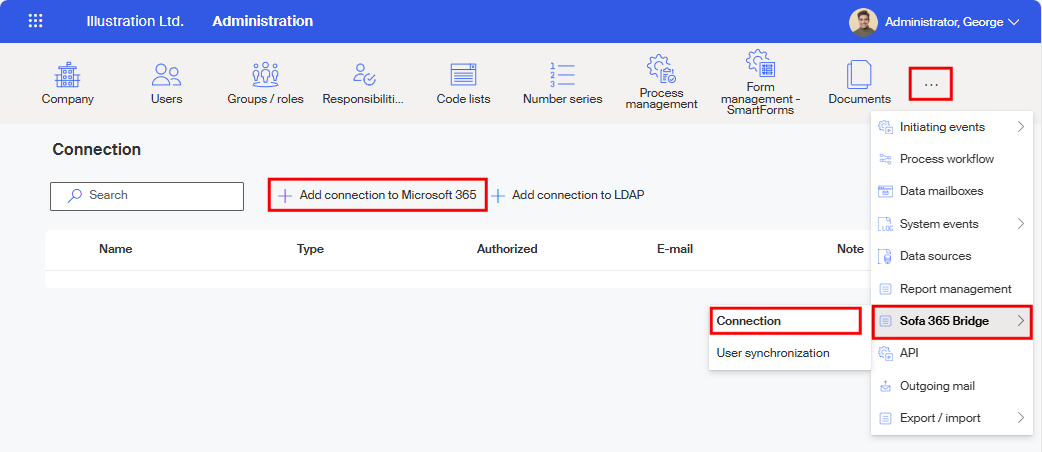
In Administration, select Sofa 365 Bridge and, in the following menu, select Connection.
On the toolbar in the Connection window, select + Add connection to Microsoft 365.
Fill out all mandatory entries in the New connection window. In Name, enter the connection name that will be used when displaying the connection in lists.
The default Identifier is created from the Name, but you can adjust it to a preferred string.
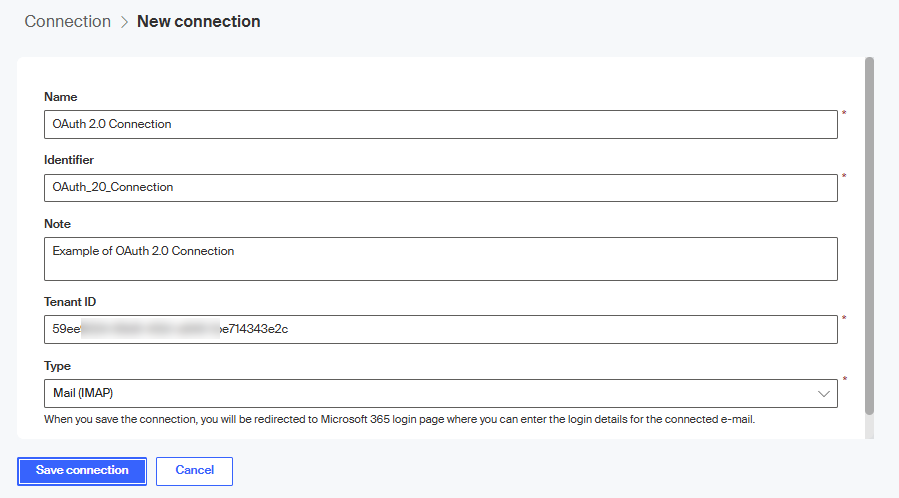
Enter your organization’s tenant ID in the Tenant ID field.
The Type field offers the following options: eToken, Mail (IMAP), Mail (SMTP), Microsoft Entra ID (Azure AD), Single Sign-On (SSO) and SharePoint. Select Mail (IMAP).
When you have entered all needed details, select Save connection.
As the next step, you will be typically redirected to the Microsoft 365 login dialog, where you need to use the name and password to the email account for which you are setting this trigger event.
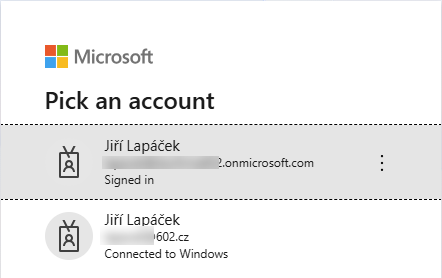
Depending on your authentication settings, another dialog might be displayed for a second factor authentication, for example using biometric data.
If this is your first time logging in, you need to check Consent on behalf of your organization in the following query Permissions requested. This will give the Sofa Imap app access to the listed resources for all users in your organization. This means that no other users will see this prompt to grant permissions.
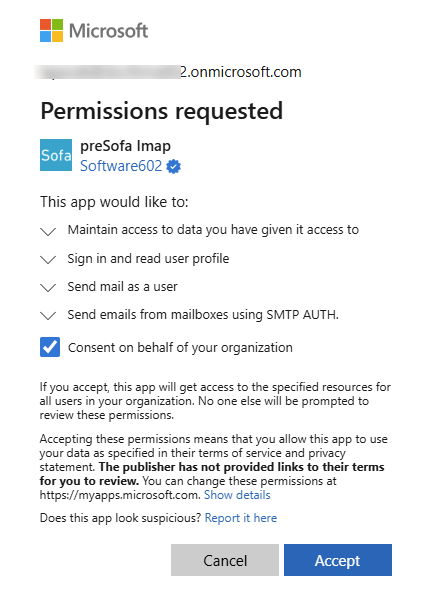
Select Accept to register and authorize the connection.
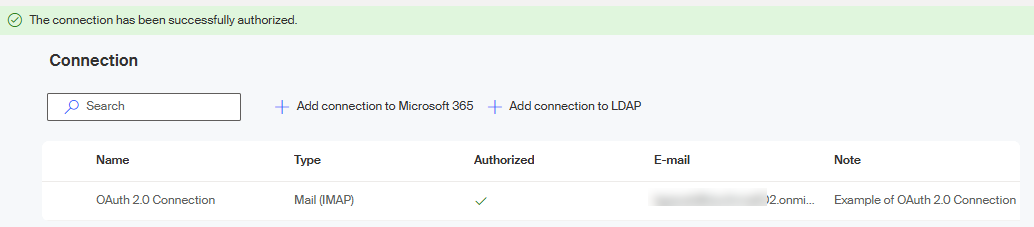
A successful authorization is announced by the message The connection has been successfully authorized in a green strip.
SMTP access settings
In Administration, select Sofa 365 Bridge and, in the following menu, select Connection.
On the toolbar in the Connection window, select + Add connection to Microsoft 365.
Fill out all mandatory entries in the New connection window. In Name, enter the connection name that will be used when displaying the connection in lists.
The default Identifier is created from the Name, but you can adjust it to a preferred string.
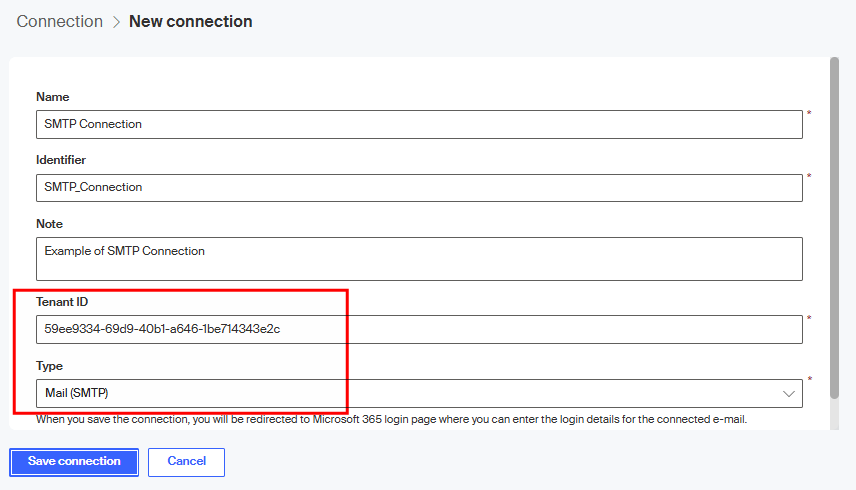
Enter your organization’s tenant ID in the Tenant ID field.
The Type field offers the following options: eToken, Mail (IMAP), Mail (SMTP), Microsoft Entra ID (Azure AD), Single Sign-On (SSO) and SharePoint. Select Mail (SMTP).
When you have entered all needed details, select Save connection.
As the next step, you will be typically redirected to the Microsoft 365 login dialog, where you need to use the name and password to the email account for which you are setting this trigger event.
Depending on your authentication settings, another dialog might be displayed for a second factor authentication, for example using biometric data.
If this is your first time logging in, you need to check Consent on behalf of your organization in the following query Permissions requested. This will give the Sofa Imap app access to the listed resources for all users in your organization. This means that no other users will see this prompt to grant permissions.
Select Accept to register and authorize the connection.
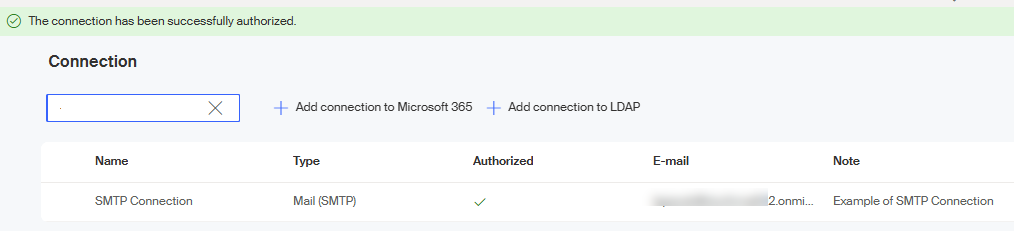
A successful authorization is announced by the message The connection has been successfully authorized in a green strip.